System Setting
1. Setting Mode
Enter the main menu, touch icon to enter
Setting Mode, as below .
Touch icon to exit.
1. Background Picture
In the setting menu, touch icon to enter
background picture menu.
You can change the background picture use the
picture which are stocked in your GPS card!
2. Time Setting
Touch key to enter time setting.
Touch the associated icon on the screen to adjust
the time setting.
Time Mode:
12 HOUR MODE: The clock displays in the type of
12 hours such as 11:18 AM.
24 HOUR MODE: The clock displays in the type of
24 hours such as 20:18.
3. General Setting
Touch key to enter general setting.
Touch the associated icon on the screen to adjust
the general setting.
Language: Touch key to enter language
setting, and select different language to switch the
OSD language.
Screen Saver: Touch to enter screen saver
setting menu.
Change other items, and adjust associated setting.
For example, if you set the waiting time is 30
seconds, when there is no any operation of the unit
more than 30 seconds, the unit will enter screen
saver menu automatically.
Beep: Touch icon, the means the beep
is on, and the means the beep is off.
Lighting Detect: Touch icon, the means
the function is on, and the means the function
is off.
4. Bluetooth
Touch to enter Bluetooth setting menu.
Change other items, and adjust associated setting.
Auto Connect: After disconnecting with your mobile
phone, the built-in Bluetooth Will send connection
order automatically.
Touch icon, the means the auto
connection is on, and the means the function
is off.
9
EQ Operations
Audio control allows you to easily adjust the audio
system to get the best possible sound effect.
EQ Operations
In the Radio, DVD, Bluetooth audio and other
modes, you can find the , touch this key to enter
EQ setting.
For example, in Radio menu
In the Radio menu, touch icon or press the
key on the front panel to enter EQ setting menu.
In the EQ setting menu, touch the two / icon
to set your desired effect.
In the EQ setting menu, touch the icon to return
to default character and default mode.
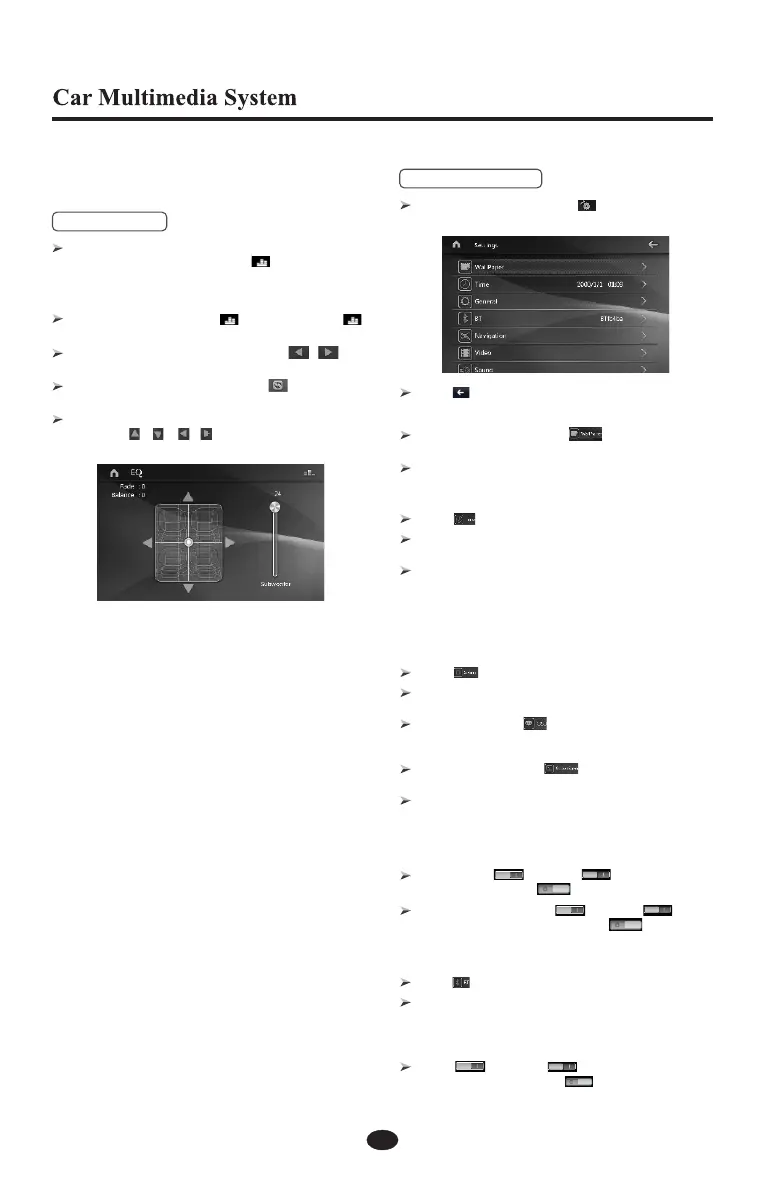
In the EQ setting menu, move on the control bar or
touch the / / / icon to set your desired
character.


 To Next Page
 Loading...