S MARTA PPLETS INSTALLED ON THE NEO 2
Using the MathFacts in a Flash (Offline) SmartApplet
30
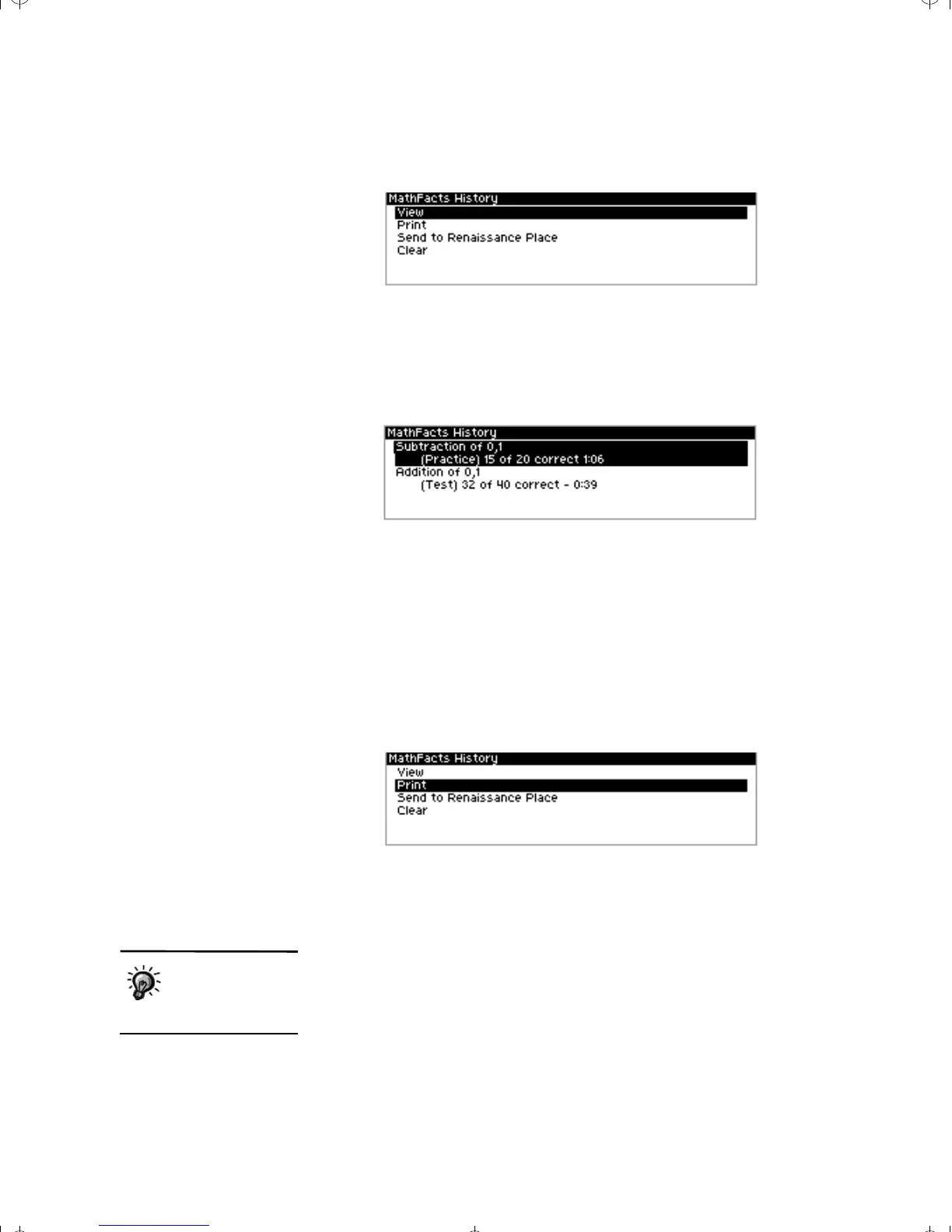
NEO 2
Quick Guide
3. Leave View highlighted and press enter.
4. The next screen lists the activities you’ve done so far, including the level
name, whether it was a practice or test, the number of problems you
answered correctly, and the time you took.
To see the full results for an activity (including a list of problems you
answered incorrectly), use the arrow keys to highlight the activity; then,
press enter.
5. When you have finished viewing full results for an activity, press enter or
esc to go back.
Printing the History, Clearing It, or Sending It to Renaissance Place
Students follow these steps to print or clear the history or to send it to
Renaissance Place.
1. Open the MathFacts (offline) SmartApplet (see page 27).
2. Use the arrow keys to highlight History; then, press enter.
3. You will see the MathFacts History screen:
Use the arrow keys to highlight one of the options; then, press enter. Go
to the steps for the option you chose.
Printing the History
a. First, you may be asked to either select a network or to confirm
whether you want to stay connected to the last network you selected.
(Networks are Renaissance Receivers connected to computers.)
Choose a network or answer the question; then, press enter.
To change the name
of the Renaissance
Receiver (network),
see page 11.
Neo2QuickGuide.book Page 30 Thursday, January 31, 2013 1:58 PM


 To Next Page