1. Tap on the Navigation view to access
the Navigation menu.
2. Tap and . .
iGo map Operation
3.1.3.3 Searching by name
To search for a Place by name, browse the various Place
categories, or use the mixture of the two search types,
perform the following steps:
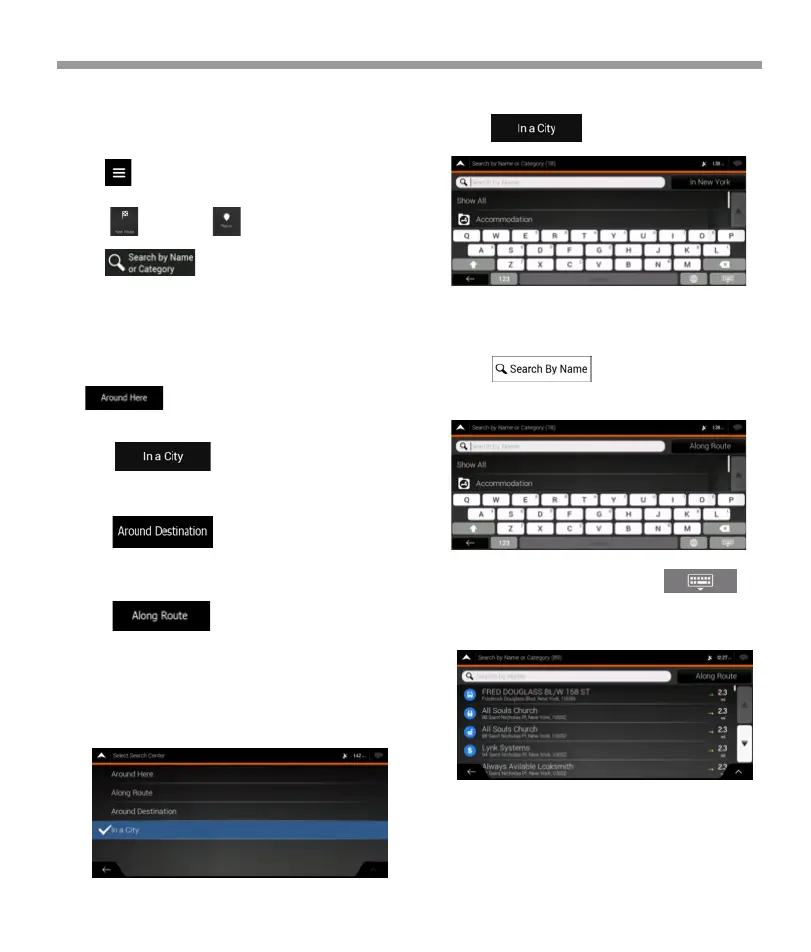
Tap to search for a place within a
selected town. (The result list is ordered by the
distance from the centerof the selected town.)
Tap to search for a place around
the destination of the planned route. (The result
list is ordered by the distance from the destina-
tion.)
Tap to search along the planned
route, and not around a given position. This is
useful when you search for a later stopover that
results in a minimal detour only, such as
searching for upcoming gas stations s or
restaurants. (The result list is ordered by the
length of the necessary detour.)
5. (optional) If you have selected , select the town to
search in . .
You can search for the name of a Place in all catego-
ries by performing the following steps: .
1. Tap . Using the keyboard, start
entering the name of the Place or browse in the
categories. .
2. After entering a few letters, tap to
open the list of Places or Place categories with
names containing the entered character
sequence.
3. Browse the list, if necessary, and tap the desired
list item. A full screen map appears with the
selected point in the middle. The name and
address of the Place is displayed at the top of the
screen.
4. The process continues the same way as in case
of any other Places search.
3. Tap to open the Search By Name
or Category window.
4. Select the area around which you would like to
search for the Place. By default, the search area is
around the current position (or if it is not available,
around the last known position). In this case, the
result list is ordered by the distance from this position.
Tap to select one of the following search
areas:
48


 To Next Page
 Loading...