iGo map Operation
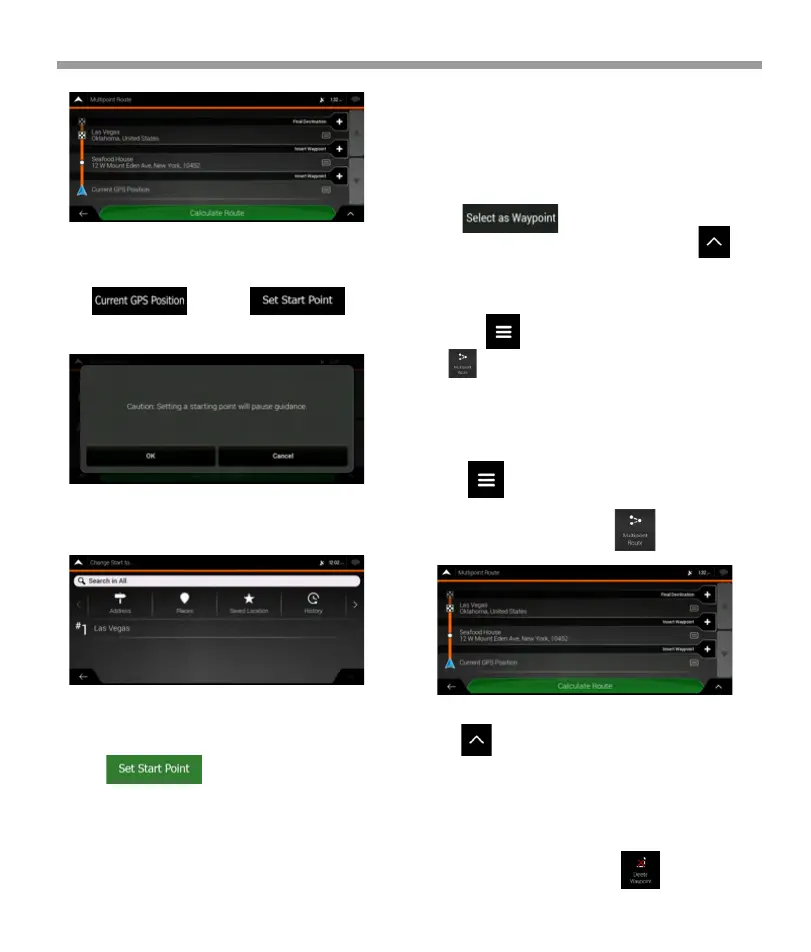
3. The first line from the bottom is the start of the
route, normally the current GPS position.
Tap , select , and
confirm your action at the warning message.
* Tap the map anywhere to browse it.
After selecting the location on the map, tap and
to add the selected location to your route as an
intermediate destination. The other destinations of
the route remain intact.
* Tap on the Navigation view and
tap . Add a destination to your route as
described.
You have the following options on this screen:
*Tap to delete all the destinations, or
optimize the waypoints or the route.
*Tap the name of the intermediate destination to
move it up or down in the list, to save the location, or
to delete it from the list.
*If you have a route with at least one intermediate
destination, you can delete the waypoint from the list
r
ight from the Main menu. Tap , then confirm
the deletion.
3.3.2 Adding an additional destination
If you already have a planned route and you select a
new destination as described in the above sections,
the route to the previous destination is deleted and a
new route is calculated. To add a new intermediate
destination to the planned route, perform one of the
following actions:
3.3.3 Modifying the list of destinations
To edit your route, perform the following steps:
4. The Change Start to... screen appears. Select the
starting point of the route the same way you select a
destination.
5. You can see the new starting point on the map.
Tap and the Multipoint Route screen appears where
you can continue adding a destination to your route.
6. Tap to continue. The route will be
saved with the starting point that you have just set.
You can use the saved route later to plan a route.
1. Tap on the Navigation view to access
the Navigation menu.
2. In the Navigation menu ,Tap .
56


 To Next Page
 Loading...