iGo map Operation
Note:
In Saved Locations, Home and Work cannot be
renamed. To change your home or work
location, tap or ,
and confirm the address change.
Note:
IThe warning for road safety cameras is
disabled when you are in a country where road
safety camera warning is prohibited. However,
you must make sure that using this feature is
legal in the country where you intend to use it.
3.Tap and .
4. Tap the location you want to edit,
tap and enter the name of the l
ocation on the keyboard, then tap .
Adding a location to the list of saved locations is
described on page
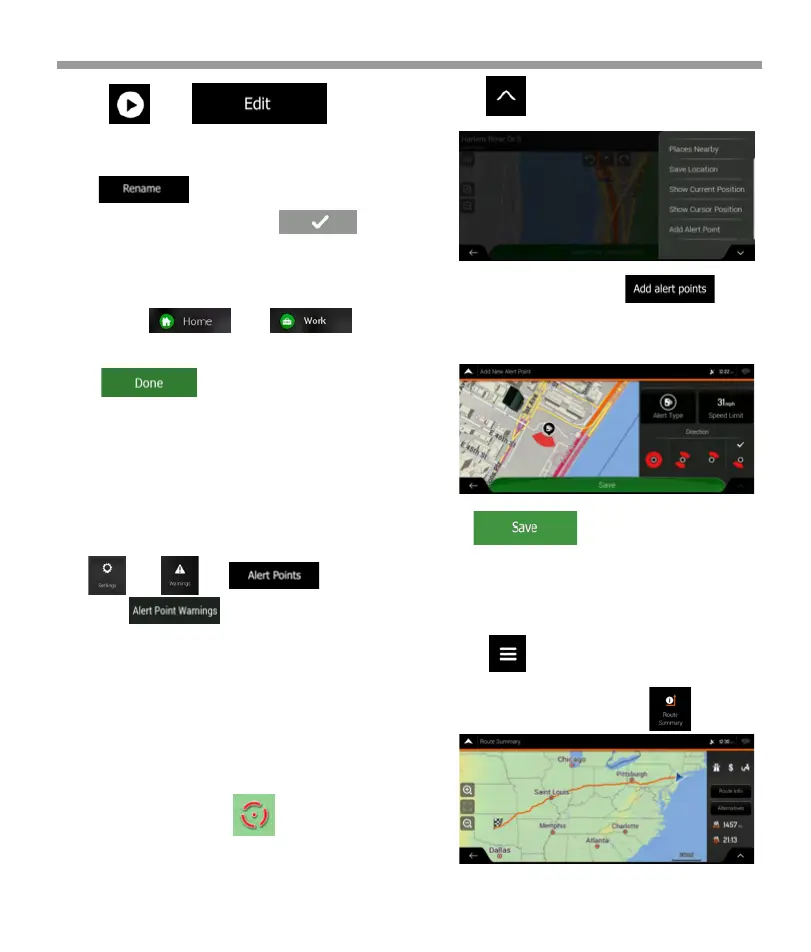
1. If you would like to save an Alert Point for the
first time, switch on the . In the Navigation menu,
tap , , then .
Switch on and confirm your
selection.
2. Return to the Navigation view, and select the
Alert Point. The red cursor ( ) appears there.
3.5 Adding an Alert Point
You can save any map location as an Alert Point,
for example a speed camera or a school zone.
3.6 Running a Simulation
To run a simulated navigation that demonstrates the
planned route, perform the following steps:
5. Tap .
3. Tap .
4. Scroll down the list and tap
5. Select the type of the Alert Point, the direction from
which you expect the alert, and (if applicable) the
speed limit for this Alert Point.
6. Tap to save the location as a new
Alert Point.
1. Tap on the Navigation view to access
the Navigation menu.
2.In the Navigation menu, tap .
61


 To Next Page
 Loading...