01
1. APP download process description
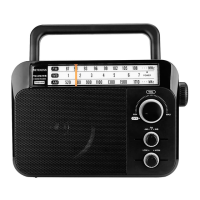
1) Step one : Turn on the TR113 radio and at the same time, turn on the user's own mobile phone.
2) Step 2: Download the APP (if you already have our APP software Radio-C, you do not need to re-download it, you can click to
connect to the product named " Retekess-TR113 " and connect), the specic steps are as follows :
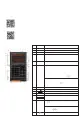
A: For Android and Hongmeng system phones, please scan the following QR code to install the APP
Android and Hongmeng system phones suppo "scanning" this QR code with the browser on the phone to install the APP. For detailed
operations, please refer to 2.1.
Android and Hongmeng system phones suppo APP installation using the "WeChat scan" QR code on the phone. For detailed operations,
please refer to 2.2.
B: To install on Apple system mobile phones, please go to the "APP Store " and search for the name "Radio-CT " to download.
You can also scan the QR code below to enter the APP Store inteace to download.
2. APP usage inteace description
2.1 Symbol description of the operation inteace
Button function description
Signal-to-noise ratio display
Noise reduction level setting:
In SW/CB/VHF/UHF/AIR working mode, tap the [SQL]
position on the APP inteace to display SQ level setting:
0, 1, 2, 3, 4, 5, 6, 7, 8 , Level 9, users can directly "click" the
corresponding value to make a selection.
KHZ,MHZ
MEMO
View device version number
Batte indicator
Radio frequency display, working mode display
Frequency unit
Edit frequency name: long press this location and enter the
current frequency name according to the language prompts.
For example, FM99.1MHz.
Retrieve the station: Tap to enter the retrieval mode, press
the button to select the corresponding station; you can
also click the number keys and then press the [EN] key to
conrm.
Play & pause button
ITEM
Symbol
Bandwidth
1
Bandwidth display
2
SNR
3
Signal strength display
RSSI
SQL
4
Band FM
Band indication: Tap this symbol to quickly select FM, AM,
SW, AIR, CB, UHF, WB, VHF band.
5
Present
Press the [MEMO] button lightly, "present" will appear in the
normal display state, and enter the station retrieval mode: in
the numeric keyboard area, tap the corresponding number
key to retrieve the memorized station, and then press the
"EN" key to conrm. If you press the numeric keys and the
display [PRESET--] ashes, it means that the station number
you clicked does not have a corresponding stored station.
At the same time, you can also press to select the
station number.
Long press the [MEMO] button, "Present" ash item means
entering the manual save mode. After selecting the target
frequency point, press and hold the [MEMO] button until
"Present" ashes. Press to select the address number
to save the station. Press and hold the [MEMO] button to
conrm, and manual saving of the station is completed.
6
Manually access radio stations: Find the target frequency,
long press the [MEMO] button, the "Present" symbol ashes,
then press the button to select the station you want to
save, and then lightly press the [MEMO] button to save it.
7
8
9
10
11
12
13


 To Next Page