The Ricoma Luminaris 200 is a white toner transfer printer designed for producing high-quality color prints that can be transferred onto a variety of soft and hard surfaces. It utilizes a unique 5-toner cartridge system, including an exclusive fluorescent white cartridge, alongside standard CMYK (cyan, magenta, yellow, and black) cartridges. This allows for versatile printing applications, from everyday office documents to specialized garment and hard surface transfers.
Function Description:
The primary function of the Luminaris 200 is to enable transfer printing with white toner. This is achieved through its unique cartridge remapping capability and the accompanying LuminRIP software. Users can print white as an underprint or an overprint in a single pass, which is crucial for achieving vibrant colors on dark or clear media. The printer also functions as a standard office printer by allowing users to swap the white toner cartridge for a black toner cartridge.
The LuminRIP software is central to the printer's advanced capabilities. It provides comprehensive control over the printing process, including image manipulation, cutting, and color management. Key features of the software include:
- Oversized Image Printing: The "Split" tool allows users to print images larger than a single sheet of media by automatically finding optimal cut points and splitting the design across multiple pages.
- Layer Control: The software enables users to control individual color layers, allowing for precise white underprint or overprint application.
- Print Queues: Three distinct print queues are available:
- Standard CMYK Queue: For regular office printing on white media, where white toner is not required.
- Spot Color Overprinting Queue: For reverse printing applications, typically used for textile and hard transfer printing. In this configuration, white toner is placed in the first slot and applied on top of other colors.
- Spot Color Underprinting Queue: For right-side printing, used for transparencies, clear labels, and dark media. White toner is placed in the last slot and applied as an underprint.
- Image Editing Tools: The LuminRIP software includes tools for cropping, duplicating, adjusting colors, inverting, resetting, and removing ink, as well as dimension and placement tools.
The printer supports a wide array of media for transfer, including natural and synthetic fabrics (light and dark), mugs and ceramics, light/dark/clear labels, leather, light and dark paper stock, glass, acrylic, wood, metal, window clings, and banners.
Important Technical Specifications:
- Print Speed:
- Up to 8 pages per minute (ppm) on transfer media.
- Up to 26 ppm on standard media.
- Processor: 350 MHz
- Memory: 256 MB
- Resolution: 2400 x 600 dpi
- Emulation: PostScript 3™
- Operating Systems: Standalone and network - Microsoft Windows® 7/8/10 (x32 & x64).
- Interfaces: 10/100-TX Ethernet, Wireless LAN, High-Speed USB v2.0.
- Paper Capacity:
- Standard: 251 sheets (handles transfer media, card, and mailing label stock).
- Paper Cassette: 251 sheets (Legal/Letter/Universal).
- Paper Sizes (Min. To Max.):
- Bypass Tray: 3" x 5" to 8.5" x 14".
- Paper Cassette: 5.8" x 8.3" to 8.5" x 14".
- Paper Weight:
- Bypass Tray: 16 lb. bond to 43 lb. index (60 to 163 gsm).
- Paper Cassette: 16 lb. bond to 43 lb. index (60 to 163 gsm).
- Printer Size (WxDxH): 15.7" x 17.7" x 13.1" (400 x 450 x 334 mm).
- Printer Weight: 55 lb. (25 kg).
- Power: 120V with Transformer and 230V.
- Duty Cycle: Up to 65,000 pages per month.
Usage Features:
- Control Panel: Features buttons and icons for printer operation and status display, including Wi-Fi Direct, Stop/Start, Job Reset, Menu, Scroll, OK, NFC, Power, Back, Alert Indicator, and Data In Indicator.
- Paper Loading:
- Tray 1 (Main Tray): Holds up to 250 sheets. Features adjustable paper guides and an extendable tray for longer media (up to 14 inches). Media is loaded print side up.
- Bypass Tray: For single-sheet loading with the print side down in the short-edge feed direction. Not available in Energy Saver mode.
- Connectivity: Supports USB, Ethernet, and Wireless LAN (Wi-Fi).
- Wireless Setup: Easy setup via Wi-Fi Setup Wizard, WPS Button, or PIN Code method using the control panel.
- LuminRIP Software: Provides an intuitive interface for managing print jobs, image editing, and printer settings. Allows selection of print modes (Overprint, Underprint, CMYK) and automatic media settings.
Maintenance Features:
- Toner Cartridge Replacement:
- The printer uses 5 toner cartridges (CMYK + White/Black).
- Cartridges are accessed by opening the top cover.
- Users are advised to gently shake new cartridges 5-6 times to loosen toner.
- Specific replacement instructions are provided for each toner color based on printer display messages (e.g., "Replace Toner: (X)").
- It is recommended to use genuine Ricoma consumables to prevent damage and ensure smooth operation.
- The black and white cartridges cannot be installed simultaneously; only one can be used at a time depending on the desired configuration.
- Caution is advised to avoid touching the drum or ID chip on the cartridge and the laser scanning unit during replacement.
- Waste Toner Bottle Replacement:
- The waste toner bottle collects excess toner during printing.
- Replacement is indicated by messages like "Replacement Required: Waste Toner Bottle."
- The transfer unit must be removed to access the waste toner bottle.
- Users are cautioned not to tilt the bottle to prevent spills and to spread paper towels to protect the workspace.
- Cleaning:
- Toner Density Sensor and LD Unit Dust Shield: Cleaned when the "Density Sensor Requires Cleaning" message appears. Involves removing the print cartridge and wiping dust shield glass with a damp cloth.
- Registration Roller: Cleaned if white dots appear on prints or if prints smear after a paper jam. Involves turning off the printer, opening the front cover, and wiping the roller with a soft damp cloth. Chemical cleaning fluids are not recommended.
- Paper Jam Removal:
- Detailed instructions are provided for removing paper jams from various locations, including inside a tray, the transfer unit, and the fusing unit.
- Users are warned about hot internal components and fragile sensors/connectors.
- Careful removal of jammed paper is emphasized to prevent tearing and further damage.

 Need help?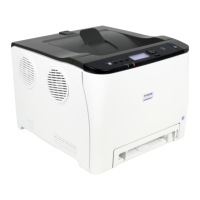

 To Next Page

 General