you need this secret password when
you unhide it. You can also modify
the content without a secret
password.
You can also choose not to set a
secret password when hiding.
Digital output.
Shows if the server is connected
successfully.
1: Successfully connected to
the MQTT server
0: The module is not triggered
or is connecting to the server
Analog output.
The status code of the connection
server.
2: Connecting to the target server
3: MQTT PING is sending PING
packet
5: Disconnect
20: Resolving domain name
21: Domain name resolution
successful
22, 23, 24: Domain name
resolution failed
50: Connection failed
255: The connection is successful
You may now use the MQTT function blocks in your
xLogicsoft program.
Setting Up MQTT Server Example
This document uses Baidu Cloud as an example. Different
MQTT servers may have different setup methods.
1. Enter Baidu Cloud's MQTT server and create a data-type
project.
Follow step by step instructions according to the
requirements of the MQTT server, set parameters such as
Name, Password, and topic. Finally, the MQTT server will
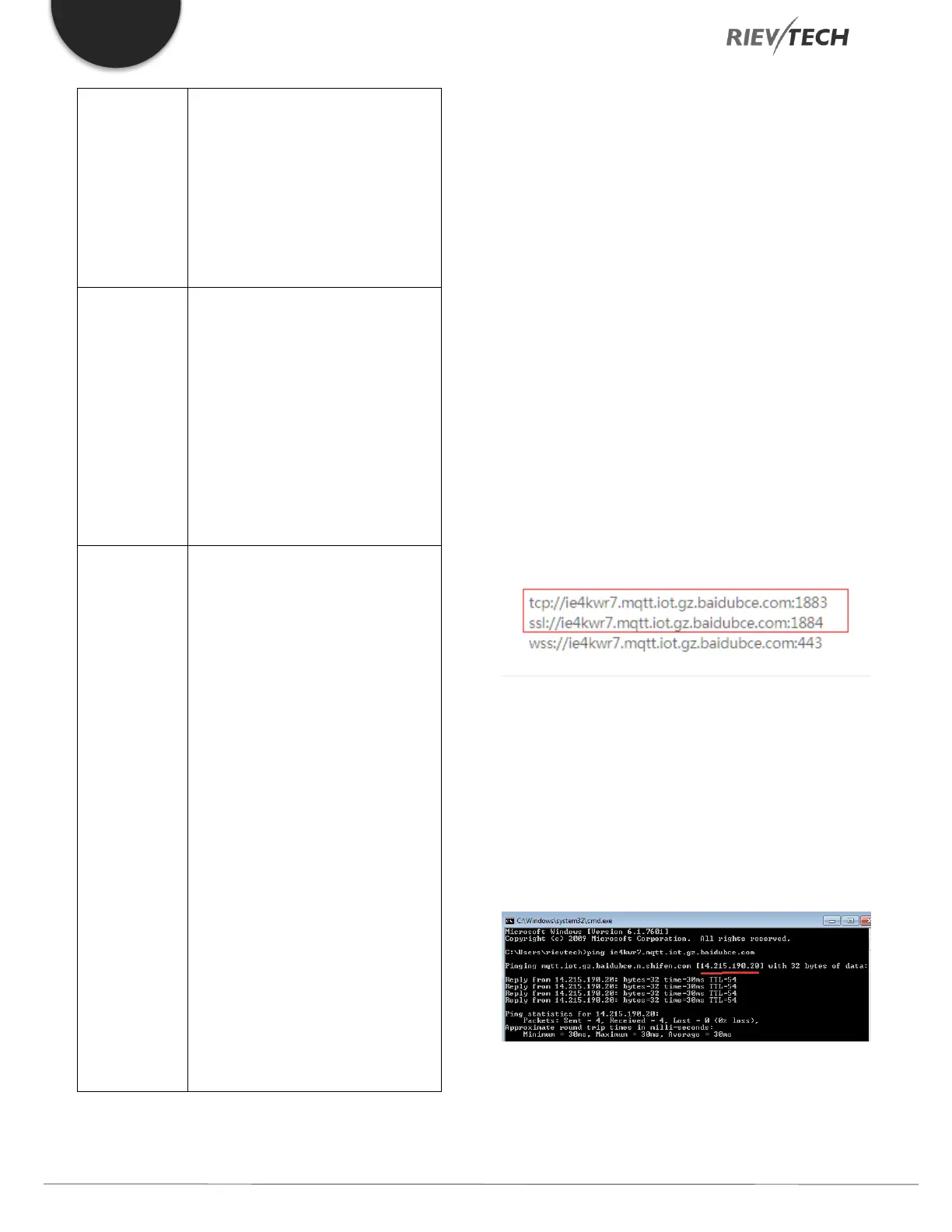
tell you the domain name and port of your MQTT server,
as shown in the example below:
In the red box above, the above method (TCP ://...) is the
domain name and port of the unencrypted transmission
method. The following method (SSL ://...) is the domain
name and port of the SSL encryption transmission method.
2. You can use the following method to find the IP address
of the MQTT server.
Fill in the IP obtained in the above figure into the Connect
to MQTT Server block, as shown below:


 To Next Page
 Loading...


