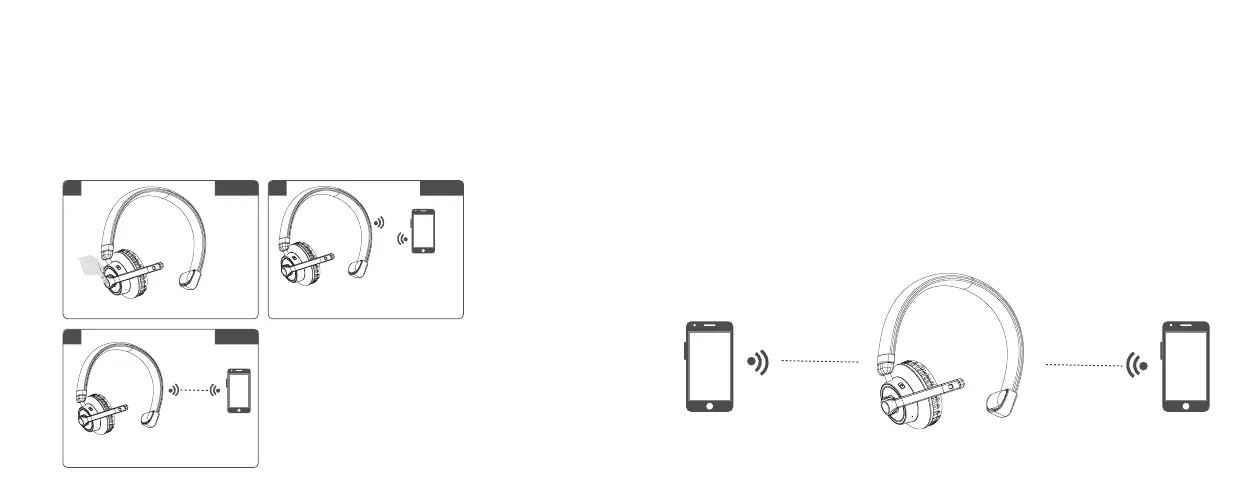
3 | BLUETOOTH PAIRING AND CONNECT
A. In power off status, Press and hold Multi-function button 3 secons to enter into
pairing mode, blue and red LED ashes alternately.
B. Turn on the phone’s Bluetooth function, search “RKING950” Bluetooth device,
click “RKING950” to connect. After pairing successful, LED light turns to Blue and
ashes once for three seconds, you can now listen to music and have phone func-
tion via the headset.
3.1 | ONE PAIRING TWO DEVICES
A. After pairing the rst device, turn off the rst connected device’s Bluetooth function
temporarily.
B. Press and hold MFB to turn off RKING950. Then press and hold MFB 6 seconds to
enter into pairing mode blue and red LED ashes alternately.
C. Open the second phone’s Bluetooth function, search “RKING950” Bluetooth device,
click “RKING950” to connect. After pairing connection successful, LED indicator
light turns to blue, and ashes slowly.
D. Turn on the rst phones’ Bluetooth function, found in the history of “RKING950” click
and connect. (some phones will automatic connect).
4 5
1
Setting
Press and Hold the MFB for 3 seconds turn on RKING950
3
Connect
Connected Successful
2
Pairing
In power off status, Press and hold
MFB 3 seconds to enter into pairing
mode, blue & red LED flashes alternately.
Turn on the cellphone,
speaker, etc. Bluetooth
function, and enter into
pairing mode.


 To Next Page