Page \ 3
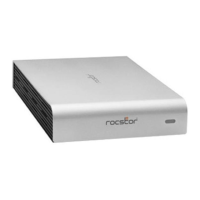
ROCSTOR | EAGLEROC E9 quick installation guide
*You may also refer to the Rocstor website to view or download a full version of the Eagleroc E6 manual.
www.ROCSTOR.com
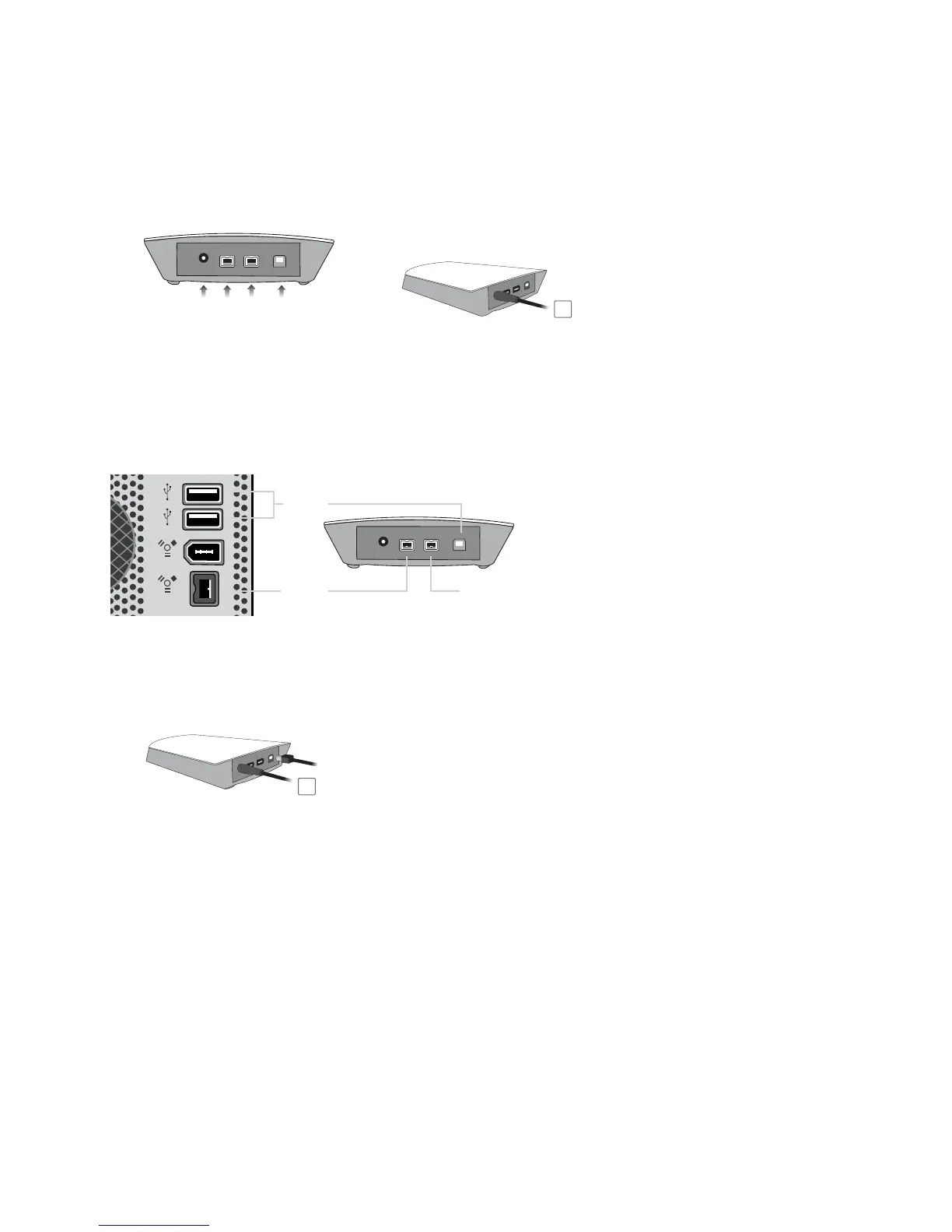
Connecting the Drive
1. Turn ON your computer and wait until it fully boots up to load all programs.
2. Connect one end of the Adaptor cord directly to the Eagleroc and the other end to an AC outlet, surge
protector or battery Backup (UPS).
3.
Using only one interface cable at a time, select the interface port you wish to use on your computer.
When using FireWire, connect one end of the FireWire cable to the appropriate FireWire port
(FW800 or FW400) of your computer and then the other end to the FireWire port in the Eagleroc E9.
When using USB, connect one end of the USB cable to the USB port of your computer (or via Power
Hub that is connected to your computer) and then the other end to the USB port in the Eagleroc E9.
5. The Hard drive is preformatted for Plug-and-Play operation. After a few seconds a Rocstor HD icon will
show on “My Computer” folder under the Windows OS. Under the Mac OS, the Rocport HD will appear on
the “Desktop.”
6. Click (double click) on the Rocstor HD icon to access the drive.
NOTE: Although, the AC adaptor MUST BE connected first to both the hard drive and to electricity; however, the drive will
not come “ON” until an interface (USB or FireWire) cable is fully connected.
(Daisy Chain Optional)
FireWire
800 or 400
FireWire
800 or 400
or
USB 2.0
1
2
USBFireWire
800
Power



 To Next Page