EasyManua.ls Logo

Rocstor BIGROC 5C - User Manual

Rocstor BIGROC 5C
69 pages
Print Icon
To Next Page IconTo Next Page
Loading...
store your future
BIGROC 5C
User Manual
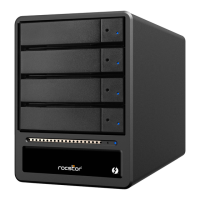
4-Bay RAID - 1U Rack Mount System
eSATA, 2xFireWire 800, FireWire 400 & USB 3.0
Question and Answer IconNeed help?

Do you have a question about the Rocstor BIGROC 5C and is the answer not in the manual?

Summary

IMPORTANT NOTICES

Safety Notices

General safety guidelines and warnings for device usage.

PRECAUTIONS FOR THE RAID SYSTEM

Static Electricity Precautions

Guidance on preventing damage from static electricity.

Data Loss Responsibility

Manufacturer disclaimer regarding data loss and recovery.

BOX CONTENTS

SPECIAL FEATURES

HDD and Interface Support

Details on supported HDD types and flexible connection options.

RAID Mode Capabilities

Overview of supported RAID levels and rebuild features.

MINIMUM SYSTEM REQUIREMENTS

Mac System Requirements

Hardware and OS specifications for Mac users.

Windows System Requirements

Hardware and OS specifications for Windows users.

CONNECTORS

INSERTING;REPLACING THE HARD DRIVES IN THE RAID SYSTEM

Opening the Front Panel

Instructions for opening the front panel door.

Inserting a Hard Drive

Step-by-step guide for inserting drives into the tray-less slots.

Closing the front panel

Removing a Hard Drive

Procedure for safely removing a hard drive using the lever.

CONNECTING THE RAID SYSTEM TO A COMPUTER

Connection Procedure

Steps to connect the RAID system to a host computer via one interface.

Connecting Multiple Devices

SAFE REMOVAL OF THE RAID SYSTEM

Ejecting the Device

Recommended procedure to safely eject the RAID system from the host.

RAID MODES

RAID Mode Comparison List

Comparison list of available RAID modes, their safety, and speed.

RAID 0 (Striping)

RAID 0 Striping Explanation

Explanation of RAID 0 striping, its performance, and limitations.

RAID 1 (Mirroring)

RAID 1 Mirroring Explanation

Explanation of RAID 1 mirroring, its data redundancy, and capacity.

SPAN (Combine Mode)

RAID 5

RAID 5 Overview

Details on RAID 5 striping with parity for data protection and fault tolerance.

RAID 10 (1+0)

RAID 10 Overview

Explanation of RAID 10 combining mirroring and striping for performance and security.

JBOD (Just a Bunch of Disks)

HOT SWAP

EXTERNAL BOOTUP

DISK VOLUME OVER 2 TB

ESATA PCI EXPRESS CARD INSTALLATION

Hardware Installation Steps

Detailed steps for physically installing the eSATA card.

Driver Installation Procedure

Instructions for installing necessary drivers for the eSATA card.

Verify Driver Installation

QUESTIONS & ANSWERS CONCERNING RAID SYSTEMS

Choosing the Proper RAID Mode

Guidance on selecting the optimal RAID mode based on usage.

SPECIFICATIONS

Data Transfer Speeds

Maximum data transfer speeds for different interfaces.

PARTITIONING AND FORMATTING ON MAC OS

Mac OS Formatting Prerequisites

Important notes and warnings before partitioning on Mac.

Mac OS Partitioning Steps

Step-by-step instructions for partitioning and formatting on Mac.

PARTITIONING AND FORMATTING FROM FAT32 to HFS+ (Mac)

Connecting the Drive on Mac

Initial step of connecting the Rocstor drive to a Mac.

Mac OS Desktop Interaction

Mac OS Utilities Navigation

Accessing Disk Utility via Utilities

Guide to finding and opening Disk Utility within the Utilities folder.

Mac OS Disk Utility Interface

Mac OS Disk Utility Operations

Verifying and Repairing Disk

Procedures for verifying and repairing disk issues.

Mac OS Partition Scheme Selection

Choosing Partition Scheme Options

Guide to selecting appropriate partition schemes (GUID, Apple Partition Map).

Mac OS Volume Information and Formatting

Naming the Drive Volume

How to assign a name to the storage volume.

Selecting Mac OS Extended Format

Steps to format the drive using Mac OS Extended (Journaled).

Mac OS Applying Format and Partitioning

Applying Format Settings

How to apply the selected format settings.

Confirming Partition Disk Action

Final confirmation step before the partition and format process.

Mac OS Formatting Completion

Formatting Process and Icon Update

What happens after formatting and how the desktop icon changes.

PARTITIONING AND FORMATTING ON WINDOWS

Windows Formatting Prerequisites

Important notes and warnings before partitioning on Windows.

Accessing Windows Disk Management

Navigating to Windows Disk Management

Windows Partitioning - Deleting Existing Partition

Deleting Rocstor Drive Partition

Right-clicking and selecting 'Delete Partition' for the Rocstor drive.

Confirming Partition Deletion

Confirmation dialog for deleting the primary partition.

Windows Partitioning - Creating New Partition

Identifying Unallocated Disk Space

Locating the unallocated space for the new partition.

Initiating New Partition Wizard

Starting the New Partition Wizard.

Windows Partitioning - Specifying Size and Type

Setting Partition Size

Specifying the size for the new partition.

Windows Partitioning - Formatting Settings

Configuring Format Options

Selecting file system (NTFS), allocation unit size, and volume label.

Quick Format Selection

Choosing the 'Quick Format' option for faster formatting.

Windows Partitioning - Completing the Wizard

Reviewing Selected Settings

Display of selected settings before final formatting.

Finalizing Formatting Process

Clicking 'Finish' to complete the partitioning and formatting.

Windows Disk Management Finalization

LIMITED WARRANTY

LIMITED WARRANTY - Buyers Obligation

LIMITED WARRANTY - Limitations and Disclaimer

TECHNICAL SUPPORT

CONTACT INFORMATION

Rocstor BIGROC 5C Specifications

General IconGeneral
BrandRocstor
ModelBIGROC 5C
CategoryStorage
LanguageEnglish

Related product manuals