Switch your Blocks on. If you are registering additional Blocks you may turn
them all on to register them simultaneously.
You do not need to connect additional Blocks via Bluetooth as long as you
have a Seaboard Block connected via Bluetooth. Additional Blocks connect
directly to your Seaboard Blocks via the DNA connectors.
Open NOISE, press the Settings cog in the top-right corner of NOISE and
select ‘Connect BLOCKS’.
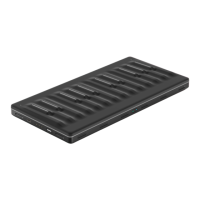
Choose your Seaboard Block from the Bluetooth MIDI Devices screen to
complete MIDI-over-Bluetooth pairing. Your Lightpad Block will be listed as
‘Seaboard Block XXXX’ with the X’s representing the last 4 digits of the
serial number which is located on the underside of the Block.
Connect any additional Blocks that you have purchased to the DNA ports of
the Seaboard Block to register them now.
Once your Blocks are connected, select “Register Block.”
Your Blocks will now be registered to your NOISE account.
If you are prompted to update the firmware, you should do so now.
You are now connected and ready to make music.
To connect your Seaboard Block to a MacOS device via Bluetooth:
1. Press the Seaboard Block’s power button to enter Bluetooth pairing mode
– the power button’s right LED will be light blue.
2. Open Audio MIDI Setup from the Utilities folder inside Applications.
3. Click Window
➝
Show MIDI Studio.
4. Double-click the Bluetooth icon.
5. A new window will open and scan for nearby Bluetooth devices.
6. When the Seaboard Block is detected, click “Connect.” The Seaboard Block
power button’s right LED will now display dark blue indicating that it is
connected via Bluetooth.


 To Next Page