EasyManua.ls Logo

Rongta Technology RP310 - Troubleshooting

Rongta Technology RP310
16 pages
Print Icon
To Next Page IconTo Next Page
To Previous Page IconTo Previous Page
Loading...
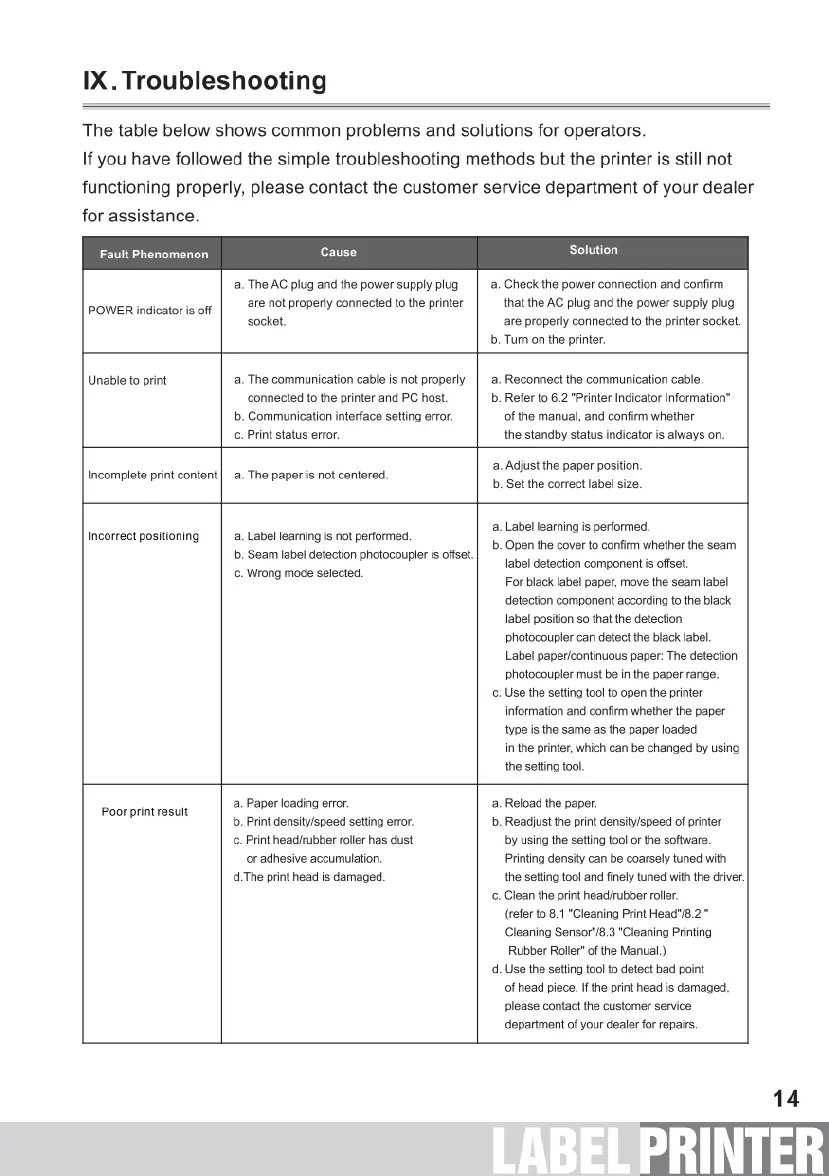
IX.Troubleshooting
The
table
below
shows
common
problems
and solutions
for
operators.
If
you
have
followed
the
simple
troubleshooting
methods
but
the
printer
is
still
not
functioning
properly,
please
contact
the
customer
service
department
of
your
dealer
for
assistance.
Fault
Phenomenon
POWER
indicator
is
off
Cause
.
The
AC
plug
and
the
power
supply
plug
are
not
properly
connected
to
the
printer
socket.
Solution
Check
the
power
connection
and
confirm
that
the
AC
plug
and
the
power
supply
plug
are
properly
connected
to
the
printer socket.
‘Turn
on
the
printer.
Unable
to
print
.
The
communication
cable
is
not
properly
connected
to
the
printer
and
PC
host.
b.
Communication
interface
setting
error.
c.
Print
status
error.
Reconnect
the
communication
cable.
Refer
to
6.2
"Printer
Indicator
Information”
of
the
manual,
and
confirm
whether
the
standby
status
indicator
is
always
on.
Incomplete
print
content
.
The
paper
is
not
centered.
Adjust
the
paper
position.
Setthe
correct
label
size.
Incorrect
positioning
a.
Label
learning
is
not
performed,
b.
Seam
label
detection
photocoupler
is
offset.
.
Wrong mode
selected.
Label
learning
is
performed,
Open
the
cover
to
confirm
whether
the
seam
Iabel
detection
component
s
offset.
For
black
label
paper,
move
the
seam
label
detection
component
according
to
the
black
label
position
s
that
the
detection
photocoupler
can
detect
the
black
label.
Label
papericontinuous
paper:
The
detection
photocoupler
must
be
in
the
paper
range.
Use
the
setting
tool
to
open
the
printer
information and confirm
whether
the
paper
typeis
the
same
as
the
paper
loaded
in
the
printer,
which
can
be
changed
by
using
the
setting
tool.
Poor
print
result
.
Paper
loading
efror.
b.
Print
density/speed
setting
error.
.
Print
headirubber
roller
has
dust
or
adhesive
accumulation.
d.The
print
head
is
damaged.
Reload
the
paper.
Readjust
the
print
density/speed
of
pinter
by
using
the
setting
tool
or
the
software.
Printing
density
can
be
coarsaly
tuned
with
the
setting
tool
and
finely
tuned
with
the
driver.
.
Clean
the
prin
headirubber
roller.
(refer
to
8.1
"Cleaning
Print
Head8.2
Cleaning
Sensor'.3
"Cleaning
Printing
Rubber
Roller”
of
the
Manual.)
Use
the
setting
tool
o
detect
bad
point
of
head
piece.
I
the
print
head
is
damaged,
please
contact
the
customer
service
department
of
your
dealor
or
repairs
14

Related product manuals