Roomie Remote Version 3 Quick Start Guide
Copyright © 2014 Roomie Remote, Inc. 11 roomieremote.com
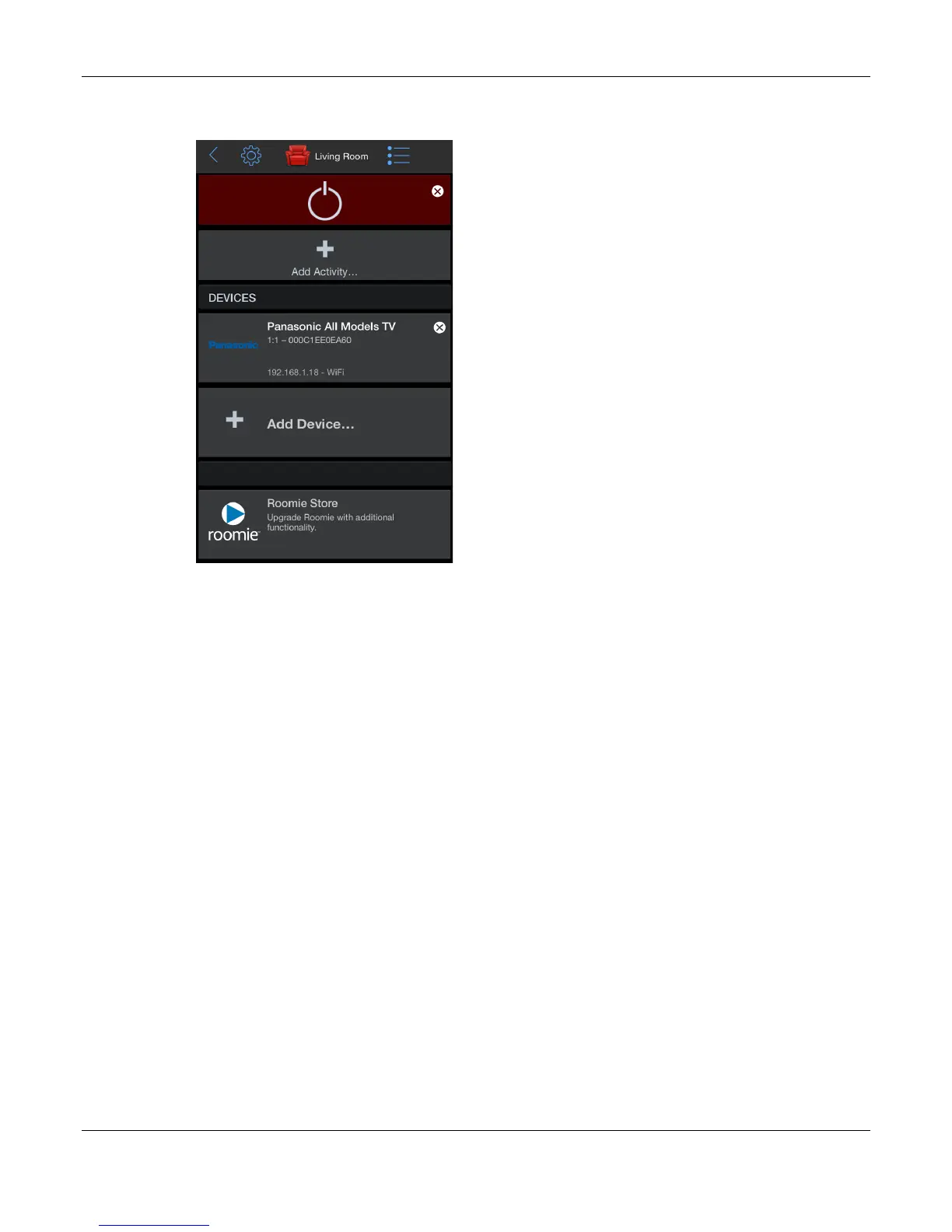
The Living Room screen appears, still in Edit mode, but now showing the newly configured
device (Panasonic All Models TV).
16. Tap Add Device.
The second device we are going to add is the Motorola Set Top Box.
The Choose Controller screen appears.
17. Tap Roomie Blaster Wi-Fi.
Because the Motorola Set Top Box is being controlled via the same Roomie Blaster adapter
as the Panasonic TV, we choose it again.
The Choose Port screen appears.
18. Tap IR Port 3.
The Motorola Set Top Box is being controlled via the blaster on the Roomie Dual Emitter
Blaster Cable. All devices being controlled via a blaster must be configured on IR Port 3,
so we select IR Port 3.
The Choose Type screen appears.
19. Tap Set Top Box.
The category Set Top Box covers both cable and satellite boxes.


 To Next Page
 Loading...