Roomie Remote Version 3 Quick Start Guide
Copyright © 2014 Roomie Remote, Inc. 17 roomieremote.com
Because Apple TV is a network-controlled device, we do not need to select Roomie Blaster
Wi-Fi, as we did with the other devices we added.
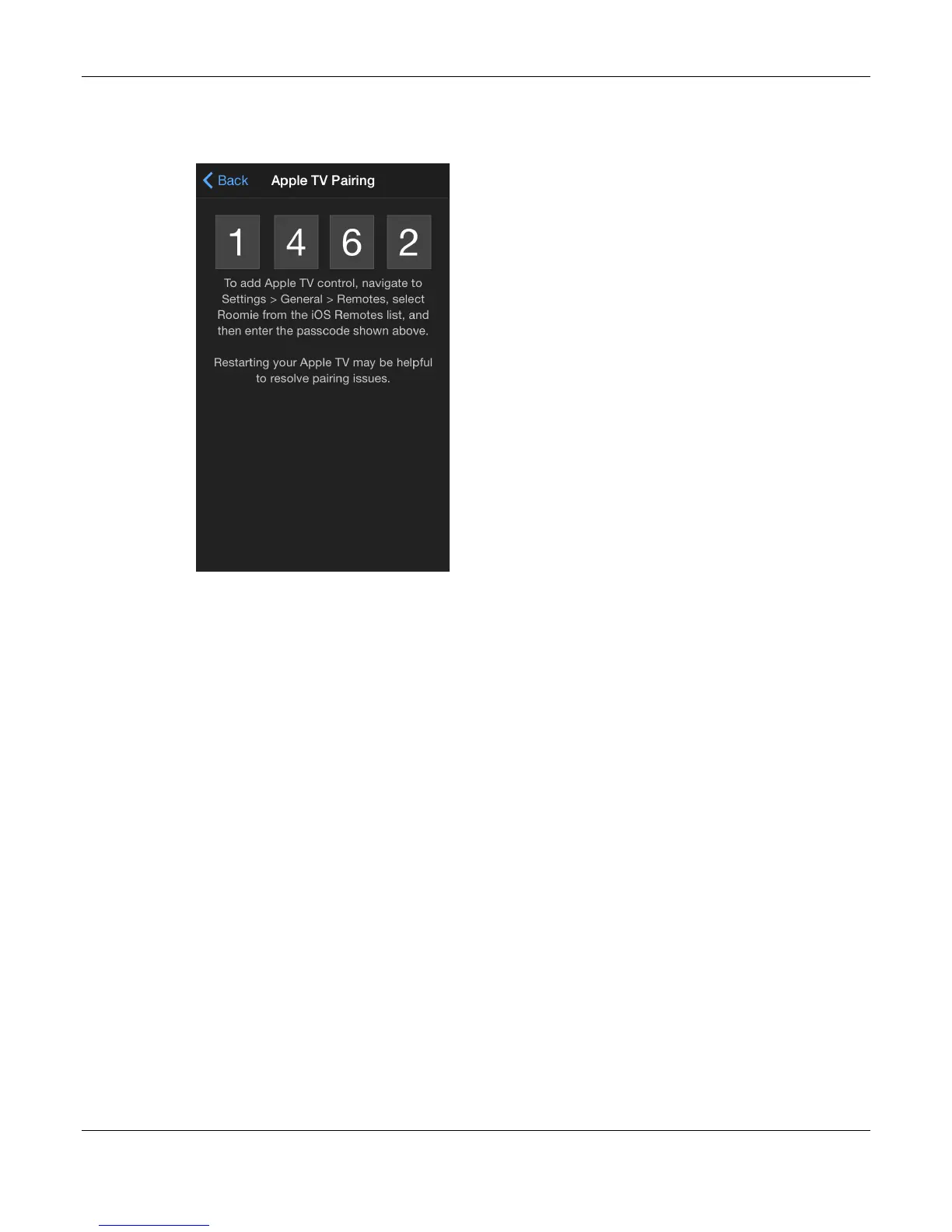
The Apple TV Pairing screen appears.
Important: Your passcode will be different from what is shown above.
To use Roomie Remote to control Apple TV, you need to pair Roomie Remote with your
Apple TV.
30. Using your Apple TV remote, access Apple TV, then go to Settings > General > Remotes.
The Remotes screen appears.
31. Scroll down to the iOS Remotes section and find the iOS device you are using to run
Roomie Remote.
The text may look something like:
Roomie – Jon’s iPod Touch
32. Select the Roomie Remote.
The Add Roomie – Jon’s iPod Touch screen appears.
33. Enter the passcode from the Roomie Remote Apple TV Pairing screen, then select Done.
The Remotes screen appears, showing that the Roomie Remote has been paired.
34. On your Apple TV, exit from Settings.


 To Next Page
 Loading...