EasyManua.ls Logo

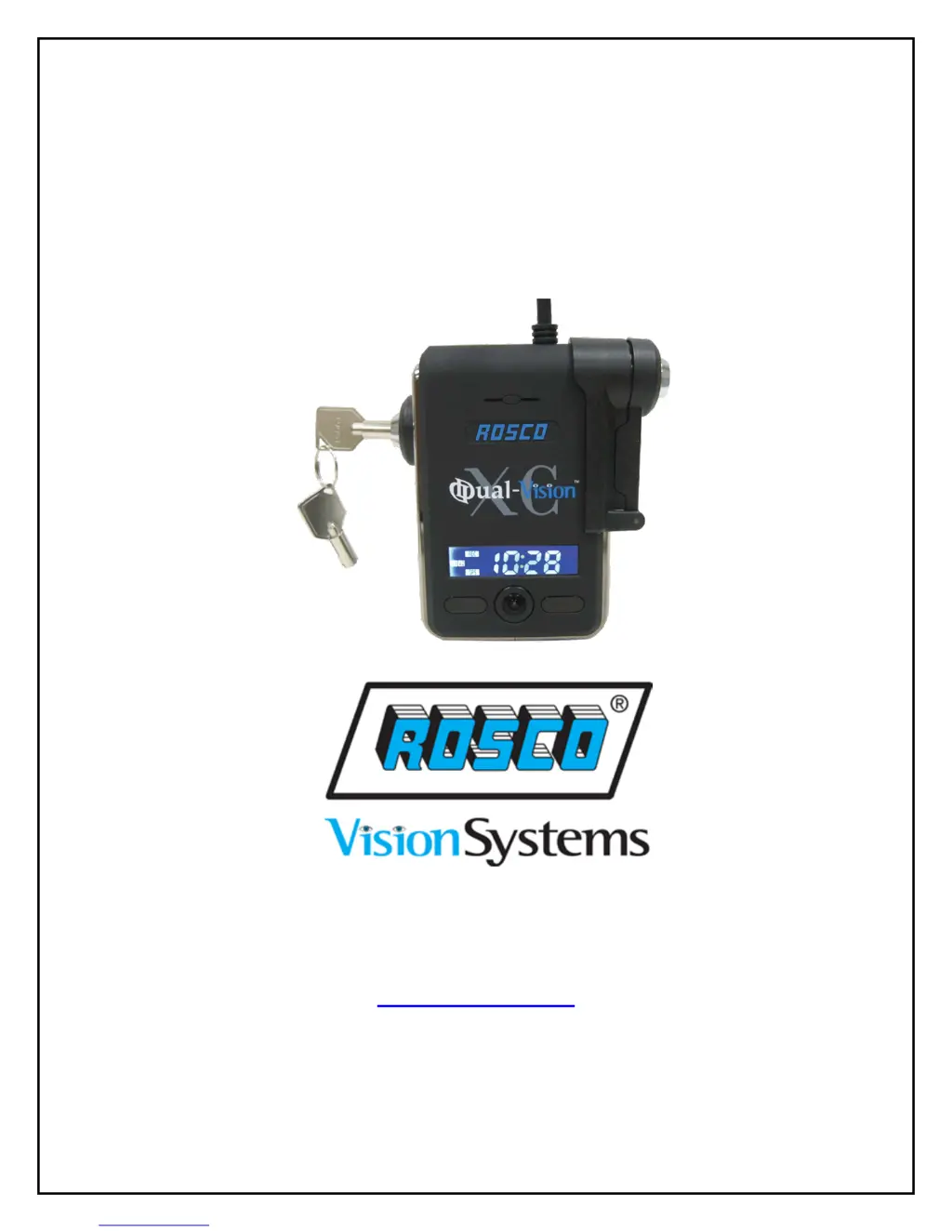
Rosco Dual-Vision XC - User Manual

Rosco Dual-Vision XC
31 pages
Print Icon
To Next Page IconTo Next Page
Loading...
1
Dual-Vision™ XC
User Manual
90-21 144
th
Place, Jamaica, New York USA 11435
Phone: 800-227-2095
Fax: 718-297-0323
www.roscovision.com
Version 1.0
©2013 Rosco® Vision Systems, All Rights Reserved
Specifications and details are subject to change without prior notice.
Patent Pending

Questions and Answers

  • C
    Courtney JacobsAug 14, 2025
    What to do if my Rosco Recording Equipment shows SD_E error?
    • D
      Dorothy McclureAug 14, 2025
      If your Rosco Recording Equipment displays an SD_E error, it means there's an issue with the SD card. This could be due to several reasons: * No SD card is inserted. * The SD card is not reading or writing properly. To resolve this, first, remove the SD card and reinsert it correctly. If the problem persists, try reformatting or replacing the SD card.
  • D
    diana71Aug 17, 2025
    Why is there no audio from my Rosco Dual-Vision XC Recording Equipment?
    • D
      Diana OlsonAug 17, 2025
      If you're experiencing no audio from your Rosco Recording Equipment, it's likely due to incorrect software settings. Here's what you can do: * Go to the Configuration settings and ensure that Audio Recording is set to “ON”. * In the Player settings, adjust the Volume Control slider to your desired level. * Also, check the speaker settings on your PC to ensure they are properly configured.
  • E
    elijah21Aug 21, 2025
    How to fix blurry video on Rosco Recording Equipment?
    • T
      Tracy JamesAug 21, 2025
      If you're experiencing blurry video with your Rosco Recording Equipment, it's likely a camera or lens issue. Ensure that the camera and lens are clean and free from any obstructions.
  • O
    oparrishAug 25, 2025
    What to do if GPS icon is unlit on Rosco Dual-Vision XC?
    • J
      Jessica HollowayAug 25, 2025
      If the GPS icon remains unlit while driving and the vehicle speed isn't showing on the LCD display of your Rosco Recording Equipment, the GPS antenna likely can't get a satellite signal. Try relocating the Recorder and its mounting base to a spot with a clear view of the sky.
  • S
    Susan WilliamsAug 27, 2025
    Why does my Rosco Dual-Vision XC keep chiming?
    • B
      barryvickiAug 27, 2025
      If your Rosco Recording Equipment is constantly chiming, the speed limit setting is likely too low. Increase the Speed limit settings to better suit your driving needs.
  • E
    Erin GreenAug 31, 2025
    What to do if Rosco Dual-Vision XC event icon is constantly lit?
    • D
      Diana TaylorAug 31, 2025
      If the event icon on your Rosco Recording Equipment is constantly lit, it's likely due to constant events and chimes caused by bumps and potholes. To fix this, increase the G-Sensor settings based on your vehicle needs.
  • J
    Joe NewmanSep 3, 2025
    How to fix no chime on Rosco Dual-Vision XC?
    • B
      barbarawatersSep 3, 2025
      If your Rosco Recording Equipment has no chime or a very loud chime, the speaker volume setting in the Configuration screen is likely incorrect. Adjust the Speaker Volume setting to your desired level.
  • N
    Nicole StephensonSep 6, 2025
    How to fix dark LCD display on Rosco Dual-Vision XC?
    • D
      Daniel SandersSep 6, 2025
      If the LCD display on your Rosco Recording Equipment is dark and you don't hear a chime when starting the vehicle, the recorder likely isn't getting power. Check the power cable connection and fuses.
  • J
    jwagnerSep 9, 2025
    How to fix faint LCD display on Rosco Dual-Vision XC Recording Equipment?
    • R
      ronaldcombsSep 9, 2025
      If the LCD display on your Rosco Recording Equipment is faint, but you hear the chime when starting the vehicle, the brightness setting is probably too low. Open the Configuration screen in the Player program and adjust the “Brightness of LCD”.

Summary

Safety Instructions

Important Safety Warnings

Crucial safety guidelines and actions that void warranty.

Notes on GPS and SD Card

Specific operational notes for GPS and SD card usage.

Introduction

Product Security

Details on the commercial-grade security design and its advantages.

Optional DV-Pro Software

Overview of DV-Pro software for fleet management needs.

Package Contents

Recorder Options

Describes the two types of Dual-Vision XC recorders included.

Accessories Overview

Lists the initial set of accessories provided with the recorder.

Installation

PDC Module Installation and Wiring

Detailed steps for installing the PDC module and connecting power/data cables.

Recorder Mounting

Instructions for selecting location and mounting the recorder, including permanent attachment.

Accessory Installation

Guide for installing optional IR module, event button, and AUX camera.

Technical Specifications

Product Specifications Details

Comprehensive list of technical specs for the device, including camera, resolution, and memory.

SD Card Usage

Important SD Card Handling

Crucial instructions for safe SD card removal, usage, and potential errors.

Recommended SD Cards

Lists compatible SD card models for the unit and compatibility notes.

SD Card Formatting Procedure

Step-by-step guide on how to format the SD card using SDFormatter software.

Operation

Recorder Initialization and Recording

How to start the recorder, its initialization process, and begin video recording.

LCD Display Indicators

Explanation of various symbols, codes, and status messages on the LCD screen.

Continuous and Event Recording Modes

Details on how continuous and event recording functions work, and file protection.

Event File Protection and Password

How event files are protected against overwriting and the option for password protection.

Player Program Setup

Configuring PC for Player Program

Steps to resolve "Admin rights required" pop-up when opening the player program.

Running Player as Administrator

Instructions to run the Player program with administrator privileges for full functionality.

System Setup and Configuration

Recorder Configuration Options

Overview of settings like video quality, speed units, and G-sensor sensitivity.

Parking Surveillance Settings

Configuration details for the parking surveillance mode, including timer and G-sensor settings.

Player Screen Overview

Interface Elements and Controls

Explains each section and button of the player interface for video playback and analysis.

Video Playback

Selecting and Playing Video Files

How to open and play recorded .asd files from the SD card.

Understanding Event Types

Explanation of different event types like SPEED, BUTTON, G-SENSOR, and PARKING.

Converting Files to AVI Format

Steps to convert recorded video segments into AVI files for broader compatibility.

Google Maps Integration

Viewing Vehicle Location on Map

How to synchronize GPS data with Google Maps for route review and location tracking.

Advanced Playback Features

Enlarging Display Windows

How to enlarge individual video or data display windows for better viewing.

G-SENSOR Data Analysis

Interpreting G-Force Graphs

Explanation of how to read G-force graphs for vehicle motion and impacts.

Configuring G-Sensor Sensitivity

Guide on setting G-sensor sensitivity levels for different vehicle types and road conditions.

LCD Display Information

Understanding Display Codes

Explanation of the various codes and indicators on the LCD screen during operation.

Troubleshooting Common Issues

Power and Display Problems

Solutions for issues like dark display, no chime, or faint screen.

Event, Speed, and GPS Errors

Troubleshooting steps for event icon, constant chiming, and GPS signal problems.

Playback and Speaker Issues

How to resolve blurry video, no audio, or improper chime volume problems.

Spare Parts List

Available Rosco Part Numbers

List of part numbers and descriptions for replacement components and kits.

Rosco Commercial Warranty

Warranty Terms and Conditions

Details on the one-year warranty, coverage, exclusions, and repair procedures.

Rosco Dual-Vision XC Specifications

General IconGeneral
BrandRosco
ModelDual-Vision XC
CategoryRecording Equipment
LanguageEnglish