5
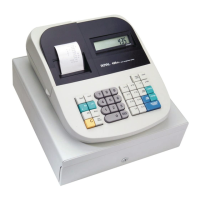
KEY PAD FUNCTIONS
__________________________________________________________________
7. [ C ] - Clear Key - Clears entries made on the keyboard prior to depressing the registration key. Also stops the error alarm
when incorrect entries are made.
8. [ qty/time ] - Dual-Function: Multiply & Time Display - Multiplies [DEPARTMENT], [PLU] or [Ref/-] key entries; also
displays the current time, if set.
9. Numeric Entry Keys – 11-key Numeric Key Pad, including keys [0] through [9] and double-zero [00].
10. Department Keys - Used to select non-taxable and taxable sales at the pre-programmed tax rate.
11. [ dept shift ] – Department Shift Key - Used to access Department 9 – 16 keys.
12. [ clerk ] – Clerk Key - Used to identify associated transactions with a particular clerk/operator. Supports a clerk
identification number for each operator and an optional security code.
13. [ -% ] - Percent Discount Key - Used to subtract a percentage rate from an individual item or an entire sale. The rate can
be a pre-programmed percentage rate or any other manually entered percentage rate.
14. [ #/NS ] – Non Ad / No-Sale Key - Used to open the cash drawer without a sale or starting a transaction, such as to make
change. Also used to print reference data, any numeric only data up to 7-digits long, on the receipt.
15. [ tax shift ] - Tax Shift Key - Used to enter a non-tax item into a taxable department or to enter a tax item into a non-
taxable department.
16. [ check ] - Check Key - Total sales paid by check. Check totals appear in the management report.
17. [ charge ] - Charge Key - Used to total sales that are charged. Charge totals appear in the management report.
18. [ subtotal ] – Sub-Total Key - Used to obtain a sub-total of all entries with tax added. Press this key when finished
entering all items of a sales transaction, before collecting cash from the customer. Then collect the cash from the
customer, enter the total cash amount and press [ amt tend/TOTAL ] to complete the sale and calculate change.
19. [ amt tend/TOTAL ] - Amount Tendered and Cash Total Key - Used to total transactions and to calculate change from
total cash tendered by the customer. In “X” and “Z”-modes this key is used to obtain daily grand totals of all transactions
and to run periodic reports and end-of-day reports.


 To Next Page