EasyManua.ls Logo

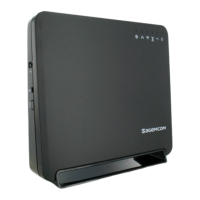
SAGEMCOM CS 50001 - User Manual

SAGEMCOM CS 50001
2 pages
Print Icon
To Next Page IconTo Next Page
Loading...
welcome
this is your wi-fi router guide
setting up your wi-fi router
Connect your fibre box (the wall unit) to
the red WAN port on your router using
the cable provided
Plug in the power cable
Press the power button
power supply fibre box
power supply
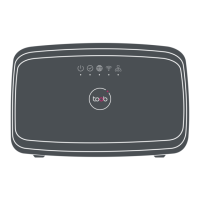
your wi-fi router lights
symbol activity description
power
green light
flashing red
red light
router is working normally
router is booting (up to 10 mins)
router has failed to start up properly
connection green light connected to toob’s full-fibre network
internet green light connected to the internet
wi-fi
green light
slow flashing
fast flashing (2 secs)
o
wi-fi is active (2.4GHz and/or 5GHz)
WPS is in pairing mode
WPS connection successful
disabled
LAN green light external device connected via ethernet cable
engineer installed

Other manuals for SAGEMCOM CS 50001

Questions and Answers

  • C
    Christian KroghOct 12, 2026
    how to update firmware

    Summary

    Setting Up Your Wi-Fi Router

    Wi-Fi Router Indicator Lights

    Understanding Router Status Lights

    Details the meaning of indicator lights for power, connection, internet, Wi-Fi, and LAN status.

    Connecting Your Wi-Fi Router

    Wi-Fi and WPS Connection Guide

    Connect using Wi-Fi name/password, QR code, or Wi-Fi Protected Setup (WPS).

    Ethernet Network Connection

    Connect up to four devices using the yellow LAN ports located on the router's back.

    Expert Mode and Router Management Portal

    Access the router's web portal for advanced Wi-Fi settings, password, and device management.

    Troubleshooting and Support

    SAGEMCOM CS 50001 Specifications

    General IconGeneral
    Frequency2.4 GHz
    Maximum Data Rate300 Mbps
    Wi-Fi Standards802.11b/g/n
    WAN Port1
    SecurityWPA, WPA2
    Antennas2 external antennas
    Ethernet Ports4
    Dimensions180 x 130 x 35 mm

    Related product manuals