EasyManua.ls Logo

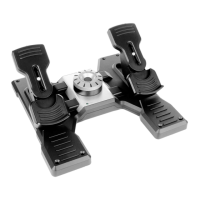
Saitek Pro Flight Rudder Pedals - User Manual

Saitek Pro Flight Rudder Pedals
5 pages
Print Icon
To Next Page IconTo Next Page
Loading...
1 of 5 19/12/2006 16:43
Pro Flight Rudder Pedals
USER MANUAL
GETTING STARTED
Introduction
The Saitek Pro Flight Rudder Pedals are solid 3-axis rudder pedals designed to maximise realism by enabling foot control of the
rudder function in flightsimulation PCGames. The Pro Flight Rudder Pedals work with any Saitek PC Flight Stick, but are designed
specifically to complement the Saitek X52 Flight Control System to enhance flight sim experiences.
Features:
Self-centering pedals with adjustable tension
Silent, smooth action for optimum control and precision
Toe brakes
Tension adjustment - choose resistance to suit the way you fly
Pedals adjust to fit all sizes and include non-slip materials
High quality, solid, construction for long life
Advanced SST Programming
Installation for Users of Windows® XP and Windows XP64
A) Drivers Only For Typical Users
With your computer switched on, close down any programs that are currently running and insert the Saitek Smart
Technology CD into your CD-ROM drive.
1.
When the Introduction Screen appears, click Install Software to continue. If the CD does not run automatically, select Start
from the Windows® Taskbar,then Run and type D:\Setup.exe and click OK - where D:\ is letter of your CD-ROM drive.
2.
When the Welcome screen appears, click Next to continue.3.
After reading the Disclaimer, select the I accept the terms of the Disclaimer option and click Next to continue.4.
At the Driver Setup screen, if you haven't already done so, plug the USB cable into one of your computer's USB ports and
click on Next.
5.
When the Saitek Controller test screen appears, try out your rudder pedals’controls to show that they are working properly.
When you have finished, click OK
6.
At the Software Setup screen, select Do not install the SST Programming Software and click Next. The Programming
Software can be installed at a laterdate by following instruction (B). below
7.
At the Registration screen, select Check this box to register now and follow the on-screen instructions, or you can choose
to select this option later.
8.
Click on Finish to complete the installation.9.
B) Drivers and Programming Software For Advanced Users
Question and Answer IconNeed help?

Do you have a question about the Saitek Pro Flight Rudder Pedals and is the answer not in the manual?

Summary

GETTING STARTED

Introduction

Overview of the Saitek Pro Flight Rudder Pedals and their purpose in flight simulation.

Installation for Users of Windows XP and Windows XP64

A) Drivers Only For Typical Users

Step-by-step guide for installing only the drivers for typical users on Windows XP/XP64.

B) Drivers and Programming Software For Advanced Users

Guide for advanced users to install drivers and programming software on Windows XP/XP64.

Installation for Users of Windows 2000

A) Drivers Only For Typical Users

Steps for installing only the drivers for typical users on Windows 2000.

B) Drivers and Programming Software For Advanced Users

Guide for advanced users to install drivers and programming software on Windows 2000.

IMPORTANT INFORMATION

A Word on Driver Updates

Information on how to check for and obtain the latest driver and software updates.

For Windows XPand XP64 users;

Specific instructions for Windows XP and XP64 users regarding dynamic updates.

Dynamic updates

Details on obtaining updated SST programming software for XP/XP64 users.

Enabling Your Controller in Game

Guidance on how to enable the controller within game settings.

How to Test and adjust your controller

Instructions on testing controller functionality and adjusting deadzones.

PROGRAMMING YOUR SAITEK CONTROLLER WITH SAITEK SMART TECHNOLOGY PROGRAMMING SOFTWARE

Introducing Saitek Smart Technology Programming Software

Overview of the Saitek Smart Technology (SST) programming software.

What is a Profile

Explanation of what a "Profile" is in the context of gameplay customization.

How Do I Program My Controller?

Step-by-step guide on how to create and program custom controller profiles.

Getting Started

Initial steps and guidance for using the SST programming software.

GAME-SPECIFIC SETTINGS FOR THE SAITEK PRO FLIGHT RUDDER PEDALS

Flight Simulator 2004

Configuration settings for using the rudder pedals with Flight Simulator 2004.

Lock On

Configuration tips for using the rudder pedals with the game Lock On.

Pacific Fighters, IL2 and IL2 Expansion Packs

Setup guidance for using the pedals with Pacific Fighters, IL2, and its expansion packs.

Technical Support

Saitek Pro Flight Rudder Pedals Specifications

General IconGeneral
Connectivity technologyWired
Device typeSteering wheel + Pedals
Mac compatibilityNo
Dimensions (WxDxH)406.4 x 419 x 178 mm
Compatible operating systemsWindows XP
Weight and Dimensions IconWeight and Dimensions
Weight2950 g

Related product manuals