http://salt.box
Username
admin
admin
Password
1 2 3 4
Login
Press briefly (2 seconds):
Turn WiFi on/ off
Description of the ports:
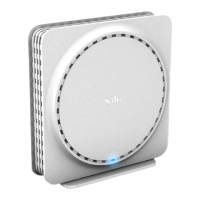
Salt Fiber Box
5 meters
fibre cable
included
Standing position
Vertical position
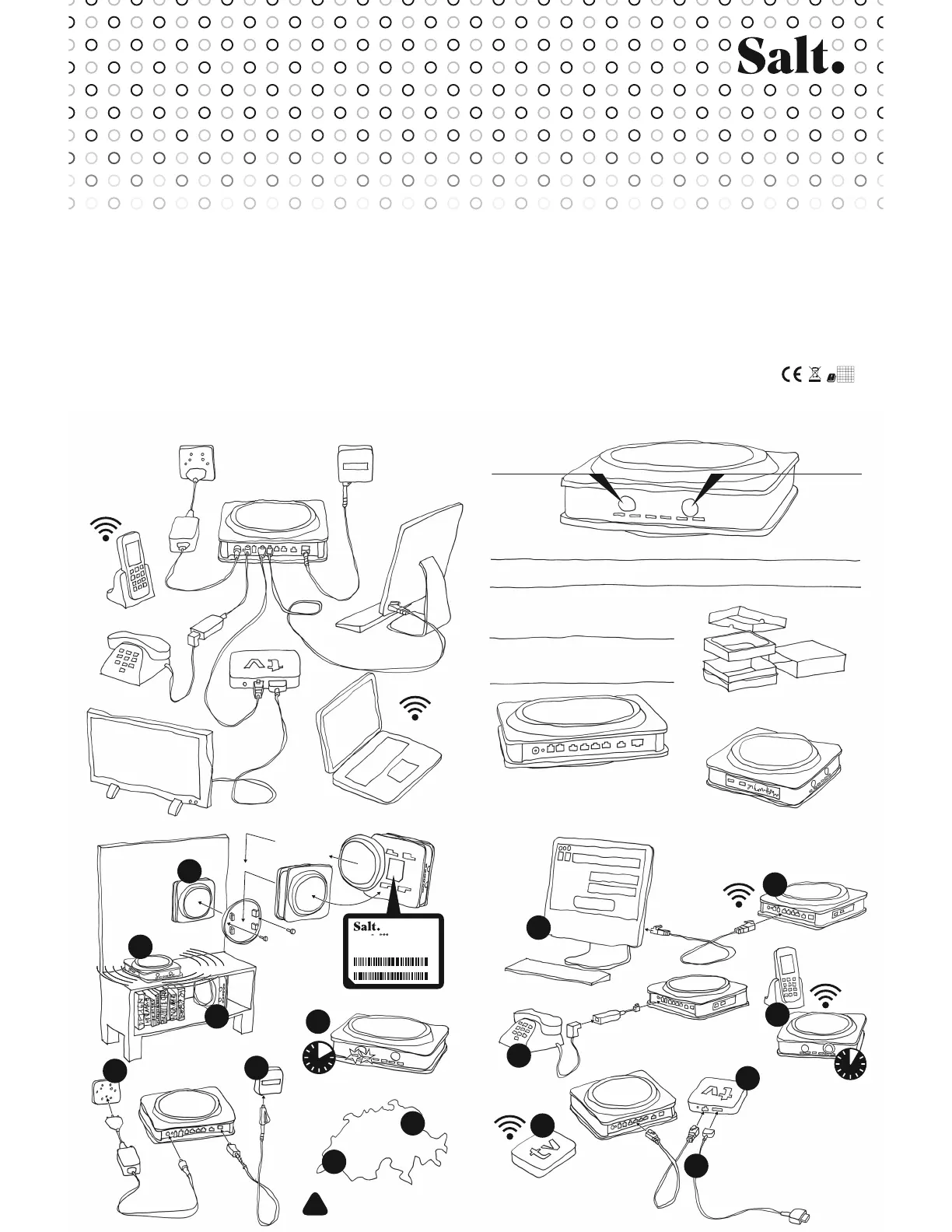
Position your Fiber Box
in any position, as centrally
as possible, without any
objects in front of it.
For best WiFi perfomance,
choose position
1A.
Connect your Fiber Box
to the power plug.
Remove the
black protective
cover of port F
to plug the
square connector
into the
Fiber Box.
Remove the protections
at both ends of the
fibre cable (green plugs).
The triangular
connector must
be connected to the
wall’s fibre plug.
Allow up to 10 minutes for synchronisation.
The
POWER LED must glow in green and no longer blink. As soon as the
FIBRE LED stops blinking, your Fiber Box will be ready for connection.
Connect your TV box to one of the four gigabit
ports with an Ethernet cable. We strongly
recommend this to ensure the best
TV experience.
More details provided under step 10.
If your
TV box is close to your Fiber Box, you can ensure WiFi
connection of your TV box with the same procedure as in step 5.
This is not recommended if the
TV box and the Fiber Box
are far apart or in different rooms.
HDMI plug
for the
TV set.
Plug your phone directly into the phone port
or use the
RJ11 – TT83 adapter.
Access the configuration
portal of your Fiber Box
with your browser.
Use «admin» for
user name and password
and change it in the
«Administration» menu
when you log in for the
first time.
To connect a new generation
DECT phone,
press the
DECT button for more than 5 seconds.
Configure your Fiber Box as the new
DECT base and confirm.
To test the pairing, press the
DECT button briefly, your phone should ring.
Please check whether the port number of the wall fibre plug
corresponds to your connection address (map) or enter
your
ZIP code on: fiber.salt.ch/port
Port 1 is used in most regions, except for:
Geneva & Lausanne (port 2) and St. Gall (port 4).
To mount your Fiber Box,
use 2 screws to attach
the rounded cover to the wall.
Slide the rounded
cover aside to prepare
wall installation.
WiFi information is provided on the label
beneath the rounded cover.
Wall-mounted position
Desktop computer
Laptop
Connected to
WiFi
3 meters RJ45
Ethernet gigabit cable
included
TV box
Power adapter
included
Power
adapter
Power plug
Fibre plug
RJ11 – TT83 adapter
included
HDMI cable
included
TV set
Phone
Keep the cardboard box in case you have to return the Fiber Box to Salt.
Enjoy colouring these instructions,
hand-drawn by designer Alfredo Häberli in 2018.
Connect the TV box to the power plug and use the
HDMI cable
to connect the TV box to your TV set.
Select the source corresponding to the
HDMI port to which your
TV box is connected and follow the instructions on your
TV screen.
Select «Switzerland» and «Salt» as the provider.
«Salt.tv» and «Salt.video»will be installed. Open «Salt.tv»,
press login and allow Salt
TV to access your Salt subscription.
For more details, please refer to the online guide:
fiber.salt.ch/tv/guide
DECT phone
Press longer (5 seconds):
Enable
WPS mode
PORT 1
POWER
WiFi
DECT
FIBRE
WWW
WiFi
WPS
PHONE
A Power plug
B Reset button
C 2 phone ports
D 4 Ethernet ports
E 1 10Gbit/s Ethernet port
F Fibre plug
G
2 USB 3.0 ports
First simple steps
English
Plug & Play: It takes less than 5 minutes! Functionality of the buttons, LED lights and ports
• Install in a dry, unconfined
and ventilated place, at temperatures
from 0°C to 40°C and protect from
sunlight.
• It is strictly forbidden to use
the Fiber Box outdoors.
• Optimal WiFi connection is ensured
in a horizontal position (re. no. 1)
without any obstacles in a 50 cm
radius. In particular, avoid using any
other electronic devices in the
proximity of the Fiber Box, do not
cover it with any other devices,
e.g. a
TV box.
• Do not disassemble the Fiber Box
to avoid any risk of electric shock.
In the event of problems,
please contact Salt's support.
• Keep away from the Fiber Box in
the event of a thunderstorm.
• Protect it from dust and clean
regularly with a slightly moistened
soft cloth.
Installation
• The Fiber Box complies with
European standards governing
radiation and wave exposure.
• The Fiber Box should be positioned
at a minimum distance of 30 cm
from any other electronic device or
human being. The proximity of
other wireless devices may cause
interferences.
• The device is restricted to indoor use
only when operating in 5150 to
5350 MHz frequency range.
Maximum transmission power:
•
WiFi
2400-2483.5 MHz: 20 dBm
5150-5350 MHz: 23 dBm
5470-5725 MHz: 30 dBm
•
DECT
1880-1900 MHz: 24 dBm
Wireless
• The Fiber Box should never be
disposed of together with
domestic waste but returned
directly to Salt for repackaging
or recycling.
• The Fiber Box meets
Ecodesign requirements
2009/125EC
and measures (EC) No 278/2009,
(EC) No 1275/2008
and (EU) No 801/2013.
Environment
• The Fiber Box, Saltbox 1 A 1.0,
is
CE-certified. Arcadyan,
the manufacturer, certifies that the
WiFi and
DECT components
comply with the standards
and requirements of
EU Directive
2014/53 / EU.
• The Fiber Box declaration of
conformity was published on
http://fiber.salt.ch/box
Conformity
For further details, please refer to fiber.salt.ch/support
Deutsch
Die deutsche Version finden Sie auf der Rückseite.
PORT 2
PORT 4
1
7
10
8
A
B
C
D
E
F
G
!
AT
BE BG CH CY CZ
DE DK EE EL ES FI
F
R HR
HU
IE
IS
IT
LI LT
LU
LV MT NL
NO
PL PT
RO SE SI
SK TR
UK
A
A
1
B
1
C
2
3
4
6
5
9
B
9
Power: 12V 4A
2 Ghz SSID: Salt_2GHz_123456
5 Ghz SSID: Salt_5GHz_123456
Password: XXXXXXXX
S/N: SFAAYWWXXXXX
MAC: MACOUI123456
1 2 3 4
10 MIN
5 SEC
Press briefly (2 seconds):
Page
DECT phone handset
Press longer (5 seconds):
Connect
DECT phone
Connect your computer to the Fiber Box, either:
A by means of the Ethernet cable you can plug into one of the four Gigabite ports.
B by means of WiFi, by pressing the WiFi button shortly.
The Fiber Box designation and password can be found underneath the rounded cover.
OR in
WPS mode, press the WiFi button for more than 5 seconds,
until the
WPS LED begins to blink. You can then connect any device, using the WPS mode.
B
A
POWER Green On Power on, normal operation Red Flashing Firmware upgrade in process
Green Off Power off or no power
FIBRE Green On Authorised fibre network access Red On Optical signal lost
Green Flashing On-going registration for fibre access Red Flashing Optical network access blocks by the network
Green Off No access to the fibre network or registration failed
WWW Green On Received one IP address from the Internet
Green Off No link to Internet
WiFi Green On WiFi is enabled
Green Off WiFi is disabled
WPS Green On WPS is activated
Green Off
WPS is not activated
Green Flashing WPS pairing possible
PHONE Green On VoIP service available
Green Flashing VoIP call on-going
Green Off VoIP service not available
Blue On
DECT is enabled
Blue Off
DECT is disabled
Blue Flashing
DECT paging / registering / firmware upgrade


 To Previous Page
 Loading...