The provided document is a user manual for a "WiFi Box" or "Wi-Fi Box Extender," which appears to be a device designed to extend or improve a Wi-Fi network.
Function Description
The primary function of the WiFi Box is to extend the range and improve the coverage of an existing Wi-Fi network. It can be used in two main configurations:
- Companion Mode (FIBER BOX X6): When connected to a "FIBER BOX X6" (or other companion modems like F4000 Gigabit, F3000 Fiber Box), the WiFi Box acts as an extender, seamlessly integrating with the existing network. It can be connected wirelessly or via an Ethernet cable to the FIBER BOX X6. In this mode, the SSID on the back of the Wi-Fi Box Extender is not used; instead, the SSID of the FIBER BOX X6 is used.
- Autonomous Mode (Non-Companion Modems): The WiFi Box can also be used with any other modem not listed as a companion modem. In this setup, the Wi-Fi Box connected directly to the modem via an Ethernet cable serves as the primary extender. Additional Wi-Fi Boxes can then be paired wirelessly with this primary extender to further extend the network. In this mode, the Wi-Fi network name (SSID) and password displayed under the primary Wi-Fi Box are used.
The device aims to provide a more robust and widespread Wi-Fi signal, especially in areas where the existing signal is weak or hard-to-reach. It supports both wired and wireless connections for devices to access the extended network.
Important Technical Specifications
While specific numerical technical specifications (like Wi-Fi standards, frequency bands, or data rates) are not explicitly detailed in the provided pages, the manual highlights several operational indicators and connection types:
- Connection Types:
- Wireless: Supports wireless connection to a modem (FIBER BOX X6 or others) and wireless pairing between multiple Wi-Fi Boxes.
- Wired (Ethernet): Features Ethernet ports for connecting to a modem or for connecting devices to the extended network.
- LED Indicators: The device uses several LEDs to indicate its status:
- Power LED: Indicates if the device is on (white), off, or undergoing a software update (blinking white).
- Connection LED: Indicates the quality of the connection to the modem:
- Off: No connection to the modem.
- Blinking Red: Connection to the modem was lost.
- Red: Poor connection to the modem.
- Orange: Good connection to the modem.
- Green: Excellent connection to the modem.
- Blinking Green: Wi-Fi Box is being configured.
- Wi-Fi LED: Indicates the Wi-Fi status:
- Off: Wi-Fi deactivated.
- White: Wi-Fi activated.
- Blinking White: WPS triggered and pairing slot open.
- WPS Button: A "PRESS 2sec." or "PRESS 5 sec." button (likely a WPS button) is present for easy wireless pairing with other devices or for resetting the device.
- Reset Button: A recessed reset button (requiring a thin, pointed object) is available for restoring factory settings.
- Power Port: A dedicated port for the power adapter.
Usage Features
- Installation Flexibility:
- Location Selection: The manual provides guidelines for optimal placement, recommending a position halfway between a hard-to-reach Wi-Fi area and the modem, in an area where the connection LED is green, and on a high piece of furniture or shelf (between 1 m and 1.50 m). It advises against confined/covered locations, soft/delicate surfaces, outdoor use, or areas with a red/off connection LED.
- Multi-Box Setup: The system supports the installation of multiple Wi-Fi Boxes to create a broader mesh-like network, with clear instructions for repeating the setup process for each additional box.
- Connection Methods:
- Wireless Pairing (WPS): Simple pairing with the FIBER BOX X6 or other Wi-Fi Boxes by pressing the WPS button on both devices for 2 seconds.
- Wired Connection: Direct Ethernet connection to the modem or to devices.
- Network Management:
- Automatic Connection: If using a FIBER BOX X6 and previously paired, devices should automatically connect to the Wi-Fi Box.
- Manual Connection: For other modems or if the FIBER BOX X6 SSID/password was changed, users need to manually select the Wi-Fi network name (SSID) and enter the password displayed under the primary Wi-Fi Box or FIBER BOX X6.
- Administrator Console (GUI): For autonomous mode configuration, users can access an administrator console via
http://wifi.box in a browser, using "admin" as the login and the password displayed under the primary Wi-Fi Box.
- Status Monitoring: Clear LED indicators allow users to easily monitor the device's power, connection quality, and Wi-Fi status.
Maintenance Features
- Troubleshooting Guide: The manual includes a troubleshooting section focused on checking the LED indicators and Wi-Fi function.
- LED Check: Users are guided to check the power, connection, and Wi-Fi LEDs to diagnose operational status.
- Wi-Fi Function Check: Instructions to verify Wi-Fi signal reception and ensure the network name (SSID) matches the configured primary box.
- Connection Reestablishment: If the connection LED is off or blinking red, users are advised to reestablish the connection, potentially by moving the device closer to the FIBER BOX X6.
- Factory Reset: The device can be reset to its default factory settings by pressing a recessed reset button for 5 seconds. This is recommended every time the FIBER BOX X6 is reset to its factory settings, requiring the Wi-Fi Box to be reconnected afterward.
- Software Updates: The blinking white Power LED indicates a software update in progress, with a warning not to turn off the device during this time.
In summary, the WiFi Box is a user-friendly Wi-Fi extender designed for both seamless integration with specific modems (FIBER BOX X6) and standalone operation with other modems, offering flexible installation, easy setup, and clear status indicators for effective network expansion and management.

 Need help?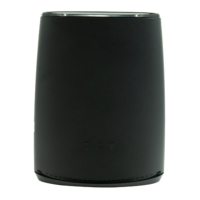

 To Next Page
 General