All contents current at time of publication.
SALTO Systems S.L. reserves the right to change availability of any
item in this catalog, its design, construction, and/or materials.
QUICK PROGRAMMING GUIDE
00553-GB ED. 2008-02-19
SMart Intuitive Locking Electronics
PK
UK
PK
PK
PK
PMSK
QUICK PROGRAMMING GUIDE
BRIEF DESCRIPTION
Congratulations on purchasing this simple to use and program electronic locking system. It allows users and system managers to maintain and up-date a flexible
access control locking plan without the use of software and peripherals.
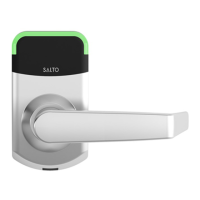
The electronic handles are designed to work in conjunction with a mortice lock.
There are many variations of the product that will suit many types of mortice locks, so for more information on compatibility please contact your supplier
.
KEY TYPES
The following key types are available for the Salto Smile System (sold separately).
PK Program Key (Red key)
UK User key (Green, black or blue)
PMSK Passage Mode Setting Key. (Yellow key)
To use a set of SMILE Electronic Furniture you will at least need to have 1 x PK key and 1 x UK key.
Program (PK) keys and user (UK) keys are always supplied with a shadow card. These cards are to be kept in a safe place as they are only to be used for deleting
lost keys.
The Passage Mode Setting (PMSK) key is yellow and has no shadow key.
KEY FUNCTIONS
The red pro
ram key is the key that will be in control of pro
rammin
the lock
or locks as one pro
rammin
PK
key could of course be set up as the pro
ram key
for a SALTO System of multiple doors).
The user keys are for system users (some of which can be assigned to set Passage).
The yellow Passage Mode Setting key is for setting locks into Passage Allowed Mode and for assigning Users that are allowed to use the Passage function of the
lock.
LOCK FUNCTIONS
General Note – When the electronic furniture is first taken out of the packaging it has no keys programmed in its memory. It is important therefore that after fitting
the furniture to the door, connecting the communication cable and inserting the batteries (noting correct polarity), that the first key entered into its memory is a
Programming Key (red key). See “Assigning the Programming key (PK)” below.
This should be done before fitting the inside cover and handle!
Standard Mode – The lock is in this mode as from the moment the programm key is assigned, where the outside handle is locked and is released by touching a key
to the reader. The outside handle always re locks either; on return or after a 5 second time out.
Passage Allowed Mode – The lock can be set into this mode by the yellow (PMSK) key. In this mode the lock will operate in the same way as standard mode
above, but will be able to be set into Passage at any time by a user key that has been programmed with this ability. See “Assigning the Passage Mode Setting
Key”, and “Assigning users with the Passage function”. When Passage is activated, the outside handle will be free to operate at all times. The passage setting can
be deactivated and activated at any time and the lock will switch between locked and free outside handle.
See “Activating and Deactivating Passage” below
.
In all cases the inside handle is always operational to allow emergency egress.
ASSIGNING KEYS
Assigning the Programming key.
Press and hold in, the clear button (above the battery pack on the inside of the
escutcheon) and at the same time, present the red PK key to the outside
handle reader. From now on, the electronic furniture will recognise this red key
as the Programming key. IMPORTANT NOTE; At this point the outside handle will
go into the Locked position so it is important that you have the Programming
key with you and at least one User Key to program in.
Assigning the user keys.
Touch the red PK key once on the reader followed by the user keys that you want to work this lock. You can close the programming procedure by presenting the
red PK key again at the end, or wait 5 seconds for the lock to close the programming mode itself (a single beep will be heard).
The users of these keys will now able to open the door 24 hours a day, every day.
Assigning the Passage Mode Setting key.
Touch the red PK key followed by the yellow PMSK key. Then close the process by presenting the red PK key again, or by waiting for the time out. At the same time
as assigning the yellow key as the PMSK key, this process has set the lock into Passage Allowed Mode. Presenting the PK once more , followed by the PMSK will
disable this working mode.
1/2

 Need help?
 General

 To Next Page