Owner’s Manual 9
1. From the Start Menu, open the Control Panel and
select Sound.
2. Under the Playback and Recording tabs, select the
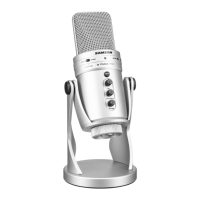
Samson Satellite as the audio device.
3. To adjust the gain of the microphone, click the
Properties button, and then select the Levels tab. You
can view the volume level as either a percentage or in
dB, by right clicking on the number box.
4. If the microphone LED is lighting red, turn this control
down until the LED no longer flashes red.
5. In the Playback tab, select the Level tab and set
the computer’s Master Volume to 100%. Use the
Headphone Volume knob on the Satellite control the
overall output from the headphones or speaker.
6. To adjust the direct monitoring level in the Playback tab
by moving the fader labeled Microphone.
Using the Satellite with Windows


 To Next Page