EasyManua.ls Logo

Samsung 5 Series - User Manual

Samsung 5 Series
129 pages
Print Icon
To Next Page IconTo Next Page
Loading...
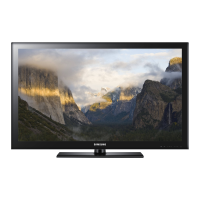
LCD TV
user manual
imagine the possibilities
Thank you for purchasing this Samsung product.
To receive more complete service, please register
your product at
www.samsung.com/global/register
Model Serial No.

Table of Contents

Other manuals for Samsung 5 Series

Questions and Answers

  • D
    Dennis MillsJul 26, 2025
    Why is my Samsung 5 Series LCD TV remote not working?
    • J
      jamesmillerJul 26, 2025
      If your Samsung LCD TV remote control isn't working, first, replace the batteries and try again. If that doesn't work, make sure the remote is in TV mode by pressing the 'TV' button. If the issue persists, the remote control might be temporarily malfunctioning.
  • A
    Andrew MooreJul 29, 2025
    Why is my Samsung LCD TV making a strange noise?
    • V
      Vicki JohnsJul 30, 2025
      Strange sounds from your Samsung LCD TV can occur due to the temporary swelling and shrinking of the TV's plastic components because of temperature and humidity changes, also some noise can be heard due to the characteristics of the product. Temporary electronic oscillation sounds can also occur due to the TV's characteristics.
  • J
    Janet CampbellAug 3, 2025
    Why is Anynet+ not working on my Samsung LCD TV?
    • J
      Joy ReidAug 3, 2025
      Anynet+ may not function correctly due to several reasons. Ensure the connected device is an Anynet+ compatible device, as the system exclusively supports these. Connect only one receiver (home theater). Verify that the Anynet+ device's power cord and Video/Audio/HDMI 1.3 cable connections are properly connected. Also, check if Anynet+ (HDMI-CEC) is enabled in the Anynet+ setup menu and ensure the TV remote control is in TV mode, and that it's an Anynet+ exclusive remote control. Note that Anynet+ may not work during certain operations like searching channels, using WISELINK, or during Plug & Play. After connecting or disconnecting the HDMI 1.3 cable, try searching for devices again or power cycling your TV. Finally, confirm that the Anynet+ function of the connected device is activated.
  • L
    levydestinyAug 7, 2025
    What to do if the connected device is not displayed on my Samsung 5 Series LCD TV using Anynet+?
    • E
      Emily KrauseAug 7, 2025
      If a connected device isn't showing up, first check if it supports Anynet+ functions. Verify that the HDMI 1.3 cable is correctly connected and that Anynet+ (HDMI-CEC) is turned on in the Anynet+ setup menu. Try rescanning for Anynet+ devices. Keep in mind that only HDMI 1.3 cables support Anynet+, and some cables might not fully support these functions. If the connection was interrupted due to a disconnected HDMI cable, power cord, or a power failure, rescan for devices.
  • D
    Destiny ButlerAug 12, 2025
    How to start Anynet+ on my Samsung 5 Series?
    • J
      johnsonjoannAug 12, 2025
      To start Anynet+, ensure the Anynet+ device is correctly connected to the TV and that Anynet+ (HDMI-CEC) is set to 'On' in the Anynet+ Setup menu. Then, press the TV button on the TV remote to switch to TV mode. Press the TOOLS button to display the Anynet+ menu, and then select the desired menu option.
  • A
    adamrichardsonAug 16, 2025
    How to exit Anynet+ on my Samsung LCD TV?
    • L
      lowenAug 16, 2025
      To exit Anynet+, select 'View TV' in the Anynet+ menu. Alternatively, press the SOURCE button on the TV remote and select a device other than an Anynet+ device. You can also press CH, CH LIST, PRE-CH, or FAV.CH to change the TV mode.
  • B
    Barry GoodwinAug 20, 2025
    What to do if the message 'Connecting to Anynet+ device...' appears on the screen of my Samsung LCD TV?
    • G
      Gabriel RichardsonAug 21, 2025
      When the message 'Connecting to Anynet+ device...' is displayed, you cannot use the remote control during the configuration process or while switching to a view mode. Please wait until the Anynet+ setting or switching to view mode is complete before using the remote control.

Summary

Important Warranty Information

Regarding Television Format Viewing

Guidelines for viewing standard and wide screen formats to prevent image retention.

Precautions When Displaying a Still Image

Avoids permanent damage to the TV screen from displaying static images.

General Information

List of Features

Overview of the television's capabilities and technologies.

Accessories

Lists the items included with the LCD TV.

Connections

Connecting VHF and UHF Antennas

Instructions for connecting antennas to the TV.

Connecting Cable TV

Steps for connecting to a cable TV system.

Connecting a PC

Instructions for connecting a computer to the TV.

Operation

Turning the TV On and Off

Basic procedure for powering the TV on and off.

Plug & Play Feature

Guides through automatic initial TV setup and settings.

Changing Channels

Methods for navigating between TV channels.

Adjusting the Volume

How to control the TV's audio volume.

Viewing the Menus

Navigating the TV's on-screen menu system.

Picture Control

Changing the Picture Standard

Selecting optimal picture modes like Dynamic, Standard, or Movie.

Customizing the Picture Settings

Adjusting picture quality parameters like brightness and contrast.

Adjusting the Detailed Settings

Fine-tuning advanced picture settings for optimal quality.

Sound Control

Changing the Sound Standard

Selecting sound modes like Standard, Music, Movie, or Speech.

Customizing the Sound

Adjusting sound settings using the equalizer.

Channel Control

Managing Channels

Adding, deleting, or organizing TV channels.

Setting Your Favorite Channels

Marking frequently watched channels for quick access.

Features

WISELINK

Function to view and play photo (JPEG) and audio (MP3) files from USB.

About Anynet+

Enables control of connected Samsung devices using the TV remote.

Viewing Picture-in-Picture

Watch TV tuner and external video source simultaneously.

Troubleshooting

Poor picture.

Solutions for common picture quality issues.

No picture or sound.

Troubleshooting steps when the TV has no display or audio.

Remote control malfunctions.

Steps to resolve issues with the remote control.

Important Safety Instructions

CAUTION: TO REDUCE THE RISK OF ELECTRIC SHOCK...

Precautions to prevent electric shock and ensure safe operation.

PRECAUCION:PARA REDUCIR EL PELIGRO DE DESCARGA ELECTRICA...

Safety warnings regarding electrical hazards and product installation.

Contact SAMSUNG WORLDWIDE

Samsung 5 Series Specifications

General IconGeneral
Display TypeLCD
Smart TVYes
EthernetYes
BacklightLED
Refresh Rate60Hz
Operating SystemTizen
Screen Sizes43", 50", 55", 65"
USB Ports1-2
Wi-FiYes
HDRHDR10+
BluetoothYes
Audio Output20W
HDMI Ports3

Related product manuals