EasyManua.ls Logo

Samsung 6400 - Page 22

Samsung 6400
58 pages
Print Icon
To Next Page IconTo Next Page
To Previous Page IconTo Previous Page
Loading...
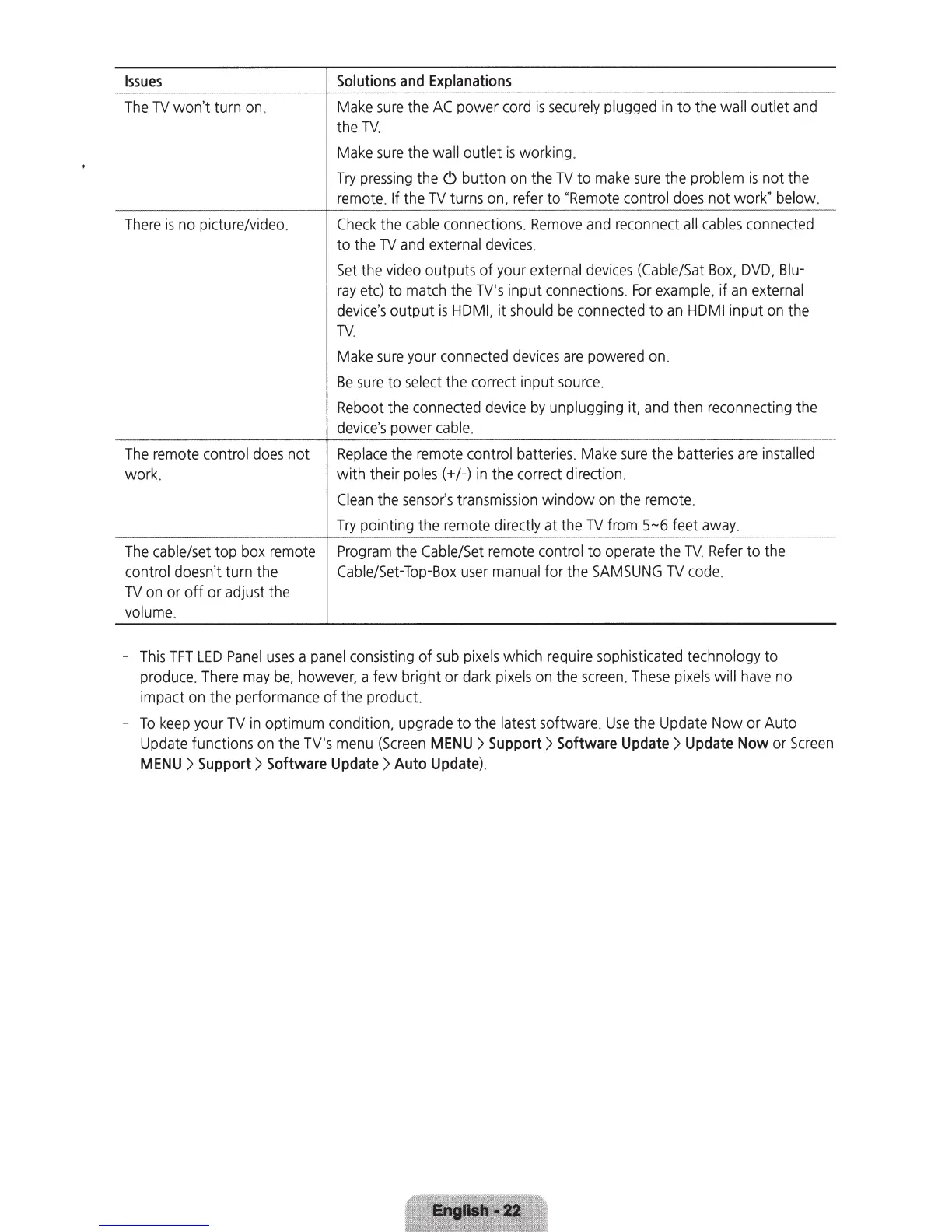
Issues
Solutions
and
Explanations
--------------
--------~-------------------
The
TV
won't turn
on
.
There
is
no
picture/video.
Make
sure
the
AC
power
cord
is
securely
plugged
in
to the wall outlet
and
the
TV.
Make
sure
the wall outlet
is
working.
Try
pressing
the (!) button
on
the
TV
to
make
sure
the problem
is
not the
remote
.
If
the
TV
turns
on,
refer to "
Remote
control
does
not work" below.
Check
the
cable
connections.
Remove
and
reconnect
all
cables
connected
to the
TV
and
external
devices.
Set
the
video
outputs of your
external
devices
(Cable/Sat
Box,
DVD,
Blu-
ray
etc)
to
match
the
TV's
input connections.
For
example,
if
an
external
device
's output
is
HDMI,
it
should
be
connected
to
an
HDMI
input
on
the
TV
.
Make
sure
your connected
devices
are
powered
on.
Be
sure
to
select
the correct input
source
.
Reboot
the connected
device
by
unplugging it,
and
then reconnecting the
device's
power
cable
.
---------------------
The
remote
control
does
not
Replace
the
remote
control batteries.
Make
sure
the batteri
es
are
installed
work. with their poles(+/-)
in
the correct direction.
The
cable/set top
box
remote
control doesn't turn the
TV
on
or
off
or adjust the
volume
.
Clean
the
sensor's
transmission
window
on
the
remote
.
Try
pointing the
remote
directly
at
the
TV
from
5-6
feet
away
.
Program
the
Cable/Set
remote control to
operate
the
TV.
Refer
to the
Cable/Set-Top-Box
user
manual
for
the
SAMSUNG
TV
code.
-
This
TFT
LED
Panel
uses
a
panel
consisting
of
sub
pixels
which require sophisticated technology to
produce.
There
may
be
,
however,
a few bright or
dark
pixels
on
the
screen.
These
pixels
will
have
no
impact
on
the performance of the product.
-
To
keep
your
TV
in
optimum condition, upgrade to the latest software.
Use
the
Update
Now or Auto
Update
functions
on
the
TV's
menu
(Screen
MENU
>Support>
Software
Update>
Update
Now
or
Screen
MENU
>
Support>
Software
Update>
Auto
Update)
.

Related product manuals