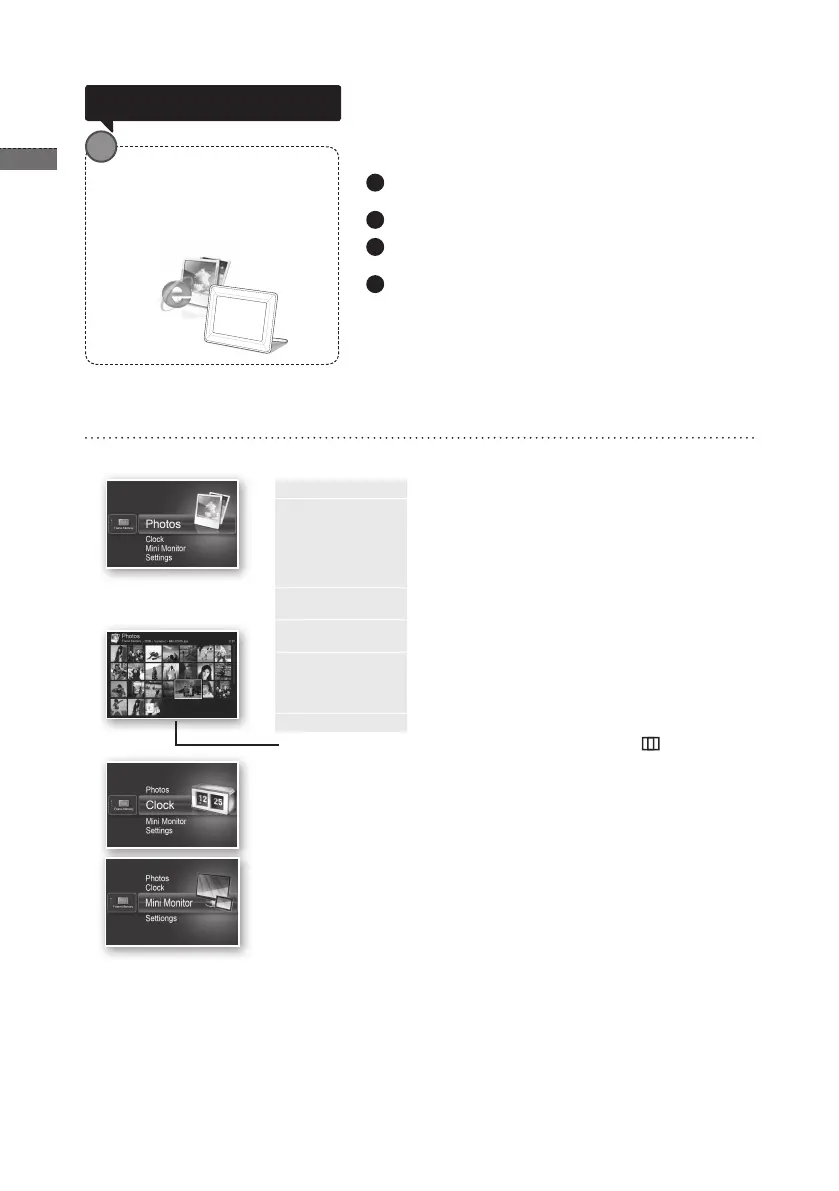
Menu Description
You can set various functions using buttons.
<Home>
Moves to the main screen.
<Copy>
If an external memory device (SD memory card/ USB
memory device) is connected to the product,
• Copies pictures in an external memory device to the
internal memory.
• Copies pictures in the internal memory to an external
memory device.
<Delete>
Deletes pictures in the internal memory or an external
memory device.
<Select Multiple
Files>
Selects multiple les to run functions like slide show, copy,
delete, etc.
<Select Storage
Device>
If an external memory device (SD memory card/USB
memory device) is connected to the product,
• Select the internal memory or an external memory
device (SD memory card/USB memory device).
<Settings>
Moves to the Settings screen.
* If you use the MENU, select the picture and then, press the [ ] button.
The current time congured in <Settings> - <Clock> is displayed. The
current time setting can be erased if the power adaptor is disconnected for a
prolonged period of time. Please keep the power adapter connected.
Connect the digital frame to a PC with the USB cable to use as a Mini Monitor.
Log on to http://samsung.com/ and enter the model name
in the search eld. (700T)
Download and decompress the appropriate rmware.
Copy the decompressed ***.isp le to the SD card or USB
memory device and connect to the digital frame.
Select <Settings> - <Support> - < Upgrade Software> with
the buttons on the product. The rmware is updated.
When the update is nished, turn the digital frame off,
remove the external memory device (SD card/USB
memory device), and turn the digital frame on again.
You can check if the rmware version has been updated in
<Settings> - <Support> - <Product Information>.
Download and install the latest rmware from the Samsung
Electronics homepage.
Firmware update
Preparations for rmware
update
• Digital photo frame
• Firmware le for update
• USB memory or SD card
!


 To Next Page