Basics
30
Hiding the navigation bar
View files or use apps on a wider screen by hiding the navigation bar.
Launch the
Settings
app, tap
Display
→
Navigation bar
, and then tap
Full screen gestures
under
Navigation type
. The navigation bar will be hidden and the gesture hints will appear.
Tap
More options
and select an option you want.
•
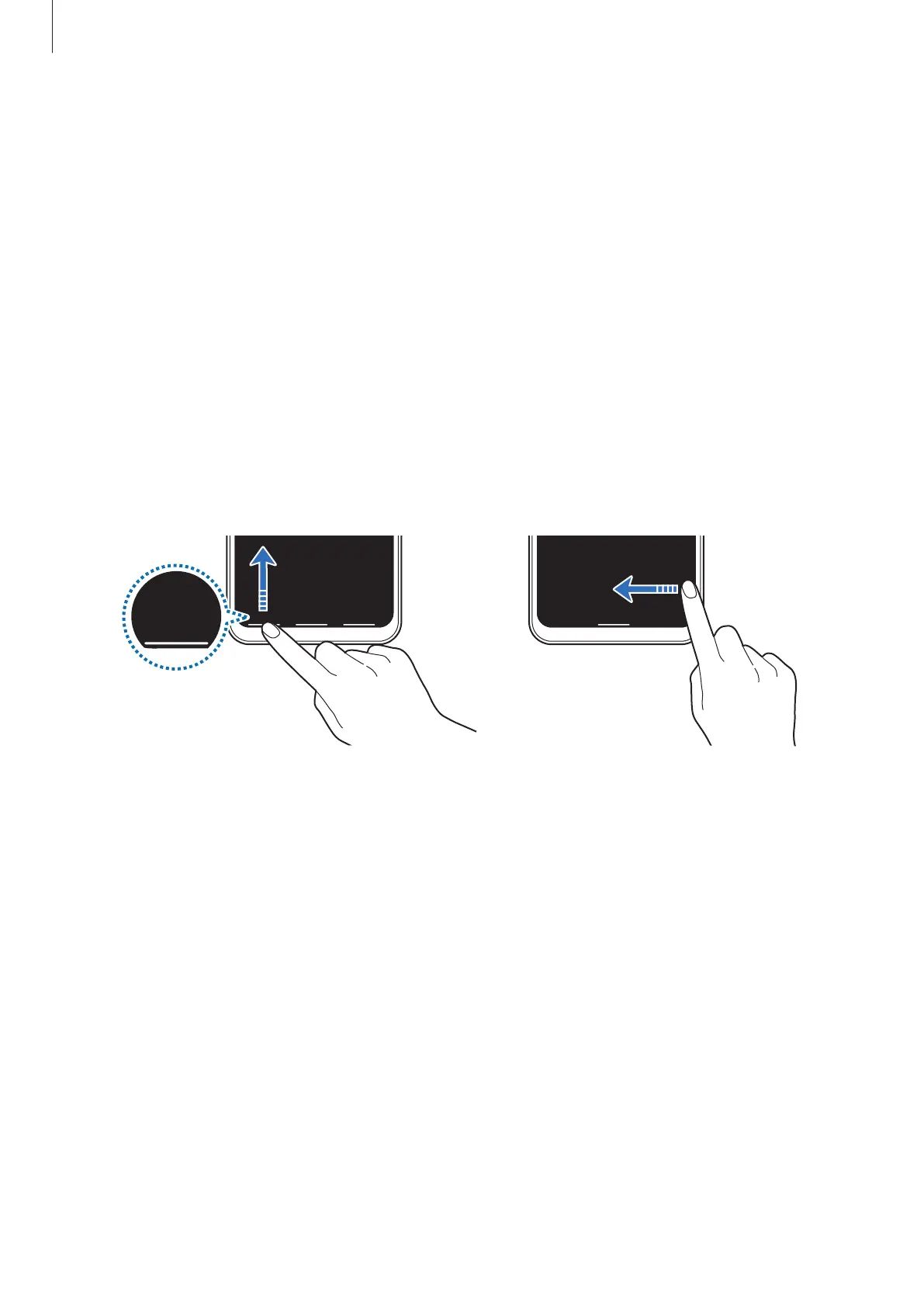
Swipe from the bottom
: The gesture hints will appear where the soft buttons are
located. To use the soft buttons, drag the gesture hint of the desired button upwards.
•
Swipe from the sides and bottom
:
–
Swipe up from the bottom of the screen to move to the Home screen.
–
Swipe up and hold to view the list of recent apps.
–
Swipe inward from either side of the screen to return to the previous screen.
–
Swipe inward from one of the bottom corners to launch the
Google Assistant
app.
Swipe from bottom Swipe from sides and bottom
If you want to hide the gesture hints at the bottom of the screen, tap the
Gesture hints
switch to deactivate it.



 To Next Page