Apps and features
84
Hyperlapse mode
Record scenes, such as passing people or cars, and view them as fast-motion videos.
1
On the shooting modes list, tap
MORE
→
HYPERLAPSE
.
2
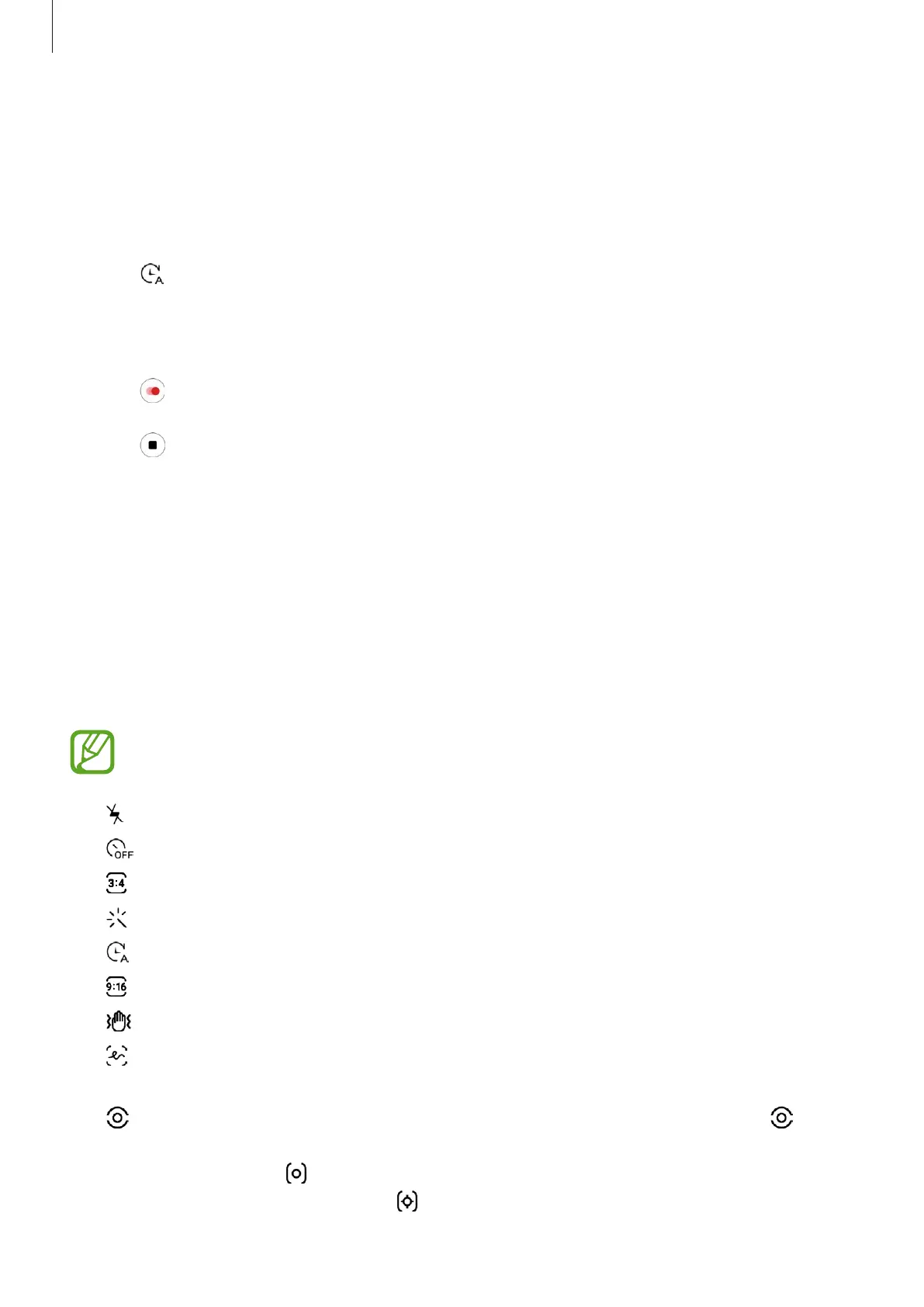
Tap and select a frame rate option.
If you set the frame rate to
Auto
, the device will automatically adjust the frame rate
according to the changing rate of the scene.
3
Tap to start recording.
4
Tap to finish recording.
5
On the preview screen, tap the preview thumbnail and tap
Play hyperlapse
to view the
video.
Customizing camera settings
Options for current shooting mode
On the preview screen, use the following options.
The available options may vary depending on the shooting mode.
•
: Activate or deactivate the flash.
•
: Select the length of the delay before the camera automatically takes a photo.
•
: Select an aspect ratio for photos.
•
: Apply a filter effect or beauty effects.
•
: Select a frame rate.
•
: Select an aspect ratio for videos.
•
: Stabilize a video.
•
: Record fun videos with virtual handwriting or drawings on faces or anywhere else.
Refer to AR Doodle (Galaxy A70) for more information. (Galaxy A70)
•
: Select a metering method. This determines how light values are calculated.
Centre-weighted
uses the light in the centre portion of the shot to calculate the
exposure of the shot.
Spot
uses the light in a concentrated centre area of the shot to
calculate the exposure of the shot.
Matrix
averages the entire scene.



 To Next Page