Apps and features
24
•
Moving apps from a folder
Tap and hold an app to drag it to a new location.
•
Deleting a folder
Tap and hold a folder, and then tap
Delete folder
. Only the folder will be deleted. The
folder’s apps will be relocated to the Apps screen.
Edge panel
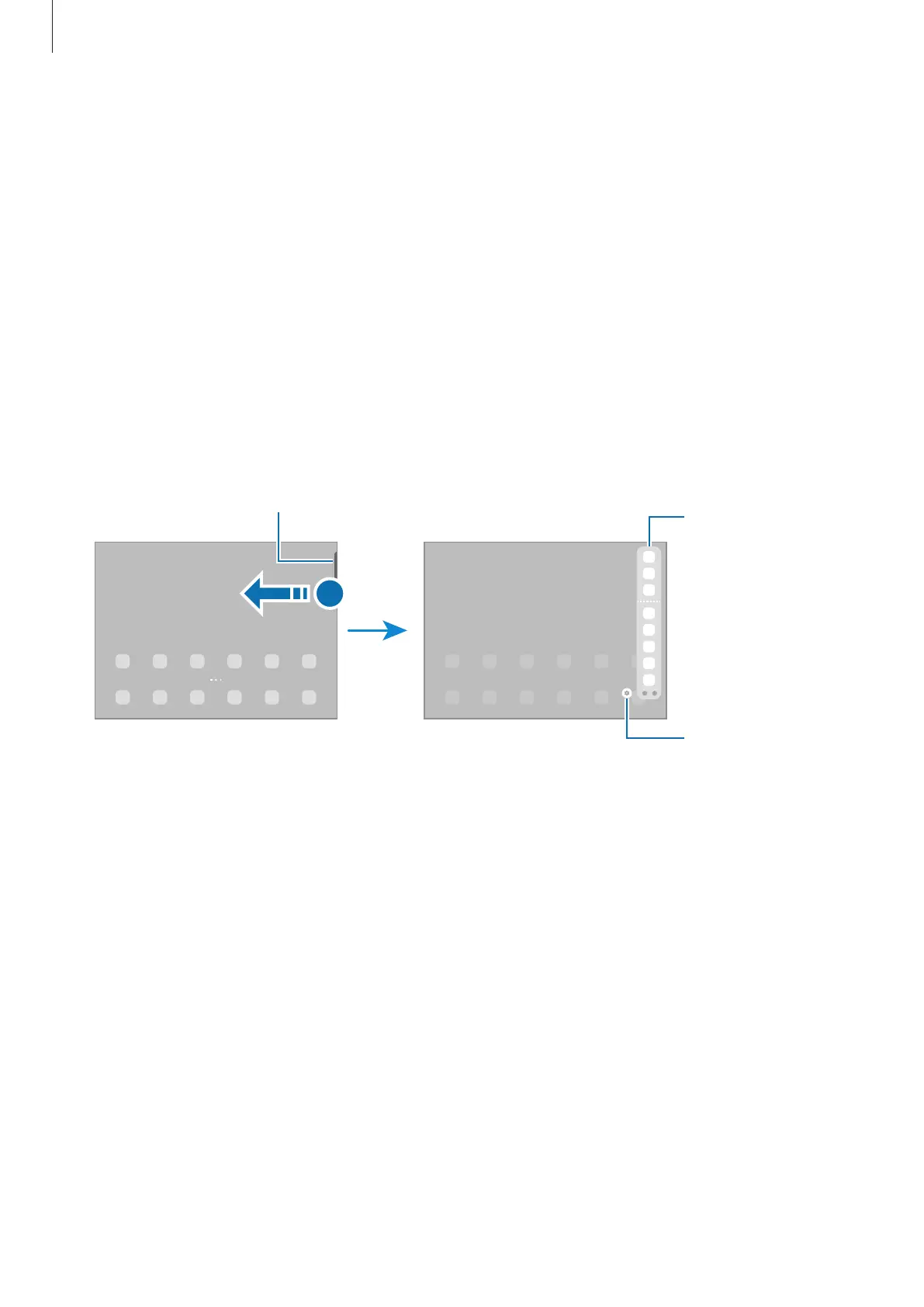
You can quickly access your favourite apps and features from the Edge panels.
Drag the Edge panel handle towards the centre of the screen.
If the Edge panel handle is not visible, launch the
Settings
app, tap
Display
, and then tap the
Edge panels
switch to activate it.
Edge panel
Edge panel
settings
Lock screen
Pressing the Side key turns off the screen and locks it. Also, the screen turns off and
automatically locks if the device is not used for a specified period.
To unlock the screen, swipe in any direction when the screen turns on.
If the screen is off, press the Side key to turn on the screen. Alternatively, double-tap the
screen.





 To Next Page