This document describes the features and functions of a Samsung tablet, focusing on its S Pen, basic operations, connectivity, messaging, app management, contacts, and security.
Device Overview
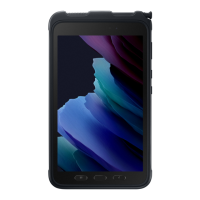
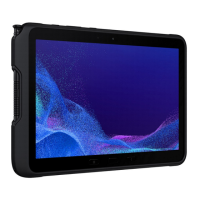
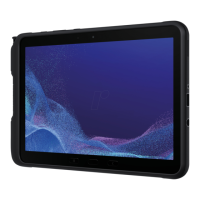
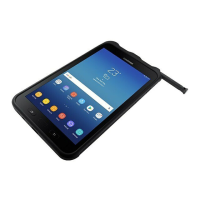
The Samsung tablet is designed for versatile use, featuring an S Pen for natural writing and drawing, along with essential physical buttons and ports for power, volume, and charging. The device's robust design, as suggested by the images, implies durability and protection against environmental factors like humidity and water.
S Pen Functionality
The S Pen is a core feature of this device, enabling fast, accurate, and precise input for a natural writing experience. To use the S Pen, it must be removed from its slot, which automatically launches the "Air command" menu, providing quick access to various handy tools.
The S Pen can be used for a variety of tasks:
- Express Yourself: Write and draw directly into emails, calendars, Word, Excel, PowerPoint, and PDF documents. It also allows users to capture ideas in S Note and even write notes on the back of pictures.
- Create Note: Quickly create short notes for quick reminders or ideas.
- View All Notes: Access and review all previously created notes.
- Smart Select: This feature allows users to outline, crop, edit, and share a screen with others, making it easy to capture specific content.
- Screen Write: Capture a screenshot and then write or draw directly on it, useful for annotations or quick edits.
- Add Shortcuts: Users can select and add their favorite apps to the Air command menu for quick access.
Basic Device Functions
Installing SIM and Memory Cards
The tablet supports both a SIM card and an optional microSD memory card for expanded storage.
- Remove Back Cover: Locate the cover release slot and carefully remove the back cover.
- Insert SIM Card: Slide the SIM card into the designated card slot until it is securely in place.
- Insert Memory Card: Slide the microSD memory card into its card slot until it is secured. Note that the microSD card is sold separately.
- Insert Battery: Align the gold contacts of the battery with the device's contacts and press down to insert it.
- Position Back Cover: Place the back cover over the battery compartment and press down firmly to seal it. This step is crucial for ensuring protection against humidity and water.
Caution: Devices with accessible compartments or ports should be sealed or closed tightly to prevent liquid from entering the device.
Charging the Device
Before initial use, the device should be fully charged.
- The device comes with a charger and a USB cable.
- Plug the smaller end of the cable into the USB/charger port on the device.
- Plug the larger end of the cable into the charging head.
- Connect the charger into an electrical outlet.
Caution: Only Samsung-approved charging devices should be used. Improper handling of the charging port or using an incompatible charger may damage the device and void the warranty.
Turning the Device On and Off
To turn the device on or off, press and hold the Power/Lock key.
Device Configuration
Initial Setup
When turning on the device for the first time, a setup process is required:
- Select Language: Choose a language and tap "START" or "Accessibility."
- Follow Prompts: Complete the setup process by following the on-screen prompts.
Locking and Unlocking the Screen
The device offers screen lock features to secure personal data:
- To Lock: Press the Power/Lock key.
- To Unlock: Press the Power/Lock key and then swipe a finger across the screen.
Customizing the Device
Users can personalize their device's appearance and functionality:
- Access Options: Touch and hold a blank space on the home screen to access customization options.
- Wallpapers and Themes: Change the Home and Lock screens with a variety of wallpapers, icons, and themes.
- Widgets: Drag widgets to an empty space on the Home screen for quick access to applications.
- Screen Grid: Adjust the number of items that can be placed on each Home screen by changing the screen grid dimensions.
Volume and Notification Sounds
Adjusting sound settings is straightforward:
- Navigate to Settings: From the Home screen, swipe up for "Apps," then go to "Settings" → "Sounds and vibration."
- Adjust Volume: Tap "Volume" to increase or decrease device volume settings.
- Customize Notification Sounds: Tap "Notification sounds" to customize the device's notification sound.
Connectivity
Connecting to Bluetooth
Bluetooth allows the device to connect wirelessly to other compatible devices:
- Navigate to Bluetooth Settings: From the Home screen, swipe up for "Apps," then go to "Settings" → "Connections" → "Bluetooth."
- Turn On Bluetooth: Tap "On/Off" to enable Bluetooth.
- Initiate Pairing: Tap a device from the list to begin the pairing process.
- Enter Passkey/PIN: If required, enter the passkey/PIN code and tap "OK." Once connected, a Bluetooth icon will display in the status bar.
Connecting to Wi-Fi
Connecting to Wi-Fi networks provides internet access:
- Navigate to Wi-Fi Settings: From the Home screen, swipe up for "Apps," then go to "Settings" → "Connections" → "Wi-Fi."
- Turn On Wi-Fi: Tap "On/Off" to enable Wi-Fi.
- Select Network: Tap a network from the list and enter the password if prompted. When connected, a Wi-Fi icon will display in the status bar.
Messaging and Communication
Gmail
Gmail is used for sending and receiving emails:
- Access Gmail: From the Home screen, tap the "Google" folder, then select "Gmail."
- Add Account: Tap "Add an email address" to create a new account or log into an existing one.
- Use Existing Account: If an account is already set up, tap "TAKE ME TO GMAIL."
Email Accounts
Setting up other email accounts is also supported:
- Navigate to Email Setup: From the Home screen, swipe up for "Apps," then go to the "Samsung" folder, and select "Email."
- Enter Credentials: Enter the email address and password into the appropriate fields and tap "SIGN IN."
- Complete Setup: Follow the prompts to complete the setup process.
Apps & More
Installing Apps
The device offers multiple platforms for downloading and installing applications:
- Play Store: Download new apps from the Google™ Play store. Visit play.google.com/store/apps for more information.
- Galaxy Apps: View and download Samsung apps optimized for Galaxy devices. Visit samsung.com/levant/apps/mobile/galaxyapps for more information.
Samsung Smart Switch
Samsung Smart Switch facilitates data transfer:
- Function: Easily transfer photos, videos, music, apps, and more from an old device to the new Samsung tablet.
- Website: Visit samsungsmartswitch.com for more details.
- Navigate to Contacts: From the Home screen, swipe up for "Apps," then select "Contacts."
- Add New Contact: Tap the "+" icon to add a new contact.
- Enter Information: Enter the desired information and tap "SAVE" to store the new entry.
- Navigate to Contacts: From the Home screen, swipe up for "Apps," then select "Contacts."
- Select Contact: Tap a contact name.
- Edit Information: Tap "EDIT," make the desired changes, and then tap "SAVE."
- Navigate to Contacts: From the Home screen, swipe up for "Apps," then select "Contacts."
- Select and Delete: Touch and hold a contact name, then tap "DELETE."
Security Features
The Screen lock menu provides various options to secure the device:
- Navigate to Security Settings: From the Home screen, swipe up for "Apps," then go to "Settings" → "Lock screen and security."
- Screen Lock Type: Select "Screen lock type" to choose from options like Swipe, Pattern, PIN, Password, or Fingerprint.
- Face Recognition: Register your face for quick and secure unlocking.
- Fingerprint Scanner: Add your fingerprints for biometric authentication.
- Smart Lock: Set a secure screen lock to use this feature, which can keep your device unlocked in trusted locations or when connected to trusted devices.
- Information and FaceWidgets: Select what information and widgets to show on the Lock screen.
- Notifications: Configure notification display on the Lock screen.
- App Shortcuts: Select apps to open directly from the Lock screen.
- Samsung Pass: Verify your identity with biometrics instead of a username and password for various services.
- Find My Mobile: Locate and control your device remotely using your Samsung account.
- Unknown Sources: Allow or disallow the installation of apps from sources other than the Play Store or Galaxy Apps.

 Need help?
 General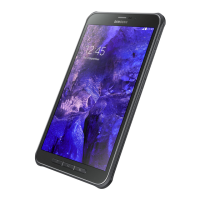





 To Next Page