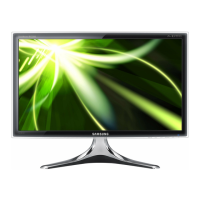
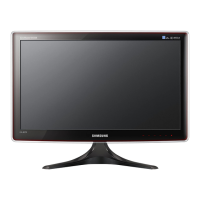
This document is a user manual for Samsung SyncMaster monitors, covering models B1630N, B1730NW, B1930N, BX1930N, B1930NW, B2030, B2030N, BX2030N, B2230, B2230N, B2230W, B2330, BX2330, and B2430L. It provides comprehensive information on the monitor's function, technical specifications, usage, and maintenance.
Function Description
The Samsung SyncMaster monitors are designed to display visual output from a connected computer or other video sources. They offer various display modes and resolutions to suit different user needs and applications, from general office work to multimedia consumption. The monitors support both analog (D-Sub) and digital (DVI) input signals, with some models also supporting RGB Analog and Digital Visual Interface (DVI) Compliant Digital RGB.
Key functions include:
- Optimal Resolution Setting: The monitor automatically sets the optimal resolution when connected to a PC, ensuring the best picture quality. Users can also manually adjust the resolution.
- Power Saving Function: The monitors feature a power-saving mode that automatically turns off the screen when the product is not used for a predetermined period or to reduce power consumption. The power LED indicates the current power state (On, Blinking, Off).
- OSD (On Screen Display) Menu: An intuitive OSD menu allows users to adjust various display settings such as brightness, contrast, sharpness, color, image size, and more.
- MagicBright and MagicColor: These features enhance picture quality by optimizing brightness, sharpness, and color settings for different viewing environments and content types (e.g., text, internet, game, cinema, dynamic contrast).
- MagicEco: This function helps reduce power consumption by adjusting the display's brightness based on user-selected percentages (100%, 75%, 50%, Power Saving Off).
- MultiScreen Software: For compatible models, the MultiScreen software enables users to partition the monitor into multiple sections, effectively allowing the display to be used as if it were multiple smaller monitors.
- Natural Color Software: This software helps adjust the displayed colors on the product to match the colors of printed pictures, aiming for more accurate color representation.
Important Technical Specifications
The manual provides detailed specifications for each model, including:
B1630N:
- Panel Size: 15.6 inches (39 cm)
- Display Area: 344.23 mm (H) x 193.54 mm (V)
- Pixel Pitch: 0.252 mm (H) x 0.252 mm (V)
- Synchronization: Horizontal: 30 ~ 61 kHz, Vertical: 56 ~ 75 Hz
- Display Color: 16.7 M
- Resolution: Optimum: 1366 x 768 @60Hz, Maximum: 1366 x 768 @60Hz
- Input Signal, Terminated: RGB Analog, 0.7 Vp-p ± 5%, separate H/V sync, Composite, SOG, TTL level (V high ≥ 2.0V, V low ≤ 0.8V)
- Maximum Pixel Clock: 90MHz (Analog)
- Power Supply: 100 ~ 240 V
- Signal Cable: 15pin-to-15pin D-sub cable, Detachable
- Dimensions (WxHxD) / Weight (Simple Stand): 388.0 x 271.0 x 67.1 mm / 15.3 x 10.7 x 2.6 inches (Without Stand), 388.0 x 338.0 x 178.0 mm / 15.3 x 13.3 x 7.0 inches / 2.65 kg / 5.84 lbs (With Stand)
- Environmental Considerations: Operating Temperature: 50°F ~ 104°F (10°C ~ 40°C), Humidity: 10 % ~ 80 %, non-condensing; Storage Temperature: -4°F ~ 113°F (-20°C ~ 45°C), Humidity: 5 % ~ 95 %, non-condensing
- Tilt: 0° (±1°)~20° (±1°)
- Power Consumption (On/Blinking/Off): 20 W / Less than 0.3 watts / Less than 0.3 watts
B1730NW:
- Panel Size: 17 inches (43 cm)
- Display Area: 367.2 mm (H) x 229.5 mm (V)
- Pixel Pitch: 0.255 mm (H) x 0.255 mm (V)
- Synchronization: Horizontal: 30 ~ 81 kHz, Vertical: 56 ~ 75 Hz
- Resolution: Optimum: 1440 x 900 @60Hz, Maximum: 1440 x 900 @75Hz
- Maximum Pixel Clock: 136.75MHz (Analog)
- Power Consumption (On/Blinking/Off): 20 W / Less than 0.3 watts / Less than 0.3 watts
B1930N/BX1930N:
- Panel Size: 18.5 inches (47 cm)
- Display Area: 409.8 mm (H) x 230.4 mm (V)
- Pixel Pitch: 0.3 mm (H) x 0.3 mm (V)
- Resolution: Optimum: 1366 x 768 @60Hz, Maximum: 1366 x 768 @60Hz
- Maximum Pixel Clock: 89MHz (Analog)
- Power Consumption (On/Blinking/Off): 18 W / Less than 0.3 watts / Less than 0.3 watts
B1930NW:
- Panel Size: 19 inches (48 cm)
- Display Area: 408.24 mm (H) x 255.15 mm (V)
- Pixel Pitch: 0.2835 mm (H) x 0.2835 mm (V)
- Resolution: Optimum: 1440 x 900 @60Hz, Maximum: 1440 x 900 @75Hz
- Maximum Pixel Clock: 137MHz (Analog)
- Power Consumption (On/Blinking/Off): 35 W / Less than 0.3 watts / Less than 0.3 watts
B2030/B2030N:
- Panel Size: 20 inches (50 cm)
- Display Area: 442.8 mm (H) x 249.08 mm (V)
- Pixel Pitch: 0.2768 mm (H) x 0.2768 mm (V)
- Resolution: Optimum: 1600 x 900 @60Hz, Maximum: 1600 x 900 @60Hz
- Maximum Pixel Clock: 150MHz (Analog, Digital)
- Power Consumption (On/Blinking/Off): 25 W / Less than 0.3 watts / Less than 0.3 watts
B2230/B2230N:
- Panel Size: 21.5 inches (54 cm)
- Display Area: 476.64 mm (H) x 268.11 mm (V)
- Pixel Pitch: 0.24825 mm (H) x 0.24825 mm (V)
- Resolution: Optimum: 1920 x 1080 @60Hz, Maximum: 1920 x 1080 @60Hz
- Maximum Pixel Clock: 162MHz (Analog, Digital)
- Power Consumption (On/Blinking/Off): 45 W / Less than 0.3 watts / Less than 0.3 watts
B2230W:
- Panel Size: 22 inches (55 cm)
- Display Area: 473.76 mm (H) x 296.1 mm (V)
- Pixel Pitch: 0.282 mm (H) x 0.282 mm (V)
- Resolution: Optimum: 1680 x 1050 @60Hz, Maximum: 1680 x 1050 @60Hz
- Maximum Pixel Clock: 146MHz (Analog, Digital)
- Power Consumption (On/Blinking/Off): 45 W / Less than 0.3 watts / Less than 0.3 watts
B2330:
- Panel Size: 23 inches (58 cm)
- Display Area: 509.76 mm (H) x 286.74 mm (V)
- Pixel Pitch: 0.2655 mm (H) x 0.2655 mm (V)
- Resolution: Optimum: 1920 x 1080 @60Hz, Maximum: 1920 x 1080 @60Hz
- Maximum Pixel Clock: 148.5MHz (Analog, Digital)
- Power Consumption (On/Blinking/Off): 25 W / Less than 0.3 watts / Less than 0.3 watts
B2430L:
- Panel Size: 23.6 inches (59 cm)
- Display Area: 521.28 mm (H) x 293.22 mm (V)
- Pixel Pitch: 0.2715 mm (H) x 0.2715 mm (V)
- Resolution: Optimum: 1920 x 1080 @60Hz, Maximum: 1920 x 1080 @60Hz
- Maximum Pixel Clock: 164MHz (Analog, Digital)
- Power Consumption (On/Blinking/Off): 45 W / Less than 0.3 watts / Less than 0.3 watts
Usage Features
The manual details various aspects of using the monitor, from initial setup to advanced settings:
-
Installation:
- Package Contents: Includes the monitor, installation manual, product warranty, user manual (CD), D-Sub cable, power cord, and stand connector. Some models may also include a DVI cable.
- Stand Installation: Step-by-step instructions for assembling the stand and attaching it to the monitor.
- Wall Mount Installation: Guidelines for installing the monitor on a wall mount, emphasizing VESA specifications for compatibility.
- Connecting to a PC: Instructions for connecting the monitor to a PC using either a D-Sub (analog) or DVI (digital) cable.
- Kensington Lock: Information on how to secure the monitor using a Kensington lock to prevent theft.
-
Optimal Resolution Setting: The monitor automatically detects and sets the optimal resolution. If the resolution is not optimal, a message will appear on the screen. Users can adjust the resolution through the PC's display settings.
-
Standard Signal Mode Table: Detailed tables for each monitor model listing supported display modes, horizontal frequency, vertical frequency, pixel clock, and sync polarity. This helps users understand the monitor's capabilities and troubleshoot display issues.
-
Installing the Device Driver: Instructions for installing the monitor driver from the included CD-ROM or by downloading it from the Samsung Electronics website. This ensures proper communication between the monitor and the PC.
-
Product Operating Buttons: A description of the monitor's control buttons (MENU, SOURCE, AUTO, Power) and their functions for navigating the OSD menu and adjusting settings.
-
OSD Menu Structure: A detailed breakdown of the OSD menu, including top menus (PICTURE, COLOR, SIZE&POSITION, SETUP&RESET, INFORMATION) and their sub-menus.
- PICTURE: Adjusts brightness, contrast, and sharpness. MagicBright and MagicAngle settings are also found here.
- COLOR: Controls MagicColor, Red, Green, Blue, Color Tone, Color Effect, and Gamma settings.
- SIZE&POSITION: Adjusts H-Position, V-Position, and Image Size.
- SETUP&RESET: Allows users to reset settings, change language, manage MagicReturn, MagicEco, Off Timer, Customized Key, Auto Source, PC/AV Mode, Display Time, and Menu Transparency.
- INFORMATION: Displays the current frequency and resolution set on the PC.
-
Maintaining Correct Posture: Guidelines for maintaining a correct posture while using the monitor to prevent eye strain and physical discomfort. This includes recommendations for screen distance, height, and arm/elbow positioning.
Maintenance Features
The manual provides essential information on cleaning and troubleshooting the monitor to ensure its longevity and optimal performance:
This manual serves as a complete guide for users to safely and effectively install, operate, and maintain their Samsung SyncMaster monitors.

 Need help?


 To Next Page
 General