Using the multimedia dock
15
Controlling with an external keyboard and mouse
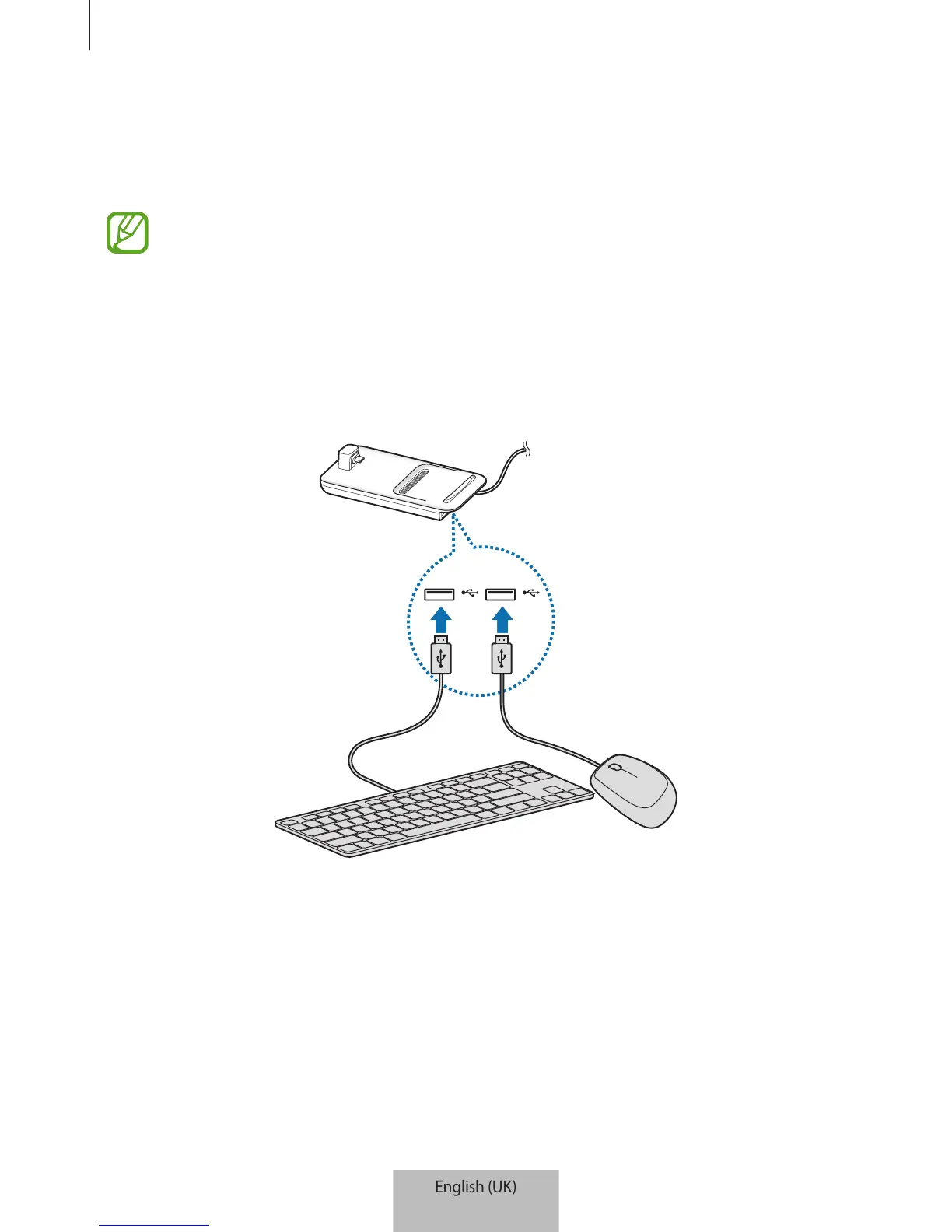
Connect a wired keyboard and mouse to the multimedia dock’s USB port or connect a
wireless keyboard and mouse with the Bluetooth feature of the connected mobile device.
•
When you connect a mouse, the touchpad will not appear on your mobile device.
•
You can control with an external keyboard and mouse even in Screen mirroring
mode.
Connecting via cable
If you want to use a wired keyboard or wired mouse, connect their USB cables to the
multimedia dock’s USB ports.
Connecting via wireless or Bluetooth
You can connect a wireless keyboard and mouse or Bluetooth keyboard and mouse. For more
information about the devices, refer to the device’s user manual.
•
Wireless keyboard and mouse: Insert a wireless receiver into the USB port.
•
Bluetooth keyboard and mouse: Connect to a mobile device via Bluetooth.


 To Next Page