Using the multimedia dock
20
•
Screen resolution for Samsung DeX
: Change the Samsung DeX mode’s screen
resolution.
•
Pointer speed
: Adjust the pointer speed for the mouse.
•
Show on-screen keyboard in Samsung DeX
: Show an on-screen keyboard on the
connected screen when you connect the external keyboard.
•
Set default audio output
: Set a TV or monitor as a default speaker.
•
Receive marketing information
: Set whether to receive Samsung DeX’s marketing
information.
•
Samsung DeX Labs
: Resize the apps that are not officially supported by Samsung DeX.
Some apps cannot be resized.
•
How to use Samsung DeX
: View help information to learn how to use Samsung DeX
mode or configure important settings.
•
About Samsung DeX
: View the Samsung DeX software information and update your
Samsung DeX’s software.
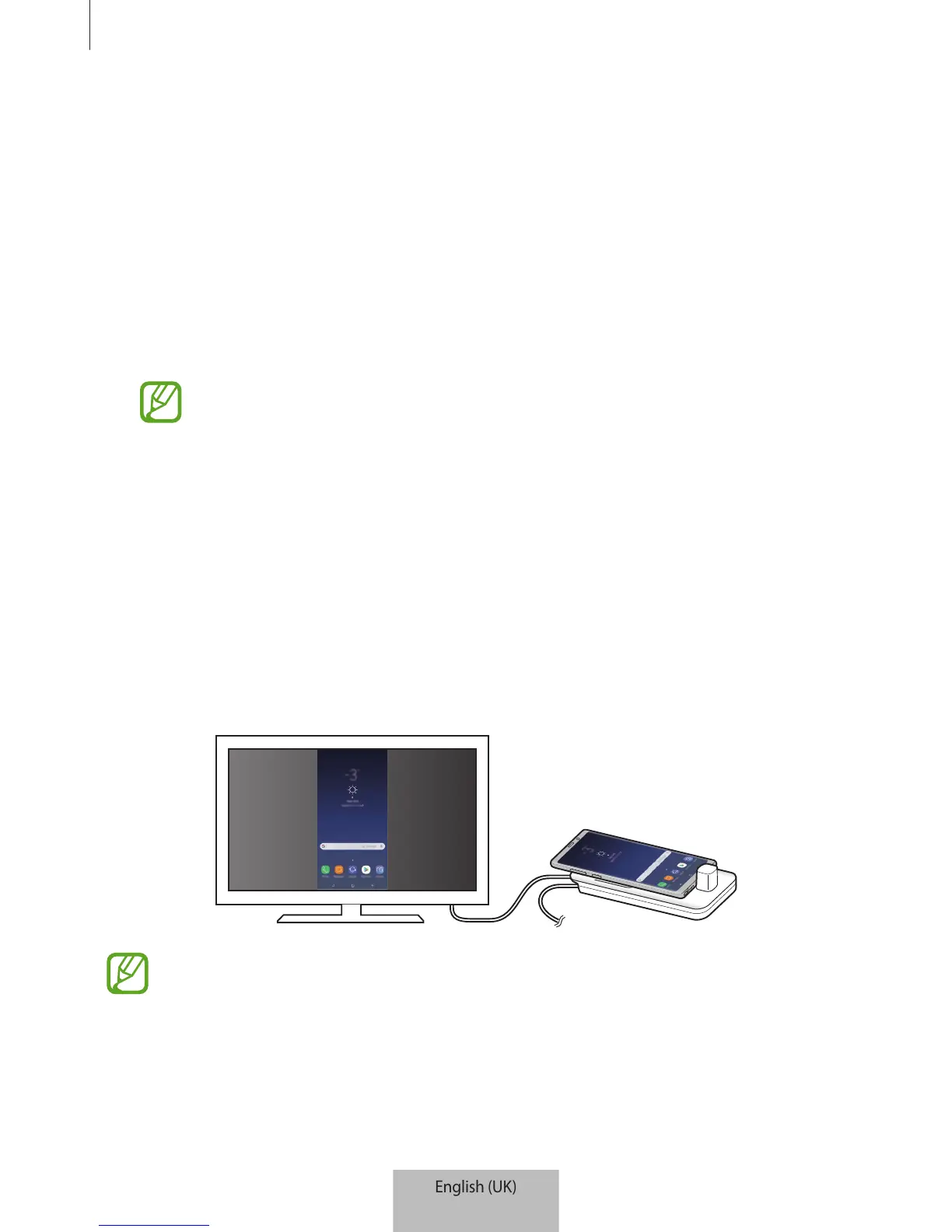
Using Screen mirroring mode
The mobile device’s screen will remain on and appear on the connected TV or monitor. View
your mobile device’s various content on the wide screen of the connected TV or monitor.
You can use Screen mirroring mode without connecting a keyboard or mouse.
Control the screen with the connected mobile device.


 To Next Page