EasyManua.ls Logo

Samsung Galaxy Mini GT-S5570 - User Manual

Samsung Galaxy Mini GT-S5570
128 pages
Print Icon
To Next Page IconTo Next Page
Loading...
GT-S5570
user manual

Table of Contents

Questions and Answers

  • D
    Danielle PhillipsAug 17, 2025
    What to do if my Samsung Cell Phone freezes or has fatal errors?
    • D
      David GillespieAug 18, 2025
      If your Samsung Cell Phone freezes or encounters fatal errors, you might need to close programs or reset the device. If it's unresponsive, press and hold [ ] for 8-10 seconds to reboot it automatically. If the problem persists, consider performing a factory data reset.
  • J
    James BatesAug 20, 2025
    What to do if my Samsung Cell Phone is hot to the touch?
    • J
      John GonzalezAug 20, 2025
      If your Samsung Cell Phone feels hot, especially when using power-intensive applications for a long time, this is normal and shouldn't affect its lifespan or performance.
  • N
    Nicholas OrtizAug 22, 2025
    What to do if the battery does not charge properly on my Samsung Galaxy Mini GT-S5570?
    • C
      Courtney SantosAug 22, 2025
      If the battery in your Samsung Cell Phone isn't charging correctly, wipe the gold-colored contacts with a clean, soft cloth and try again, as the battery terminals may be dirty. If the issue continues, replace the old battery with a new one, disposing of the old battery properly.
  • N
    Nancy NielsenAug 26, 2025
    What to do if the touch screen is not responding properly on my Samsung Galaxy Mini GT-S5570?
    • K
      Kayla OlsenAug 26, 2025
      If the touch screen of your Samsung Cell Phone isn't responding correctly, try these steps: First, remove any protective covers. Make sure your hands are clean and dry when using the touch screen. Restart your device to fix temporary software issues. Also, ensure your device software is up to date. If the screen is still not working and is scratched or damaged, take it to a Samsung Service Centre.
  • T
    Theresa ThomasAug 28, 2025
    What to do if my Samsung Galaxy Mini GT-S5570 Cell Phone calls are being dropped?
    • S
      Sarah JimenezAug 28, 2025
      If calls on your Samsung Cell Phone are being dropped, move to another area and try again.
  • C
    christineberryAug 30, 2025
    What to do if outgoing calls are not connected on my Samsung Cell Phone?
    • M
      michelebradleyAug 30, 2025
      If outgoing calls are not connecting on your Samsung Cell Phone, ensure you have pressed the Dial key. Also, confirm you're accessing the correct cellular network and haven't set call barring for the number you're dialing.
  • R
    rodney18Sep 2, 2025
    What to do if incoming calls are not connected on my Samsung Cell Phone?
    • J
      Julie AllenSep 2, 2025
      If incoming calls aren't connecting on your Samsung Cell Phone, first check that your device is turned on and connected to the correct cellular network. Also, make sure you haven't enabled call barring for the incoming phone number.
  • N
    njohnsonSep 4, 2025
    What to do if others cannot hear me speaking on a call on my Samsung Galaxy Mini GT-S5570 Cell Phone?
    • K
      Kendra ScottSep 4, 2025
      If others can't hear you when you're speaking on a call using your Samsung Cell Phone, make sure you're not covering the built-in microphone and that it's close to your mouth. If you're using a headset, ensure it's properly connected.
  • K
    Kevin McdowellSep 6, 2025
    What to do when dialing from contacts and the call is not connected on my Samsung Galaxy Mini GT-S5570?
    • O
      ojohnsonSep 6, 2025
      If calls aren't connecting when dialing from contacts on your Samsung Cell Phone, ensure the correct number is stored in the contact list. If needed, re-enter and save the number. Also, check that you haven't set call barring for the contact's phone number.
  • K
    Kayla MartinezSep 9, 2025
    What to do if I receive network or service error messages on my Samsung Galaxy Mini GT-S5570 Cell Phone?
    • L
      Leslie RossSep 9, 2025
      If you're getting network or service error messages on your Samsung Cell Phone, move to another area and try again. If the problem continues, contact your service provider for more details.

Summary

Using this manual

Read me first

Important information and precautions before using the device for safe and proper use.

Instructional icons

Explanation of icons used in the manual to understand warnings and cautions.

Assembling

Unpack

Check the product box contents including the mobile device and accessories.

Install the SIM or USIM card and battery

Guide on inserting the SIM/USIM card and battery to set up the device.

Charge the battery

Instructions on how to charge the device's battery using a travel adapter or PC.

Getting started

Turn your device on and off

Steps to power the device on and off, including safety directions.

Get to know your device

Overview of the device layout, keys, and indicators.

Use the touch screen

Basic actions and controls for navigating the touch screen interface.

Lock or unlock the touch screen and keys

Methods to prevent unwanted operations by locking the device.

Customise your device

Set the current time and date

Guide to setting the device's current time and date.

Set a screen lock

Setting up an unlock pattern, PIN, or password for device security.

Enter text

Methods for entering text using the virtual keypad or handwriting.

Communication

Calling

Learn to make, answer, and manage calls, including options during a call.

Messaging

Instructions for sending text (SMS) and multimedia (MMS) messages.

Google Mail

How to retrieve, send, and view email messages via Google Mail.

Mail by Samsung

Learn to send or view email messages via personal or company accounts.

Talk

Learn to chat with friends and family via Google Talk.

Entertainment

Camera

Guide on capturing photos and videos, including various shooting modes.

Record a video

Instructions on how to record videos and customise camcorder settings.

Gallery

Learn to view photos and play videos saved on your memory card.

Music

Listen to music using the music player, including file management.

FM radio

Learn to listen to music and news on the FM radio.

Personal information

Contacts

Learn to create and manage a list of personal or business contacts.

Calendar

Manage daily, weekly, or monthly events and set alarms.

Memo

Record important information to save and view at a later date.

Voice recorder

Learn to operate the device's voice recorder.

Web

Internet

Learn to access and bookmark your favourite web pages.

Maps

Use Google Maps to find your location, search the map, and get directions.

Navigation

Use the GPS navigation system to find and show your destination with voice guidance.

Google Search

Search for applications and specific data on the web.

YouTube

Learn to view and upload videos via YouTube.

Connectivity

Bluetooth

Short-range wireless technology for exchanging information.

Wi-Fi

Connect to wireless local area networks (WLANs).

Mobile AP

Set your device as a wireless access point.

USB tethering

Share your device's mobile network connection via USB.

PC connections

Connect your device to a PC using a PC data cable.

VPN connections

Create virtual private networks (VPNs) and connect securely.

Tools

Clock

Use clock display and set/control alarms for important events.

Calculator

Perform mathematical calculations directly on your device.

My files

Quickly access images, videos, music, and other files stored on your memory card.

Task manager

View running applications, package size, and memory information.

Voice Search

Use voice command features to dial numbers, send messages, or search.

Settings

Access the Settings menu

Navigate through the device's settings categories and options.

Wireless and networks

Change settings for wireless network connections like Wi-Fi and Bluetooth.

Call settings

Customise settings for various calling features.

Sound

Adjust settings for various sounds, ringtones, and alerts on your device.

Display

Change settings for the display, including wallpapers and brightness.

Location and security

Manage device security, SIM card lock, and GPS functionality.

Applications

Manage installed applications, including download sources and running services.

Accounts and sync

Configure auto sync features and manage accounts for data synchronization.

Privacy

Manage settings and data, including backup and restore options.

SD card and phone storage

Check memory information and format a memory card.

Search

Change Google Search settings, including web suggestions and location use.

Language and keyboard

Change settings for text input, including language and keyboard types.

Voice input and output

Adjust settings for voice recognition and text-to-speech features.

Accessibility

Change settings for accessibility features like Talkback or Kickback.

Date and time

Control how time and date are displayed and set manually.

About phone

Access information about your device and check its status.

Troubleshooting

Enter one of the following codes

Solutions for issues when prompted for Password, PIN, PUK, or PIN2.

Device displays network or service error messages

Troubleshooting weak signals, poor reception, or subscription issues.

The touch screen responds slowly or improperly

Tips for resolving issues with the touch screen responsiveness.

Your device freezes or has fatal errors

Steps to resolve device freezing or hanging issues, including factory reset.

Safety precautions

Prevent electric shock, fire, and explosion

Warnings regarding electrical safety, battery handling, and charging.

Handle and dispose of batteries and chargers with care

Guidelines for safe handling, use, and disposal of batteries and chargers.

Do not use your device near a pacemaker

Precautions for using the device near medical equipment like pacemakers.

Samsung Galaxy Mini GT-S5570 Specifications

General IconGeneral
Panel typeTFT
Display diagonal3.14 \
Display resolution240 x 320 pixels
Display number of colors262144 colors
ROM capacity- MB
Volume controlDigital
Orientation sensor-
Processor familyQualcomm
Processor frequency0.6 GHz
RAM capacity0.375 GB
Internal memory160 MB
Compatible memory cardsMicroSD (TransFlash)
Maximum memory card size32 GB
Included memory card size2 GB
Photo effectsBlack&White, Negative film, Sepia
White balanceAuto, Cloudy, Daylight, Fluorescent, Lamp
Rear camera typeSingle camera
Maximum frame rate15 fps
Rear camera resolution2048 x 1536 pixels
Rear camera resolution (numeric)3.15 MP
2G standardsGSM
3G standardsHSDPA
SIM card typeMiniSIM
Wi-Fi standards802.11b, 802.11g, Wi-Fi 4 (802.11n)
Bluetooth version2.1+EDR
2G bands (primary SIM)850, 900, 1800, 1900 MHz
Mobile network generation3G
Audio formats supportedeAAC+, MP3, WAV
Video compression formatsH.263, H.264, MP4
USB version2.0
HDMI ports quantity0
Form factorBar
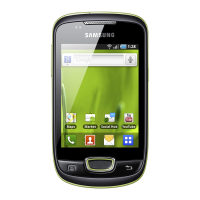
Product colorBlack, Green
Multimedia Messaging Service (MMS)Multimedia Messaging Service (MMS) is a standard way to send messages that include multimedia content to and from a mobile phone over a cellular network
PlatformAndroid
Bundled softwareGoogle Search, Maps, Gmail, YouTube, Calendar, Google Talk, Picasa integration
App distribution platformGoogle Play
Operating system installedAndroid 2.2
Talk time (2G)9.5 h
Talk time (3G)6.33 h
Battery capacity120 mAh
Standby time (2G)570 h
Standby time (3G)440 h
Weight and Dimensions IconWeight and Dimensions
Depth12.1 mm
Width60.6 mm
Height110.4 mm
Weight106.6 g

Related product manuals