Connect to a hidden Wi-Fi network
If the Wi-Fi network you want is not listed after a scan, you can still connect to it by
entering the information manually. Ask the Wi-Fi network administrator for the name
and password before you begin.
1.
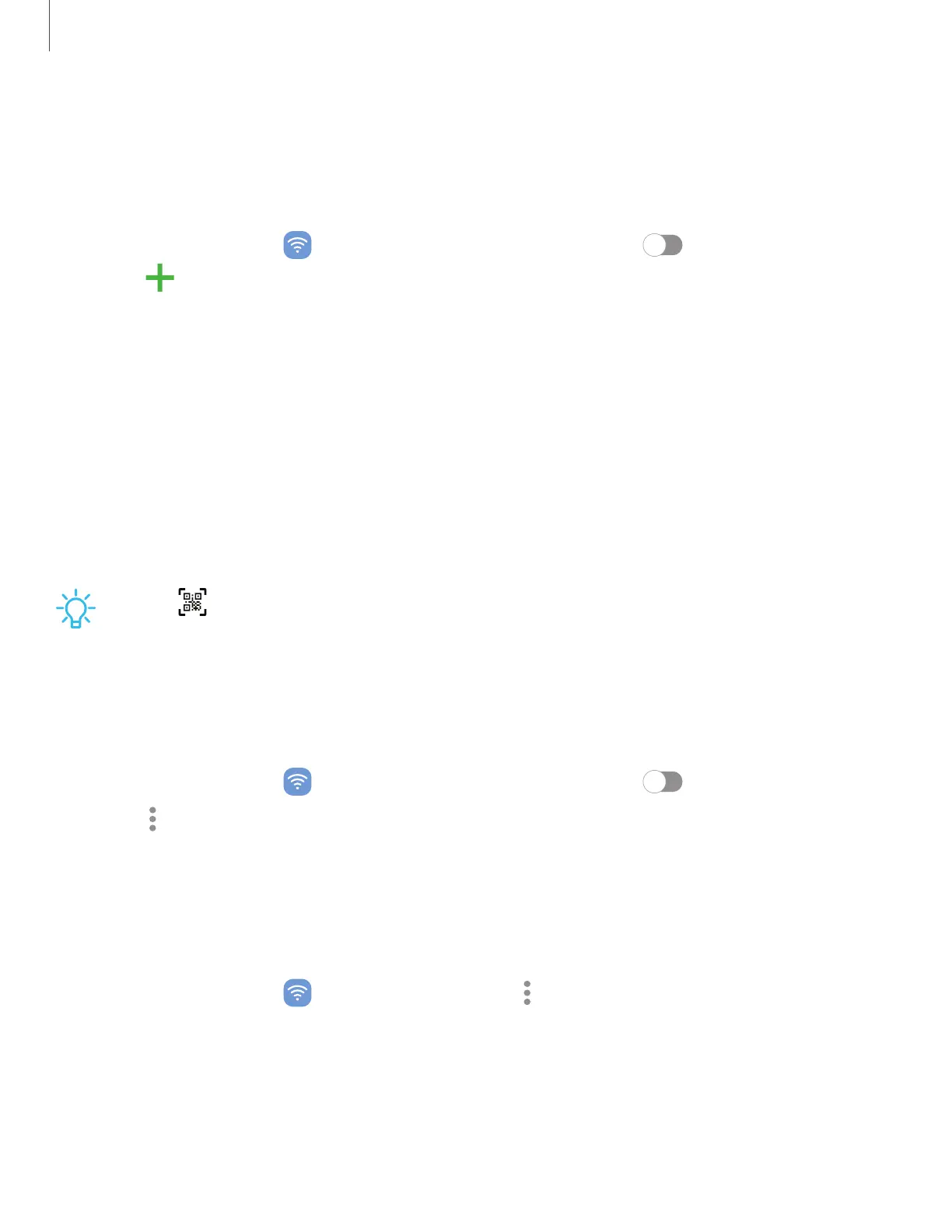
From Settings, tap Connections > Wi-Fi, and then tap to turn on Wi-Fi.
2.
Tap Add network at the bottom of the list.
3. Enter information about the Wi-Fi network:
•
Network name: Type the exact name of the network.
•
Security: Select a security option from the list, and enter the password if
required.
•
Password: Enter the network password.
•
Hidden network:Add a hidden network.
•
View more: Define other advanced options, such as IP and Proxy settings.
4. Tap Save.
TIP Tap Scan QRcode to connect to a Wi-Fi network by using your device’s
camera to scan a QR code.
Wi-FiDirect
Wi-FiDirect uses Wi-Fi to share data between devices.
1.
From Settings, tap Connections > Wi-Fi, and then tap to turn on Wi-Fi.
2.
Tap More options > Wi-FiDirect.
3. Tap a device, and then follow the prompts to connect.
Disconnect from Wi-Fi Direct
Disconnect your device from a Wi-FiDirect device.
◌
From Settings, tap Connections > Wi-Fi > More options > Wi-FiDirect. Tap a
device to disconnect it.
103
Settings











 To Next Page