Share a Contact
When you share a contact, the contact’s information is
sent as a vCard file (.vcf). You can share a vCard via
Bluetooth or Wi-Fi Direct, attach it to a message, or
save it to a storage location.
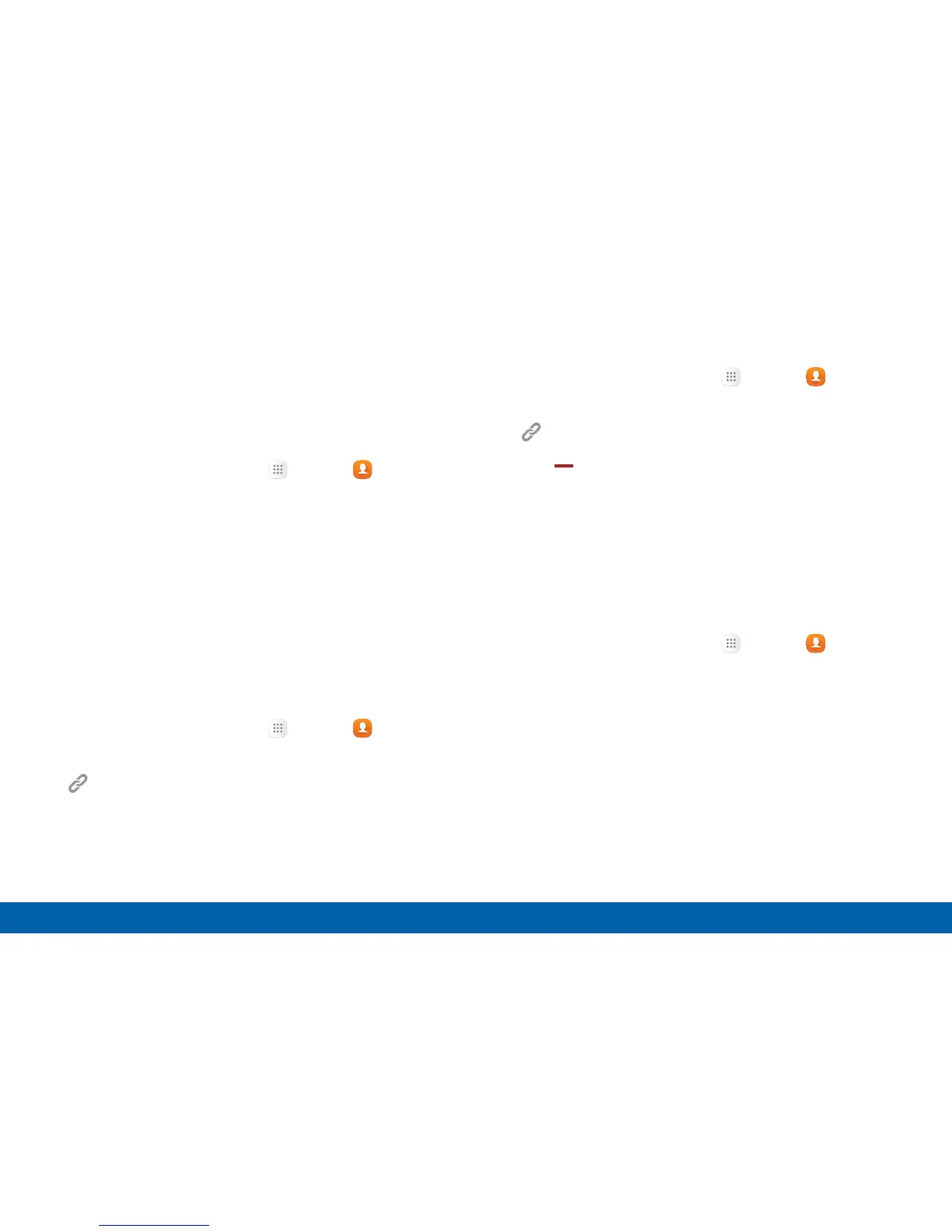
1. From a Home screen, tap Apps > Contacts.
2. Tap a contact to display it, and then tap More >
Share contact.
3. Choose a sharing method and follow the prompts.
Link Contacts
When you have contacts from various sources (Gmail,
Facebook, and more), you may have multiple similar
entries for a single contact. Contacts lets you link
multiple entries into a single contact.
1. From a Home screen, tap Apps > Contacts.
2. Tap the contact to display it, and then tap
Linked contact.
3. Tap Link another contact, and then choose
contacts to link to the original contact.
4. Tap Link.
Unlink Contacts
1. From a Home screen, tap Apps > Contacts.
2. Tap the contact to display it, and then tap
Linked contact.
3. Tap Separate beside contacts to unlink them
from the main contact.
Create a Shortcut to a Contact
You can create a shortcut to a contact on a Home
screen to access their information directly from a
Home screen.
1. From a Home screen, tap Apps > Contacts.
2. Tap a contact to display it, and then tap More >
Add shortcut to Homescreen. The new shortcut
displays in an empty area of the Home screen.








 To Next Page