
 Need help?
Do you have a question about the Samsung HX-MU010EA and is the answer not in the manual?
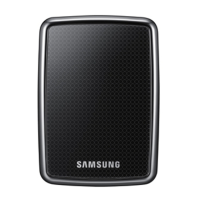
This document serves as a user manual for the Samsung Portable Series External Hard Drive, encompassing the S2 Portable, S2 Portable 3.0, and M3 Portable models. It provides comprehensive information on the product's features, installation, usage, and maintenance, ensuring users can effectively manage their external storage.
The Samsung Portable Series External Hard Drive is a high-performance external storage solution designed to expand your system's capacity without the need for internal hardware modifications. It supports both USB 2.0 and USB 3.0 interfaces, offering versatile connectivity options. The drive comes pre-partitioned and formatted, allowing for immediate use upon plugging into a computer via a USB port.
A key component of the Portable Series is the Samsung Drive Manager, a Windows-based integrated management software. This software enhances the user experience by providing a suite of functions, including automatic backup (Samsung AutoBackup), file and folder security (Samsung SecretZone™), drive lock capabilities, drive diagnostics, partition setup, and power settings. Samsung AutoBackup facilitates regular backups, performing an initial full backup followed by real-time backups of changed data for convenience. Samsung SecretZone™ offers a personal information protection solution, enabling the creation and use of an encrypted disk on the external hard drive to safeguard important, confidential, and personal data.
The manual details the installation process for both desktop and laptop computers, illustrating how to connect the USB cable to ensure the drive automatically activates. For Windows users, the system tray will display an external device icon, and the "Samsung" drive will appear under "My Computer," indicating readiness for use. Macintosh users will see a SAMSUNG drive icon generated by their operating system.
Copying and moving files between the computer and the external hard drive is a straightforward process. The manual clarifies the distinction between "copy" (creating a duplicate) and "move" (transferring a file to a new location, removing the original). Users can perform these actions by right-clicking on files or folders and selecting "Copy" or "Paste" within Windows Explorer.
For optimal performance, particularly with S2 Portable 3.0 and M3 Portable models, it is recommended to use a PC or Host Card that supports the USB 3.0 interface to achieve maximum speed.
Proper handling and maintenance are crucial for the longevity and reliability of the Portable Series External Hard Drive. The manual emphasizes several precautions:
To prevent data corruption and damage, always use the "Safely Remove Hardware" feature before disconnecting the USB cable or shutting down the external hard drive.
The manual includes a FAQ section to address common issues such as slow file transfer speeds, discrepancies in reported storage capacity, the drive not appearing in Windows Explorer, and difficulties with formatting or booting. It also provides instructions for partitioning and changing the file system type, including reformatting to FAT32, NTFS, or in Macintosh OS X. Users are warned that partitioning and formatting will permanently erase all data on the drive, emphasizing the importance of backing up files beforehand. For Mac users, Samsung provides an NTFS 3G driver for writing data to NTFS-formatted external hard drives, which can be downloaded from the Samsung website.
 General
| Model | HX-MU010EA |
|---|---|
| Category | Storage |
| Type | External Hard Drive |
| Capacity | 1TB |
| Interface | USB 3.0 |
| Operating System Compatibility | Windows, Mac |




 To Next Page
