To Next Page
D
David WoodAug 6, 2025
What to do if my Samsung Digital Camera won't turn on?
- SSteven HansenAug 6, 2025
If your Samsung Digital Camera won't turn on, ensure that the battery is inserted correctly and that the battery is charged.

What to do if my Samsung Digital Camera won't turn on?
If your Samsung Digital Camera won't turn on, ensure that the battery is inserted correctly and that the battery is charged.
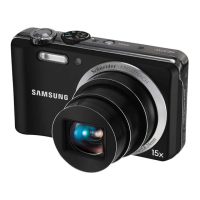
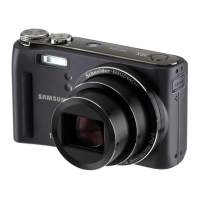
Why does my Samsung HZ35W Digital Camera power off suddenly?
Your Samsung Digital Camera may be turning off suddenly because the battery needs to be charged. The camera may be in Power save mode. Also, the camera might turn off to protect the memory card from impact damage; try turning it on again.
How to fix a Samsung HZ35W Digital Camera that freezes?
If your Samsung Digital Camera freezes, remove the battery and then re-insert it.
Why does the flash not work on my Samsung HZ35W?
If the flash on your Samsung Digital Camera isn't working, the flash option may be set to Off. Also, the flash cannot be used in the d, v, or some s modes.
Why does the flash fire unexpectedly on my Samsung HZ35W?
If the flash on your Samsung Digital Camera fires unexpectedly, it may be due to static electricity. This is not a malfunction of the camera.
Why does my Samsung HZ35W lose battery power quickly?
Your Samsung Digital Camera might be losing battery quickly due to several reasons. In low temperatures (below 0° C), the battery may drain faster, so keep the battery warm by putting it in your pocket. Also, using the flash or recording videos consumes more battery power, so recharge the battery if needed. Finally, batteries are consumable and need replacement; consider getting a new battery if its life is diminishing rapidly.
What to do if my Samsung HZ35W Digital Camera cannot take photos?
If your Samsung Digital Camera cannot take photos, check the following: * Ensure the camera is switched on. * Make sure that the battery is inserted correctly and charged. * Verify there is available space on the memory card; if not, delete unnecessary files or insert a new card. * Format the memory card. * If the memory card is defective, replace it. * Also, ensure the memory card is not locked; if it is, unlock it.
Defines Warning, Caution, Note and covers flammable gases, children/pets, eye safety.
Covers battery disposal, charging, and avoiding pacemaker interference.
Guidelines for protecting the camera from liquids, dust, impacts, and sunlight.
Advice on protecting batteries, chargers, and memory cards from damage.
Learn about camera layout, icons, and basic functions for shooting.
Learn how to take photos using modes and record video or voice memos.
Details options that can be set in shooting mode.
Learn to playback, edit photos/videos, and connect the camera.
Covers unpacking, layout, icons, battery/card installation, and initial setup.
Explains selecting options, display/sound settings, and taking photos.
Step-by-step guide for inserting the battery and memory card.
Instructions for charging the battery and turning the camera on.
Guides users through setting language, date/time, and time zone.
Steps for taking photos easily and quickly using the Smart Auto mode.
Using automatic scene selection and dual image stabilization.
Using Aperture Priority, Shutter Priority, and Manual modes for exposure control.
Explains automatic scene settings selection based on detected scene type.
Explains aperture value and shutter speed for exposure control.
Manually setting aperture value while camera selects shutter speed.
Manually setting shutter speed while camera selects aperture value.
Manually adjusting both aperture value and shutter speed.
Recording videos in high definition, format, and resolution options.
Changing image resolution, quality, and setting the shooting timer.
How to choose photo and video resolution for printing or screen display.
Camera automatically detects human faces for exposure adjustment.
Taking self-portraits and capturing smiling faces automatically.
Viewing photos, videos, and voice memos stored on the camera.
Provides remedies for common error messages like Card Error or File Error.
Solutions for issues like the camera not turning on or freezing.
Details on image sensor, pixels, lens focal length, aperture, and focus system.
Specifications for shutter speed, exposure control, and compensation.
Specifications for display type, flash modes, and shake reduction.
 General
| Megapixels | 12.2 MP |
|---|---|
| Optical Zoom | 15x |
| Image Sensor Type | CCD |
| ISO Range | 80-3200 |
| Video Resolution | 1280 x 720 |
| Battery Type | Lithium-ion |
| Digital Zoom | 5x |
| Image Stabilization | Optical |
| Battery Model | SLB-10A |
| Type | Compact |
| Screen Size | 3.0 in |
| Sensor Size | 1/2.3 inch |
| Shutter Speed | 1/2000 - 8 sec |