EasyManua.ls Logo

Samsung IFH - User Manual

Samsung IFH
101 pages
Print Icon
To Next Page IconTo Next Page
Loading...
User Manual
© Samsung Electronics
Samsung Electronics owns the copyright for this manual. Use or reproduction of this manual in parts or entirety without the authorization of Samsung Electronics is prohibited. Trademarks other than Samsung Electronics are
property of their respective owners.
SNOW-1703U SNOW-1703ULD
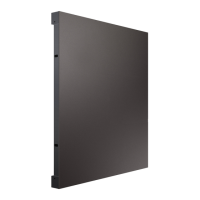
IFH (IF015H IF020H IF025H)
IFH-D (IF025H-D IF040H-D IF040H-DL IF060H-D IF060H-DL IF085H-DL)
IFJ (IF012J)
The color and the appearance may differ depending on the product, and the content in the
manual is subject to change without prior notice to improve the performance.
An administration fee may be charged in the following situations:
(a) An engineer is called out at your request, but it is found that the product has no defect (i.e.,
where the user manual has not been read).
(b) You bring the unit to a repair centre, but it is found that the product has no defect (i.e.,
where the user manual has not been read).
You will be informed of the administration fee amount before a technician visits.

Table of Contents

Questions and Answers

  • K
    Kimberly AndersenAug 16, 2025
    Why is Anynet+ not working on my Samsung IFH Industrial Monitor?
    • S
      santosmichelleAug 16, 2025
      To resolve Anynet+ issues with your Samsung Industrial Monitor: * Verify that the device is Anynet+ compatible. * Ensure the device's power cord is properly connected. * Check the Video/HDMI cable connections. * Confirm Anynet+ (HDMI-CEC) is enabled in the System menu. * Verify the remote control is Anynet+ compatible. * Note that Anynet+ may not function during initial setup. * After reconnecting the HDMI cable, rescan for devices or power cycle your product. * Ensure the Anynet+ function on the external device is enabled.
  • T
    Tony NguyenAug 19, 2025
    What to do if connected device is not displayed on Samsung IFH?
    • J
      Jessica JacksonSep 12, 2025
      To resolve the issue of a connected device not being displayed on your Samsung Industrial Monitor, please check the following: * Confirm that the device supports Anynet+ functions. * Ensure the HDMI cable is properly connected. * Verify that Anynet+ (HDMI-CEC) is enabled in the System menu. * Try rescanning for Anynet+ devices. * Ensure the device is connected via HDMI, as Anynet+ requires it. * Be aware that some HDMI cables may not fully support Anynet+ functions. * If the connection was interrupted due to power failure or cable disconnection, repeat the device scan.
  • J
    John SmithAug 22, 2025
    How to start Anynet+ on Samsung IFH Industrial Monitor?
    • W
      William GoldenAug 22, 2025
      To start Anynet+ on your Samsung Industrial Monitor, ensure that the Anynet+ device is properly connected to the product and verify that Anynet+ (HDMI-CEC) is set to On in the System menu.
  • M
    Marcus FieldsAug 26, 2025
    How to exit Anynet+ on Samsung Industrial Monitor?
    • L
      Linda CruzAug 26, 2025
      To exit Anynet+ on your Samsung Industrial Monitor, press the SOURCE button on the product remote control and select a non- Anynet+ device.
  • J
    Jerome DuranAug 28, 2025
    What to do if the message “Disconnecting Anynet+ device ...” appears on Samsung IFH?
    • M
      martinezjenniferAug 28, 2025
      If you see the message “Disconnecting Anynet+ device ...” on your Samsung Industrial Monitor, it indicates that you cannot use the remote control while configuring Anynet+ or switching to a view mode. Please use the remote control after the product has completed Anynet+ configuration or has finished switching to Anynet+.
  • S
    Spencer WilliamsAug 31, 2025
    How to fix Anynet+ not working on Samsung Digital Signage?
    • A
      Alicia StevensAug 31, 2025
      If Anynet+ is not working on your Samsung Digital Signage, first ensure the device is Anynet+ compatible. Verify that the power cord and Video/HDMI cable are correctly connected. Also, check if Anynet+ (HDMI-CEC) is enabled in the System menu and that the remote control is Anynet+ compatible. Note that Anynet+ may not function during the initial setup. If you've reconnected the HDMI cable, rescan for devices or power cycle your product. Finally, confirm that the Anynet+ function is enabled on the Anynet device itself.
  • L
    leekathleenSep 3, 2025
    What to do if the connected device is not displayed on Samsung Digital Signage?
    • J
      Jennifer PaceSep 3, 2025
      If your Samsung Digital Signage doesn't display the connected device, verify that the device supports Anynet+ functions and that the HDMI cable is properly connected. Make sure Anynet+ (HDMI-CEC) is enabled in the System menu. Try rescanning for Anynet+ devices. Anynet+ requires an HDMI connection. Some HDMI cables may not support Anynet+ functions. If the connection was interrupted due to a power failure or the HDMI cable being disconnected, repeat the device scan.
  • M
    melissanortonSep 6, 2025
    How to start Anynet+ on Samsung Digital Signage?
    • A
      Allison BlakeSep 7, 2025
      To start Anynet+ on your Samsung Digital Signage, ensure the Anynet+ device is properly connected to the product. Then, verify that Anynet+ (HDMI-CEC) is set to 'On' in the System menu.
  • T
    Tracey RiddleSep 9, 2025
    How to exit Anynet+ on Samsung Digital Signage?
    • S
      Shannon RamosSep 9, 2025
      To exit Anynet+ on your Samsung Digital Signage, press the SOURCE button on the product's remote control and select a device that is not Anynet+ compatible.
  • W
    Wesley HebertSep 12, 2025
    What to do if the message 'Disconnecting Anynet+ device ...' appears on Samsung Digital Signage?
    • C
      Charles LopezSep 13, 2025
      If the message 'Disconnecting Anynet+ device ...' appears on the screen of your Samsung Digital Signage, it means you cannot use the remote control while configuring Anynet+ or switching to a view mode. Use the remote control after the product has completed Anynet+ configuration or has finished switching to Anynet+.

Samsung IFH Specifications

General IconGeneral
BrandSamsung
ModelIFH
CategoryIndustrial Monitor
LanguageEnglish

Related product manuals