EasyManua.ls Logo

Samsung M30 - User Manual

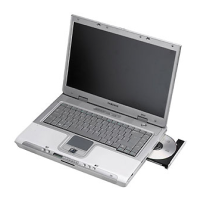
Samsung M30
2 pages
Print Icon
To Next Page IconTo Next Page
Loading...
Contents
é„·‚ÎÂÌËÂ
1
Contents / é„·‚ÎÂÌË Turn on the computer / ÇÍβ˜ËÚ ÍÓÏÔ¸˛ÚÂ
Turn on the computer
ÇÍβ˜ËÚ ÍÓÏÔ¸˛ÚÂ
Windows Registration
When you turn on your computer for the first time, the Windows Registration screen will appear.
Since Windows operating system is the system that enables the users to use their computer, you
must complete the registration procedure.
(This registration procedure only needs to be done once, when the computer is purchased)
Proceed with the registration procedure according to the instructions on the screen
The Microsoft Windows Start screen appears
When the screen for entering the administrator's password appears -
(This screen appears only on Windows XP Professional.)
When the screen for entering the computer name appears –
If you want, register your Microsoft
Windows product online. Make
sure that online connections are
available before registering your
product online.
Enter the administrator's
password to prevent
unauthorized computer use.
Enter the computer name you
want to use in the Name box.
When the Internet registration process appears, click Skip (as Internet connections may not
yet be established).
When the Microsoft Windows online registration screen appears -
Continue with entering the user name and complete the registration process.
Once registration is complete, the computer is ready for use.
NOTE
The registration procedure for Windows 2000 is similar to Windows XP.
Complete your registration by following the instructions displayed on the screen.
Help Icon
Press the left
touch
pad/mouse
button
ENGLISH
SAMSUNG M30
AC Adapter
ĉ‡ÔÚÂ
ÔÂÂÏÂÌÌÓ„Ó ÚÓ͇
Power Cable
䇷Âθ ÔÓ‰‡˜Ë
ÔËÚ‡ÌËfl
Battery
ŇڇÂfl
CD-ROMInstallation Guide
êÛÍÓ‚Ó‰ÒÚ‚Ó ÔÓ
ÛÒÚ‡ÌÓ‚ÍÂ
Warranty Information
낉ÂÌËfl Ó „‡‡ÌÚËË
Slight variation in the content or the appearance of the product may exist depending on the
model type.
Ç Á‡‚ËÒËÏÓÒÚË ÓÚ ÍÓÌÍÂÚÌÓÈ ÏÓ‰ÂÎË ‚ÓÁÏÓÊÌ˚ Ì·Óθ¯Ë ‡Á΢Ëfl ‚ ÍÓÏÔÎÂÍÚ‡ˆËË
Ë ‚̯ÌÂÏ ‚ˉ ÔÓ‰ÛÍÚ‡.
Attaching the Battery
èËÒÓ‰ËÌÂÌË ·‡Ú‡ÂË
Connect the AC adapter
èÓ‰Íβ˜ÂÌË ‡‰‡ÔÚÂ‡ ÒÂÚË ÔÂÂÏÂÌÌÓ„Ó ÚÓ͇
1. Connect the AC adapter
èÓ‰Íβ˜ËÚ ‡‰‡ÔÚÂ ÒÂÚË ÔÂÂÏÂÌÌÓ„Ó ÚÓ͇
2. Connect the power cable
èÓ‰ÒÓ‰ËÌËÚ ͇·Âθ ÔÓ‰‡˜Ë ÔËÚ‡ÌËfl
Turn on the computer
ÇÍβ˜ËÚ ÍÓÏÔ¸˛ÚÂ
1. LCD Latch
ᇢÂÎ͇ Üä-‰ËÒÔÎÂfl
2. Open the LCD panel
éÚÍÓÈÚ ԇÌÂθ Üä-‰ËÒÔÎÂfl
3. Press the power button
ç‡ÊÏËÚ ÍÌÓÔÍÛ ÔËÚ‡ÌËfl
Options /
LJˇÌÚ˚ ÍÓÏÔÎÂÍÚ‡ˆËË
󳥰 󳥰
󳥰
Battery preparation
èÓ‰„ÓÚӂ͇ ·‡Ú‡ÂË
Insert the battery
ÇÒÚ‡‚¸Ú ·‡Ú‡²
The accessories that are available may change without notice. Contact your reseller for more information.
ÄÒÒÓÚËÏÂÌÚ Ëϲ˘ËıÒfl ÔË̇‰ÎÂÊÌÓÒÚÂÈ ÏÓÊÂÚ ËÁÏÂÌflÚ¸Òfl ·ÂÁ Ô‰‚‡ËÚÂθÌÓ„Ó
ۂ‰ÓÏÎÂÌËfl. ÑÎfl ÔÓÎÛ˜ÂÌËfl ‰ÓÔÓÎÌËÚÂθÌÓÈ ËÌÙÓχˆËË Ó·‡˘‡ÈÚÂÒ¸ Í Ò‚ÓÂÏÛ ÔÓ‰‡‚ˆÛ.
Wireless LAN (WLAN)
ÅÂÒÔӂӉ̇fl ÎÓ͇θ̇fl ÒÂÚ¸
CD Drive
(CD-ROM / CD-RW / DVD-ROM /
CD-RW/DVD-ROM Combo / DVD Multi)
FingerPrint
чژËÍ ÓÚÔ˜‡ÚÍÓ‚ ԇθˆÂ‚
LCD
(15.4” WXGA / 15.4” SXGA+)
Multi Bay Module (Weight Saver / 2nd HDD / FDD)
åÓ‰Ûθ Multi-Bay
Power Cable
䇷Âθ ÔÓ‰‡˜Ë
ÔËÚ‡ÌËfl
AC Adapter
ĉ‡ÔÚÂ ÔÂÂÏÂÌÌÓ„Ó ÚÓ͇
DC-in Jack
ÇıÓ‰ÌÓÈ ‡Á˙ÂÏ
ÔÓÒÚÓflÌÌÓ„Ó ÚÓ͇
Question and Answer IconNeed help?

Do you have a question about the Samsung M30 and is the answer not in the manual?

Overview

The provided manual describes the Samsung M30 laptop, focusing on its initial setup, Windows registration, and various features.

Device Description: Samsung M30 Laptop

The Samsung M30 is a portable computing device designed for general-purpose use, featuring a standard laptop form factor. The manual outlines the essential steps for preparing the device for first use, including battery installation, power connection, and the initial Windows operating system registration process.

Function Description

The Samsung M30 functions as a personal computer, capable of running the Microsoft Windows operating system. Its primary purpose is to provide users with a platform for various computing tasks, including document creation, internet browsing, multimedia consumption, and more. The device supports external peripherals and offers integrated features for enhanced usability.

Important Technical Specifications

While specific detailed technical specifications like CPU type, RAM capacity, or storage size are not explicitly listed in the provided excerpts, the manual does highlight several key components and optional features:

  • Display: The laptop is equipped with an LCD panel, with options for either a 15.4" WXGA or 15.4" SXGA+ resolution. The presence of an "LCD Latch" indicates a traditional clamshell design.
  • Power: It operates using an AC adapter (power brick) that connects to a DC-in jack, and includes a rechargeable battery for portable use. A power cable is supplied for connecting the AC adapter to a power outlet.
  • Connectivity:
    • Wireless LAN (WLAN): Supports wireless network connectivity, allowing the laptop to connect to Wi-Fi networks.
    • Memory Card Slot: Features a slot for memory cards, enabling convenient data storage and transfer.
  • Optical Drive Options: The M30 offers a range of optical drive configurations, indicating its versatility for different media needs:
    • CD Drive
    • CD-ROM
    • CD-RW
    • DVD-ROM
    • CD-RW/DVD-ROM Combo
    • DVD Multi
  • Multi Bay Module: This feature allows for modular expansion, with options such as a Weight Saver, a second Hard Disk Drive (2nd HDD), or a Floppy Disk Drive (FDD). This suggests a degree of customization and upgradeability for storage or legacy peripheral support.
  • Security Feature (Optional):
    • FingerPrint: An optional fingerprint sensor is available, providing an alternative to password entry for logging in or accessing internet sites, enhancing security and convenience.

Usage Features

The manual details several usage features, particularly focusing on the initial setup and user interaction:

  • Initial Setup:
    • Battery Attachment: The first step involves attaching the battery, which is crucial for portable operation. The manual illustrates the physical insertion of the battery into the device.
    • AC Adapter Connection: Connecting the AC adapter and power cable ensures the device receives power, especially important for initial setup and charging the battery.
    • Power On: The device is powered on by pressing a dedicated power button, located after opening the LCD panel.
  • Windows Registration: This is a mandatory one-time process upon the first startup of the computer.
    • Interactive Registration: The process guides the user through a series of screens, including:
      • Microsoft Windows Start Screen: The initial welcome screen.
      • Computer Name Entry: Users are prompted to enter a desired name for their computer.
      • Administrator Password Entry: For Windows XP Professional, users must set an administrator password to prevent unauthorized access.
      • Internet Registration: An option to register with Microsoft online, with a "Skip" option available if internet connectivity is not yet established.
      • Online Registration: A screen to register the Microsoft Windows product online, emphasizing the need for an active internet connection.
    • User Account Creation: The process concludes with entering a user name and completing the registration.
    • Windows 2000 Compatibility: The manual notes that the registration procedure for Windows 2000 is similar to Windows XP.
  • Audio Buttons: The device includes dedicated audio buttons, allowing users to listen to music or MP3 CDs even without fully booting the computer into the operating system. This suggests a quick-play or instant-on audio feature.
  • Memory Card Usage: The memory card slot facilitates easy storage and transfer of data, enhancing the device's utility for managing files.
  • FingerPrint Sensor Usage (Optional): If equipped, the fingerprint sensor can be used to start up the computer or log into internet sites, replacing the need for manual password entry. This streamlines access and improves security.

Maintenance Features

The manual primarily focuses on initial setup and usage rather than ongoing maintenance. However, some aspects can be inferred:

  • User Guide PDF File: The manual strongly recommends referring to the "User Guide PDF file" for more detailed information. This indicates that comprehensive maintenance and troubleshooting information would be available in the full digital manual, accessible via Start > All Programs > Online Manual.
  • Modular Design (Multi Bay): The Multi Bay Module, allowing for the addition of a second HDD or FDD, suggests a design that permits some level of user-serviceability or upgrades for specific components.
  • Battery Management: The process of attaching the battery implies that it is a user-replaceable component, which is a common maintenance feature for laptops, allowing for battery replacement when its lifespan diminishes.

In summary, the Samsung M30 is presented as a user-friendly laptop with a focus on straightforward initial setup and a range of features designed to enhance productivity and multimedia experience. Its modular options and security features cater to diverse user needs.
Samsung M30 Specifications

General IconGeneral
BrandSamsung
ModelM30
CategoryLaptop
LanguageEnglish

Related product manuals