This document is a user manual for a Samsung laptop, providing comprehensive information on its features, usage, maintenance, and troubleshooting.
Function Description:
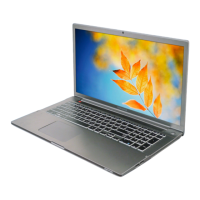
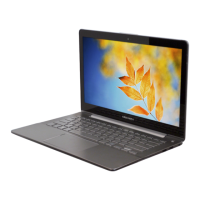
The Samsung laptop is a personal computer designed for various tasks, including productivity, entertainment, and communication. It runs on the Windows 11 operating system, offering a familiar interface for users. The device supports wireless connectivity via Wi-Fi and Bluetooth, allowing users to connect to networks, peripheral devices, and other Bluetooth-enabled gadgets. It also features a camera and microphone for video calls and recording. The laptop can be connected to an external display for presentations or an enhanced viewing experience.
Important Technical Specifications:
- Operating Environment:
- Temperature: -5–40 °C for storage, 10–35 °C when operating.
- Humidity: 5–90 % for storage, 20–80 % when operating.
- AC/DC Rating:
- Input: 100–240 VAC, 50–60 Hz.
- Output: (PDO) 5 V, 3 A / 9 V, 3 A / 15 V, 3 A / 20 V, 2.25 A; (PPS) 3.3-20 V, 2.25 A.
- Alternatively, (PDO) 5 V, 3 A / 9 V, 3 A / 15 V, 3 A / 20 V, 3.25 A; (PPS) 5-20 V, 3.25 A.
- PC Rating: 20 VDC, 2.25 A (45 W) or 20 VDC, 3.25 A (65 W).
- Storage Device Capacity: The manual notes that the actual capacity displayed in Windows may be less than the advertised capacity due to the operating system's calculation method (1 KB = 1,024 Bytes vs. manufacturer's 1 KB = 1,000 Bytes) and space reserved for system recovery (5–20 GB for Samsung Recovery).
- Memory Capacity: Available memory in Windows is less than the actual installed memory due to system operations (e.g., 1 GB installed may show as 1,022 MB or less).
- Wireless Communication: Supports 2.4 GHz, 5 GHz, and 6 GHz bands (802.11 wireless Ethernet or Wi-Fi) and Bluetooth.
- Ports: Includes USB 3.2 ports, USB Type-C port (for charging and external display), HDMI port, memory card slot, earpiece/headset jack, and a security slot.
- Input Devices: Keyboard with numeric keypad (optional), touchpad, and optional fingerprint recognition sensor.
- Display: Features an operating status LED (Red for charging, Green for fully charged, Blue for turned on).
Usage Features:
- Power Management: The computer can be turned on by opening the display panel (configurable in Samsung Settings) or by pressing the Power button. It can be turned off via the Start menu. The manual emphasizes fully charging the battery before first use.
- Screen Unlocking: Users can unlock the screen by clicking with a mouse, pressing any keyboard key, or tapping the touchpad. Password entry is required if set.
- Keyboard Hot Keys: Dedicated function keys (F1-F12) provide quick access to Samsung Settings, screen brightness control, display/external monitor switching, touchpad on/off, mute, volume control, keyboard backlight brightness, camera/mic block, performance mode, and Fn Lock.
- Touchpad Gestures: Supports clicking, double-clicking, right-clicking, dragging, swiping (two fingers for scrolling), and pinching (two fingers for zooming). Touchpad gestures can be configured in Windows Settings. The touchpad can be locked using the Fn + F5 hotkey.
- Wireless LAN: Connects to Wi-Fi networks by selecting the network from the taskbar status icons and entering a password if required. The Wi-Fi feature can be deactivated to save battery power. Airplane mode disables all wireless functions.
- Bluetooth: Pairs with other Bluetooth devices for audio streaming or data exchange. Pairing is initiated through Windows Settings. Devices can be unpaired as needed.
- Fingerprint Recognition (Optional): Allows secure sign-in to Windows and apps by scanning a registered fingerprint. Requires setting up a password and PIN first. Multiple fingerprints can be registered.
- Memory Card Slot: Supports micro SD, micro SDHC, and micro SDXC cards for data transfer. Cards are inserted until they click into place and can be formatted through File Explorer.
- External Display: Connects to external displays via HDMI or USB Type-C cables for presentations or extended viewing. Display modes (PC screen only, Duplicate, Extend, Second screen only) can be selected using the Fn + F4 hotkey or Windows Settings.
- Samsung Apps:
- Samsung Account: Integrated account service for various Samsung services.
- Samsung Settings: A Samsung-integrated settings app for managing connections, devices, sound, display, security, advanced features, battery, and keyboard.
- Samsung Notes: Create notes with text, handwriting, drawings, images, or voice recordings. Notes can be saved in various formats and deleted.
- Samsung Update: Installs and updates Samsung apps, drivers, and BIOS to maintain computer performance and stability.
- Samsung Flow: Connects mobile devices to the computer for tasks like checking notifications and sharing content.
- Samsung Studio Plus: Creates and edits videos using photos and videos stored on the computer.
- Samsung Gallery: Views, edits, and syncs images and videos with the cloud.
- Samsung Care+: Provides guaranteed services for product issues like damage or loss.
- Samsung Device Care: Creates system restore points, backs up data, manages storage, optimizes memory, and offers a maintenance mode to protect privacy.
- Bixby: A user interface for voice or text commands to launch functions or retrieve information.
- Galaxy Book Smart Switch: Transfers data from a previous computer to the new one.
- Galaxy Book Experience: Provides information and access to various Samsung apps and features.
- Online Support (S Service): Offers online chat and remote control support for computer problems.
- Studio Mode: Enhances camera usage with features like Face Effect, Background effect, Auto framing, Eye contact, and Video HDR.
- Screen Recorder: Records screen activity, with options to adjust recording area, capture screenshots, record with video overlay, change settings, write/draw, and add text.
- Quick Search: Quickly searches for content on the computer.
- SmartThings: Controls and manages smart appliances and compatible products.
- Quick Share: Sends content to nearby devices via Wi-Fi Direct or Bluetooth.
- Second Screen: Connects Samsung tablets as an additional display for the computer.
- Private Share: Securely shares files using blockchain technology, with options to set expiration dates and revoke sharing.
Maintenance Features:
- Display Brightness and Volume Control: Adjustable via keyboard hotkeys (Fn + F2/F3 for brightness, Fn + F6/F7/F8 for volume) or taskbar sliders.
- BIOS (Setup Utility): Allows defining boot passwords, changing boot priority, and configuring chipsets. Access by pressing F2 during startup. Includes options for system information, advanced settings, security, and boot settings.
- Battery Calibration: Discharges the battery completely and recharges it to synchronize the actual battery charge with the displayed charge. Accessed via BIOS settings (Advanced → Smart Battery Calibration).
- Smart Battery Power Off: Prevents battery life from shortening during long periods of inactivity by discharging the battery to at least 30% and turning off the computer. Accessed via BIOS settings (Advanced → Smart Battery Power Off).
- Samsung Recovery: Restores the computer to factory default settings or a previously backed-up point. Also allows backing up current system and user data.
- Windows Recovery Function: Reinstalls Windows if Samsung Recovery is not supported, erasing all data.
- Troubleshooting: Provides solutions for common issues, including app uninstallation and camera/microphone not working.
- Ergonomic Tips: Guidelines for maintaining proper posture, adjusting chair and screen, avoiding dark locations, and taking breaks to prevent physical injury and eye strain.
- Cleaning: Recommends disconnecting all cables before cleaning and using recommended computer cleansing solutions.
- Battery Disposal: Instructions for proper disposal of worn-out batteries according to local regulations, emphasizing the risk of explosion if replaced incorrectly.
- Product Capacity Representation: Explains discrepancies in storage and memory capacity displays.
- Safety Precautions: Extensive warnings regarding power-related issues, battery handling, usage environment, physical damage, and wireless communication restrictions.
- Upgrade Related: Advises contacting a Samsung Service Center for upgrades and warns against disassembling the power supply unit or other parts.
- Storage and Movement Related: Cautions against storing the computer in enclosed spaces while running, pressing heavy objects against it, operating while driving, and data loss due to physical impacts or power failures.
- Display Bad Pixels: Defines Samsung's quality standards for acceptable numbers of bright, black, and combination bad pixels.

 Need help?

 To Next Page
 General