
 Need help?
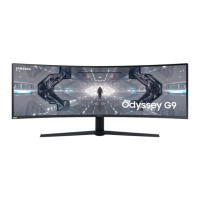
Do you have a question about the Samsung Odyssey G9 S49CG954SU and is the answer not in the manual?
Essential safety guidelines, including electrical hazards and general warnings.
Safety measures for installing, moving, and operating the product.
Proper cleaning methods and recommendations for correct posture.
Instructions for assembling the stand, adjusting tilt, and height.
Precautions for ensuring adequate space and ventilation around the product.
Guidance on attaching the VESA bracket wall mount kit.
Overview of ports, USB hub use, and methods for organizing cables.
Information on picture sizes and input signals after the product is installed.
Technical data for VESA DMT and CVT resolutions compatible with PC inputs.
Specifications for CTA-861 video signal resolutions and HDR10 compatibility.
Key technical details including size, resolution, power supply, and environmental conditions.
Explanation of FreeSync Premium Pro, its settings, and potential issues.
Resolutions supported for Variable Refresh Rate (VRR) with FreeSync Premium Pro.
Conditions for service fees and causes of product damage due to customer mishandling.
List of AMD graphics cards that support FreeSync Premium Pro technology.
This document serves as a comprehensive user manual for the Samsung S49CG95* monitor, providing detailed instructions on its installation, operation, maintenance, and various features.
The Samsung S49CG95* is a high-performance monitor designed for various applications, including PC usage, video signal display, and as a USB hub. It supports a wide range of resolutions and refresh rates, making it suitable for both productivity and gaming. A key feature is its support for FreeSync Premium Pro technology, which aims to eliminate screen tearing and reduce lag during gameplay, enhancing the overall gaming experience. The monitor can function as a USB HUB, allowing users to connect multiple USB devices like keyboards, mice, and external storage directly to the monitor, simplifying cable management and expanding connectivity options. It also supports HDR10, providing a richer and more vibrant visual experience for compatible content, particularly on Windows 10 systems with specific graphics cards.
The manual provides clear, step-by-step instructions for attaching the stand, emphasizing the importance of placing the product on a flat, stable surface with the screen facing downwards during assembly. It also details precautions for moving the product, advising users to hold the lower corners or edges and avoid applying direct pressure to the screen or holding it upside down by the stand alone. Proper ventilation is crucial, and the manual specifies maintaining adequate space around the product to prevent overheating.
For optimal user comfort and to prevent strain, the manual offers guidance on correct posture when using the monitor. This includes maintaining a straight back, a specific distance between the eyes and the screen (45-50cm), and ensuring the screen is slightly downward and directly in front of the user. Adjusting the angle to prevent light reflection and keeping forearms perpendicular to upper arms are also recommended. The monitor's tilt and height can be adjusted, and users are advised to hold both sides of the product during adjustment to prevent damage. A slight noise during height adjustment is noted as normal.
The monitor features a control panel with a power button and a control menu for navigating settings. The control menu allows users to access various functions, including Home, Settings, Return, and Source selection. The monitor also includes a microphone with a switch for activation/deactivation, though voice and sound features are unavailable when the microphone is off. An LED power indicator shows the product's status (on, off, standby).
For connectivity, the S49CG95* offers multiple ports:
The manual also provides guidance on tidying up connected cables by passing them through a designated hole in the stand.
This feature is designed for AMD graphics card users to eliminate screen tearing and reduce input lag. It can be toggled On or Off via the "Game Mode" setting. Users are advised to apply the optimum resolution when using FreeSync Premium Pro and to use the HDMI/DP cable provided by the manufacturer. Potential issues like screen flickering or blurry text are addressed with troubleshooting tips, such as decreasing game settings, updating graphics drivers, or temporarily disabling the feature.
The manual lists extensive tables of supported resolutions for both PC input signals (VESA DMT, VESA CVT, CVT Custom) and video signals (CTA-861). It highlights the optimal recommended resolution for gaming (5120 x 1440 @ 120 Hz with Game Mode on) and provides information on horizontal/vertical frequencies, clock frequencies, and polarity for each resolution.
The manual provides specific instructions for cleaning the monitor to ensure its longevity and maintain its appearance. It advises against using ultrasonic wave humidifiers nearby, as they can cause white stains on high-glossy models. For internal cleaning, users are directed to contact the Samsung Customer Service Centre. When cleaning the exterior, it is crucial to power off the product and PC, disconnect the power cord, and use a clean, soft, dry cloth. For stubborn dirt, a soft cloth dampened with water (wrung out well) can be used. Users are warned against applying cleaning agents containing alcohol, solvent, or surfactant, and against spraying water or detergent directly onto the product.
The manual outlines situations where an administration fee may be charged for service, even if the product is under warranty. These include cases where no defect is found (e.g., due to not reading the user manual), or when the issue is caused by customer mishandling, external factors, or unauthorized repairs. It emphasizes that Samsung is not liable for damage caused by improper screws, unauthorized wall-mount kits, or using non-Samsung power cords. Users are encouraged to consult the user manual first if they encounter issues, to avoid unnecessary service charges.
Several general safety and usage precautions are detailed:
These guidelines ensure safe operation and help maintain the product's performance and lifespan.
 General
| Screen Size | 49 inches |
|---|---|
| Resolution | 5120 x 1440 |
| Refresh Rate | 240 Hz |
| Panel Type | VA |
| Aspect Ratio | 32:9 |
| Curvature | 1000R |
| Contrast Ratio | 2500:1 |
| Viewing Angle | 178°(H)/178°(V) |
| Color Gamut | 95% DCI-P3 |
| VESA Mount | 100 x 100 mm |
| Brightness | 1000 cd/m² |
| Adaptive Sync | AMD FreeSync Premium Pro |
| Stand Adjustments | Height, Tilt, Swivel |
| Ports | DisplayPort 1.4 x 1, HDMI 2.1 x 2 |



 To Next Page