Troubleshooting
Samsung Electronics 4-19
4-2-2 How to Access Service Mode
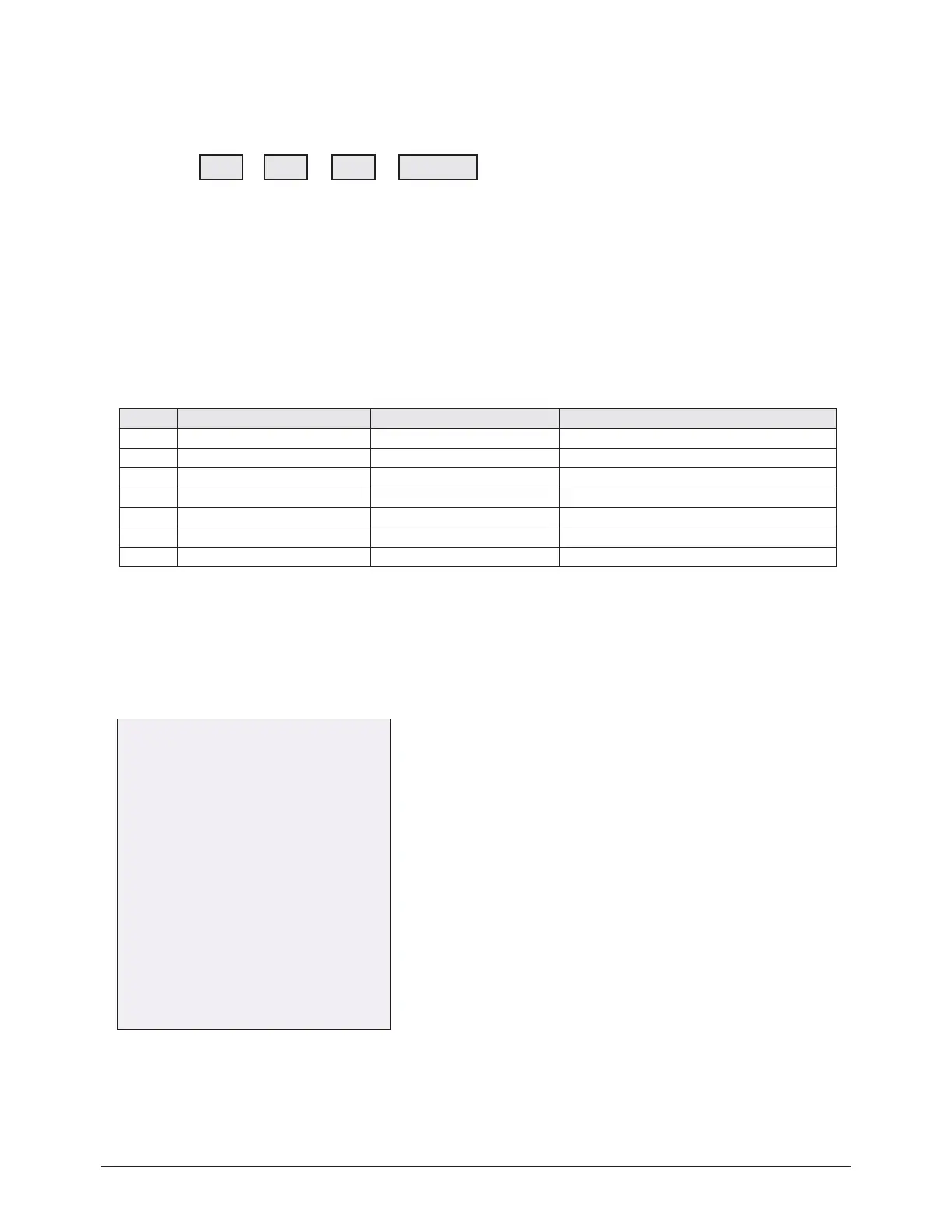
1. General Remote
1) Stand by
- Europe: →→→
2. Factory Remote
1) You can enter as pushing Display + Factory in state of power-on.
2) Push Factory Key again, and you can enter Aging mode. Push Factory Key again, and you can go back Factory mode.
(Factory ↔ Aging)
3) Push Display + 3 Speed Key, and you can enter aging mode.
3. Settings when entering Factory mode
- Sharp Screen (Dynamic), Color Tone (Cool1), Factory (Dynamic CE Off)
4. The contents to change when entering Service Mode
5. Adjustment Procedures
- Channel ▲▼Key: Select an item.
- Volume ◀▶ Key: Adjust the value up or down.
- MENU Key: Save the changes to the EEPROM and return to the higher-level mode.
- Using the Numeric (0~9) keys, you can select a channel.
- Using the SOURCE key, you can switch AV modes.
6. Initial SERVICE MODE DISPLAY State
※ The version of the firmware displayed at the bottom of the screen may differ and the firmware is subject to change for the
improvement of product functions.
※ If you have adjusted the settings in Service Mode, you have to reset the product.
INFO POWER ONMENU MUTE
No Item Mode Remark
1 Picture Mode Dynamic
2 Color Tone Mode Cool 1
3 Picture Size Wide
4 Dynamic Contrast Off
5 Digital NR Off
6 PIP Off
7 Gama Off OSD is ON
Option
ADC/WB
Control
Advanced
Expert
T-CRLPEUC-XXXX
T-CRLPEUHC-XXXX
T-CRLPEUS-XXXX
DTP-LP-XXXX-XX
DTP-LP-App-XXXX-XX
Option : 2010 0100
ADC : HDMI X COMP X PC X AV X
EDID : FAIL
HDCP : SUCCESS
PDP : P45E_42Sp
Bulld Date : XX-XX-XXXX







 To Next Page