
 To Next Page
P
Patrick BensonJul 30, 2025
How to avoid electric shock when mounting a Samsung TV?
- XxharrisJul 30, 2025
To avoid personal injury from electric shock when installing a wall mount kit for your Samsung TV, make sure your TV is turned off.

How to avoid electric shock when mounting a Samsung TV?
To avoid personal injury from electric shock when installing a wall mount kit for your Samsung TV, make sure your TV is turned off.
Compares the provided user manual with the embedded e-Manual for TV information.
Explains search, index, and recently viewed topics for navigating the e-Manual.
Explains hazard symbols and cautionary marks used in the manual.
Details safe placement and ventilation requirements to prevent overheating.
Covers power cord safety, shock prevention, and proper battery disposal.
Advises on cleaning, avoiding liquids, and fire safety measures.
States the warning regarding cancer and reproductive harm.
Recommends software updates and securing wireless access points.
Advises against suspicious websites and unauthorized app installations.
Provides steps and warnings for securely mounting the TV on a wall.
Details VESA dimensions and screw requirements for mounting.
Warns against incorrect screws, over-tightening, and tilt angles.
Explains the importance of maintaining space for airflow to prevent overheating.
Guides on using brackets and string to anchor the TV to prevent falls.
Details the purpose of each button on the Smart Remote.
Explains buttons like Bixby, Ambient Mode, and directional controls.
Describes the automatic and manual processes for pairing the remote.
Provides instructions for correctly inserting batteries into the remote.
Guides on using the mobile app for initial TV configuration.
Explains how to operate the TV using its on-device controller.
Addresses issues like the TV not turning on or having no picture/sound.
Covers troubleshooting the remote and cable/satellite box connectivity.
Solves problems with settings resetting and intermittent Wi-Fi.
Covers fixing video app issues and utilizing remote support services.
Explains the Eco Sensor's role in brightness adjustment and power saving.
Provides instructions for safely cleaning the TV to prevent damage.
Lists detailed specs like resolution, screen size, and weight for different models.
Outlines recommended operating and storage conditions for the TV.
Discusses reducing power use and environmentally sound disposal.
Shows diagrams and measurements for TV dimensions and back panel ports.
Lists trademarks and licenses for technologies like Dolby Audio and HDMI.
Explains the warranty period, parts, labor, and service terms.
Details what the warranty does not cover and consumer rights.
Provides contact information for warranty service and authorized retailers.
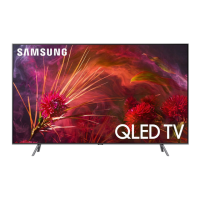
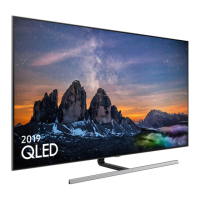
This document is a user manual for a Samsung QLED TV, specifically models QN55Q80R, QN65Q80R, and QN75Q80R. It provides comprehensive information on product safety, installation, operation, maintenance, and troubleshooting.
The Samsung QLED TV is a smart television designed to deliver a high-quality viewing experience. It features a QLED display with a high resolution, offering vibrant colors and sharp images. The TV is equipped with smart functionalities, allowing users to access various applications and online content. It integrates with Samsung's SmartThings app for enhanced control and setup. The TV also includes an embedded e-Manual for detailed information on its features and operations.
The TV offers a range of features to enhance user interaction and viewing.
Upon first turning on the TV, it automatically initiates the Initial Setup process. Users can follow on-screen instructions to configure basic settings. For a more streamlined setup, the SmartThings app can be used, connecting the mobile device via Wi-Fi. If the setup pop-up doesn't appear automatically in the app, users can manually add the TV using the "Add Device" option on the SmartThings dashboard. The SmartThings app is compatible with mobile devices running Android 6.0 or higher or iOS 10 or higher.
The TV can be controlled using the TV Controller located at the bottom of the TV, serving as an alternative to the remote control. While watching TV, users can change channels using the up and down directional buttons and adjust the volume with the left and right directional buttons. Pressing the central button displays the Control menu, from which users can navigate and select items using the directional buttons. Pressing and holding the central button terminates the running function.
The Samsung Smart Remote is the primary interface for controlling the TV. It pairs automatically with the TV upon first use. If pairing fails, users can manually pair by pointing the remote at the TV's remote control sensor and simultaneously pressing and holding the "Return" and "Play/pause" buttons for 3 seconds or more. The remote features several key buttons:
Samsung implements various measures to protect its Smart TVs from unauthorized access, including encryption for sensitive communications and controls to prevent unauthorized app installations. Users are encouraged to take additional steps:
The manual provides a troubleshooting section for common issues. Users are advised to check connections, power supply, and remote control batteries. For picture/sound problems, performing a TV self-diagnosis is recommended. If using an antenna or cable wall connector, running "Auto Program" helps search for channels. For Wi-Fi issues, checking network connection, password, distance to the modem/access point, and reducing interference from other wireless devices are suggested. For video app problems, changing the DNS to 8.8.8.8 and resetting Smart Hub are potential solutions.
Samsung offers a Remote Support service where a technician can remotely diagnose and adjust TV settings, perform factory resets, and install firmware updates. To access this, users call the Samsung Contact Center, navigate to "Settings > Support > Remote Management" on their TV, agree to service agreements, and provide a PIN to the technician.
The Eco Sensor automatically adjusts the TV's brightness based on the room's ambient light to reduce power consumption. This feature can be turned off via "Settings > General > Eco Solution > Ambient Light Detection." Users are advised not to block the eco sensor, located at the bottom of the TV, as this can affect picture brightness.
Proper care ensures the longevity and optimal performance of the TV.
To install batteries, push the rear cover open in the direction of the arrow. Insert batteries, ensuring positive and negative ends face the correct direction, then close the cover. Alkaline batteries are recommended for longer life.
The manual notes that the device is a Class B digital apparatus. Information regarding power supply and consumption can be found on the product label. Users are advised to dispose of unwanted electronics through approved recyclers, with information available on Samsung's recycling website or by phone.
 General
| Screen Size | 55 inches |
|---|---|
| Resolution | 3840 x 2160 (4K UHD) |
| Display Technology | QLED |
| Refresh Rate | 120 Hz |
| Smart TV | Yes |
| Operating System | Tizen |
| Audio Power | 40W |
| HDMI Ports | 4 |
| USB Ports | 2 |
| Wi-Fi | Yes |
| Ethernet | Yes |
| Voice Assistants | Bixby, Alexa, Google Assistant |
| Bluetooth | Yes |
| HDR | HDR10, HDR10+ |