Need help?
Do you have a question about the Samsung R519 and is the answer not in the manual?
Discusses online safety for children and the importance of parental guidance.
Explains T-Mobile's content lock system for preventing access to inappropriate material.
Step-by-step guide to connecting the laptop to power and starting it up.
Instructions for connecting the laptop to the internet using a T-Mobile USB stick.
Lists the pre-installed software applications on the computer.
Instructions for changing the Parent account password and managing user accounts.
Guide to activating and using Net Intelligence software for e-safety.
Instructions for updating and running Microsoft Security Essentials antivirus.
Step-by-step guide to performing a system recovery to restore original settings.
Provides contact information and advice for contacting the XMA technical helpline.
This document is a user guide for the Samsung R519 Notebook, provided as part of the Home Access Bundle. It outlines the setup, usage, and maintenance of the laptop, along with details about the included software and services. The guide emphasizes e-safety, content filtering, and technical support information to ensure a smooth user experience.
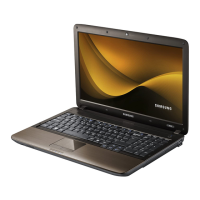
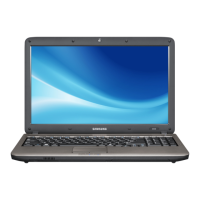
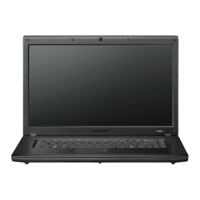
The Samsung R519 Notebook is a portable computer designed for general use, including educational and personal tasks. It comes pre-configured with essential software and connectivity options as part of the Home Access Bundle. The primary function of the notebook is to provide a platform for internet browsing, document creation, multimedia consumption, and educational activities.
The laptop is equipped with a mains lead and adaptor for power, a backpack for portability, and a mouse for navigation. For users who have ordered a full hardware and connectivity bundle, a Mobile Broadband USB stick 150 is included. This 3G stick contains a pre-configured SIM card, enabling internet access on the go. An instruction booklet for the T-Mobile stick and stick skins are also provided.
The notebook operates on Microsoft Windows 7 and features two user accounts: 'Learner' and 'Parent'. The 'Learner' account is intended for general use, while the 'Parent' account offers administrative control, including the ability to manage e-safety settings.
Key software supplied with the computer includes Microsoft Office (word processor, spreadsheet, and presentation software), Paint.Net (picture editing software), Windows Security Essentials (Anti-virus and Firewall), Net Intelligence (E-safety protection), and Know IT all for Parents (an interactive video guide).
Net Intelligence is a crucial component for e-safety, allowing parents to restrict users from accessing inappropriate material and customize internet usage rules. The T-Mobile content lock system further enhances protection by preventing access to 18-rated and unmoderated content for users under 18.
The laptop also includes a system recovery function, allowing users to restore the computer to its original factory settings in case of severe problems. This process, however, will result in the loss of all user files and data.
Setting up the laptop involves connecting the mains lead to the AC adaptor and then plugging it into a wall socket. The DC IN light on the system indicators will glow green when power is connected correctly. The AC adaptor connects to the left-hand side of the laptop.
The laptop features several ports and indicators:
The system indicators include:
To connect to the internet using the T-Mobile USB stick, users need to plug the stick into a USB port on the laptop. The laptop will detect the stick, and the T-Mobile Internet Manager application will launch. Users will need to select 'T-Mobile UK', agree to the license terms, and install the manager. After installation, the computer will reboot, and users will need to log in as 'Parent' to complete the setup. The first time connecting to the internet, users will be prompted to select a network location (e.g., 'Public Network') and activate the T-Mobile stick.
The 'Parent' account allows for password changes, which is essential for e-safety. The default password is 'xmahaadmin' (case sensitive). From the Control Panel, users can access 'User Accounts and Family Safety' to change the password.
Net Intelligence software is activated by double-clicking the NI icon on the desktop while connected to the internet. This opens a browser window where users can create an account using a username, password, activation key, and email address. Once activated, users can add or remove broad categories to be blocked or specify websites.
Windows Security Essentials runs continuously to protect the computer from viruses and spyware. It automatically updates definitions. Users can manually update definitions or initiate scans (Quick, Full, or Custom) from the 'Update' and 'Home' tabs within the Security Essentials application.
The Mobile Connectivity Allowance/Fair Usage Policy allows users to browse the internet without restriction, but a 2GB monthly fair use policy applies to downloads, streaming, and video clips during peak times.
The user guide provides simple steps to look after the new laptop:
The manufacturer's warranty covers faulty items. Damage due to misuse or neglect is not covered and will incur repair costs.
A system recovery process is available to restore the computer to its original settings. This involves starting the computer, pressing F8 to enter Advanced Boot Options, selecting 'Repair Your Computer', choosing 'United Kingdom' as the keyboard input method, entering 'xmahaadmin' as the password for the parent account, selecting 'System Image Recovery', and following the prompts to re-image the computer. This process takes approximately 10 minutes and will erase all user data.
Technical support is available via a helpline, open Monday to Sunday, 8:00 am to 10:00 pm, including Bank Holidays, but closed on Christmas Day. Users are advised to have the laptop's make, model, and serial number (located on the base plate) and contact details ready when calling. It is also recommended to be in front of the laptop during the call.
The guide also includes a returns policy, allowing customers in the European Union to withdraw from a purchase within seven working days for inspection. Returns for cancellation will incur a collection charge, unless the item was delivered in error or is damaged/defective. All goods must be returned in their original packaging, pristine condition, and with all accessories and manuals. Returns are not accepted by hand.
A reinstatement service is provided as part of the package, offering replacement equipment for theft for a period of 12 months from delivery, for one claim only. To make a claim, users must notify XMA within 14 days of the theft, submit a claim form, and obtain a police crime number. The service covers carriage costs within the UK. Exclusions include unattended equipment, intentional acts, use by others, loss of data, consequential loss, and amounts recoverable under other guarantees. Misrepresentation or fraud will void the service.
 General
| RAM | Up to 4GB DDR2 |
|---|---|
| Graphics | Intel GMA 4500M |
| Optical Drive | DVD Super Multi |
| Storage | 250GB HDD |
| Display | 15.6-inch, 1366 x 768 pixels |
| Operating System | Windows Vista Home Premium |
| Battery | 6-cell |
| Ports | 3 x USB 2.0, VGA |
| Wireless | 802.11b/g |
| Processor | Intel Pentium Dual-Core T4200 |

 To Next Page