EasyManua.ls Logo

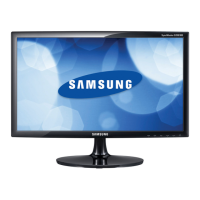
Samsung S20D300NH - User Manual

Samsung S20D300NH
78 pages
Print Icon
To Next Page IconTo Next Page
Loading...
User manual
S20D300NH
The color and the appearance may differ depending on
the product, and the specifications are subject to
change without prior notice to improve the performance.
BN46-00382F-01

Table of Contents

Questions and Answers

  • K
    Kristen GomezAug 6, 2025
    Why is there no image on my Samsung S20D300NH Monitor screen and the power LED is blinking?
    • L
      lauracopelandAug 6, 2025
      If there is no image on the screen of your Samsung Monitor and the power LED blinks every 0.5 to 1 second, it means that the product is in power-saving mode. Press any key on the keyboard or move the mouse to return to normal operating mode.
  • J
    Julian MillerAug 11, 2025
    How to fix a blurry screen on a Samsung S20D300NH Monitor?
    • M
      Mr. Joshua WatsonAug 11, 2025
      If the screen of your Samsung Monitor is not clear or is blurry, you can try the following: * Adjust Coarse and Fine settings. * Remove any accessories like video extension cables and try again. * Set the resolution and frequency to the recommended level.
  • M
    Marcus KellyAug 15, 2025
    How to stop my Samsung Monitor screen from switching on and off?
    • P
      pamelacarrilloAug 15, 2025
      If the screen of your Samsung Monitor keeps switching on and off, check the cable connection between the product and PC, and ensure the connectors are locked.
  • J
    Juan WilliamsAug 19, 2025
    Why is my Samsung S20D300NH screen unstable and shaky?
    • T
      Tyler RojasAug 19, 2025
      If the screen of your Samsung Monitor appears unstable and shaky, check that the resolution and frequency for the PC are within the range compatible with the product. If required, change the settings.
  • R
    rdanielsAug 23, 2025
    What to do if the message 'Check Signal Cable' appears on my Samsung S20D300NH Monitor?
    • G
      Gina BakerAug 25, 2025
      If the message 'Check Signal Cable' appears on your Samsung Monitor, ensure the cable is properly connected to the product and that the device connected to the product is powered on.
  • S
    Scott SmithAug 28, 2025
    How to resolve distorted images on a Samsung Monitor?
    • A
      Alexa TrevinoAug 28, 2025
      If the images on the screen of your Samsung Monitor look distorted, check the cable connection to the product.
  • C
    Corey GreenSep 1, 2025
    How do I fix 'Not Optimum Mode' on my Samsung Monitor?
    • N
      Natalie DeleonSep 1, 2025
      If 'Not Optimum Mode' is displayed on your Samsung Monitor, change the maximum resolution and frequency to suit the product performance.

Summary

Before Using the Product

Safety Precautions and Warnings

Important safety guidelines, warnings, and symbols to prevent injury or damage.

Electricity and Safety Guidelines

Precautions for safe use of electrical power cords and connections.

Product Preparations and Setup

Monitor Installation Procedures

Step-by-step guide for assembling and installing the monitor stand.

Connecting and Using a Source Device

Connecting Your PC to the Monitor

Instructions for connecting the monitor to a PC using a D-SUB cable.

Connecting the Power Supply

Steps for connecting the monitor to a power source.

Setting Optimal Display Resolution

Guidance on setting the monitor's resolution for best performance.

Screen Setup and Picture Adjustment

Adjusting Screen Brightness

How to adjust the overall brightness of the monitor's picture.

Configuring Contrast Settings

Instructions for adjusting the contrast between objects and background.

Setting Screen Sharpness

How to adjust the sharpness for clearer object outlines.

Color Configuration and Tint Adjustment

System Setup and Reset Options

Software Installation and Management

Troubleshooting and Support

Customer Service Contact Requirements

Steps to test the product before contacting customer service.

Product Specifications and Technical Details

Samsung S20D300NH Specifications

General IconGeneral
Screen Size20 inch
Resolution1600 x 900
Panel TypeTN
Aspect Ratio16:9
Response Time5 ms
Brightness250 cd/m²
Contrast Ratio1000:1
ConnectivityVGA, DVI
Color Support16.7 million colors
Refresh Rate60 Hz
Dynamic Contrast RatioMega
Viewing Angle170° horizontal, 160° vertical

Related product manuals