EasyManua.ls Logo

Samsung Series 9 - User Manual

Samsung Series 9
75 pages
Print Icon
To Next Page IconTo Next Page
Loading...
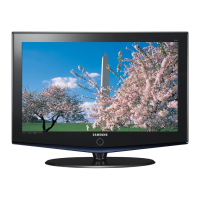
LCD TV
user manual
imagine the possibilities
Thank you for purchasing this Samsung product.
To receive more complete service, please register
your product at
www.samsung.com/global/register
Model Serial No.
Contact SAMSUNG WORLDWIDE
If you have any questions or comments relating to Samsung products, please contact the SAMSUNG customer care centre.
Country
Customer Care Centre
Web Site
EIRE 0818 717 100 www.samsung.com/ie
U.K 0845 SAMSUNG (7267864) www.samsung.com/uk
BN68-01737D-00
BN68-01737D-UK.indb 1 2008-08-12 �� 10:37:05

Table of Contents

Questions and Answers

  • J
    James ThomasJul 28, 2025
    Why is my Anynet+ not working on my Samsung Series 9 LCD TV?
    • D
      Douglas WeissJul 29, 2025
      If Anynet+ isn't functioning, ensure the device is Anynet+ compatible, connecting only one receiver (like a home theater). Verify the Anynet+ device's power cord, video/audio/HDMI 1.3 cable connections are secure and that Anynet+ (HDMI-CEC) is enabled in the Anynet+ setup menu. Also, confirm the TV remote is in TV mode, and if using an Anynet+ exclusive remote, ensure the Anynet+ function on the device is activated. After connecting or disconnecting the HDMI 1.3 cable, rescan for devices or power cycle the TV.
  • W
    William SellersAug 1, 2025
    What to do if the connected device is not displayed on my Samsung Series 9 with Anynet+?
    • C
      Cameron FisherAug 2, 2025
      If a connected device isn't showing up, first check that the device supports Anynet+ functions and that the HDMI 1.3 cable is properly connected. Make sure Anynet+ (HDMI-CEC) is turned on in the Anynet+ setup menu. Try rescanning for Anynet+ devices. Note that some HDMI cables might not support Anynet+ functions. If the connection was interrupted due to a disconnected HDMI cable, power cord, or power failure, rescan for devices.
  • G
    Gregory FloresAug 6, 2025
    How to start Anynet+ on a Samsung LCD TV?
    • T
      Taylor LopezAug 6, 2025
      To start Anynet+, ensure the Anynet+ device is correctly connected to your TV and that Anynet+ (HDMI-CEC) is enabled within the Anynet+ Setup menu. Press the TV button on your TV remote to switch to TV mode, then press the TOOLS button to access the Anynet+ menu and choose your desired option.
  • G
    gouldstephanieAug 10, 2025
    How to exit Anynet+ on Samsung LCD TV?
    • J
      Jennifer CainAug 10, 2025
      To exit Anynet+, select 'View TV' from the Anynet+ menu. Alternatively, press the SOURCE button on your TV remote and select a device other than your Anynet+ devices. You can also press the P >/< and PRE-CH buttons to change the TV mode; note that the channel button only works when a tuner-embedded Anynet+ device is not connected.
  • P
    Paul GonzalezAug 15, 2025
    What does 'Connecting to Anynet+ device...' mean on my Samsung LCD TV?
    • P
      parkerbobbyAug 15, 2025
      When the message 'Connecting to Anynet+ device...' appears, allow the Anynet+ setting or switching to view mode to complete before using the remote control.
  • D
    Donald ClarkAug 19, 2025
    Why is the TV sound not output through the receiver on my Samsung LCD TV?
    • M
      Michael NobleAug 19, 2025
      To resolve the issue of TV sound not outputting through the receiver, connect the optical cable between your TV and the receiver.
  • H
    hcarneyAug 23, 2025
    Why won't my Anynet+ device play on my Samsung LCD TV?
    • G
      gmercadoAug 23, 2025
      The play function is unavailable when Plug & Play is in progress.

Summary

Precautions When Displaying a Still Image

Connecting and Preparing Your TV

List of Parts

Lists the items included with the LCD TV.

Viewing the Control Panel

Viewing the Connection Panel

Remote Control

Switching On and Off

Viewing the Menus

Using the TOOLS Button

Plug & Play Feature

Channel Control

Manual Store

Channel List

Picture Control

Changing and Resetting the Picture Settings

How to adjust picture quality settings like brightness, contrast, etc.

Viewing Picture-in-Picture

PC Display

Setting Up PC Software

Guides to configure PC software for optimal display on the TV.

Setting Up TV with PC

Sound Control

Function Description

Parental Lock & Rating

Subtitle

Energy Saving

Software Upgrade

Setting the Time

Network Connection

Network Connection - Cable

Connects the TV to a network using a LAN cable (DHCP).

LAN Connection for Static IP

Network Connection - Wireless

Network Setup

Cable Network Setup - Manual Setup

Wireless Network Setup - Auto Setup

Wireless Network Setup - Manual Setup

Source List; Edit Name

Product Guide

WISELINK Pro

Connecting a USB Device

How to connect USB devices for media playback.

Using the WISELINK Pro Function

Removing USB Device Safely

Screen Display

Remote Control in WISELINK Pro Menu

Slide Show Option Menu

Using and Sorting Photo List

Using and Sorting Music List

Playing a Music

Using and Sorting Movie List

Playing a Movie File

Deleting Photo;Music;Movie File

Picture;Music Settings with WISELINK Pro

Using the Setup Menu

WISELINK Pro-DLNA

Setting the DLNA Network

Steps to connect the TV to a network for DLNA functionality.

Installing the DLNA Application

Guide to install the PC Share Manager program for DLNA.

Using the DLNA Application

Using the DLNA Function

Content Library

Activating the Content Library

How to access built-in and external content on the TV.

About Anynet+

Connecting Anynet+ Devices

How to connect Anynet+ compatible devices using HDMI.

Setting Up Anynet+

Scanning and Switching Anynet+ Devices

Recording

Listening via Receiver (Home Theater)

Troubleshooting for Anynet+

InfoLive

Using the Weather Service

Using the News Service

Using the Stock Service

InfoLive Setup

Setting Up Your Remote Control

Auto Wall-Mount Adjustment

Securing the TV to the Wall

Specifications

Important Safety Instructions

Wiring the Mains Power Supply Plug (UK)

Samsung Series 9 Specifications

General IconGeneral
Display TypeLCD
BacklightLED
HDMI Ports4
Smart TVYes
3D CapabilityYes
Built-in Wi-FiYes
DLNA CertifiedYes
Resolution1920 x 1080
Dimensions (W x H x D)1.2 inches

Related product manuals