Need help?
Do you have a question about the Samsung SM-J810G/DS and is the answer not in the manual?
Important initial information for safe and proper use of the device.
Explanation of icons used in the manual for warnings, cautions, and notices.
Details on performance limits and automatic shutdown due to overheating.
Advice on avoiding environments that can cause device overheating.
Information about items included in the device package.
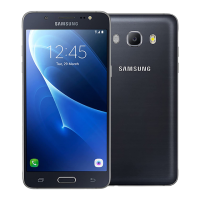
Diagrams identifying external components of the device.
Explanation of the functions of physical buttons like Power and Volume.
Description of on-screen navigation buttons like Home and Back.
Instructions and precautions for charging the device's battery.
Tips and methods to conserve device battery power.
Important advice and warnings related to charging the battery.
Step-by-step instructions for inserting SIM/USIM cards.
Instructions specific to devices with a single SIM card slot.
Instructions specific to devices with dual SIM card slots.
Details on installing a SIM card in the first tray for dual SIM models.
Details on installing a SIM card in the second tray for dual SIM models.
Visual guide and tips for proper SIM/USIM card insertion.
Steps to safely remove SIM/USIM cards from the device.
Instructions for managing dual SIM functionality.
How to enable and use SIM/USIM cards.
Options for personalizing SIM card settings like name and network.
Configuring which SIM card is used for calls, messages, and data.
Instructions on how to insert a memory card into the device.
Steps to safely unmount and remove the memory card.
Instructions on how to format a memory card for use with the device.
How to force a restart if the device becomes unresponsive.
Activating emergency mode to conserve battery and access emergency features.
Overview of what a Samsung account is and its benefits.
Steps to create or link a Samsung account to the device.
Detailed guide for creating a new Samsung account.
Instructions for signing into an existing Samsung account.
Steps to remove a Samsung account from the device.
Using Samsung Smart Switch for data transfer.
Wireless data transfer from another mobile device.
Moving data via microSD cards or other external storage.
Using a computer to back up and transfer data.
Instructions for backing up device data to Samsung Cloud.
Steps to restore backed-up data from Samsung Cloud.
Synchronizing device data with Samsung Cloud across devices.
How to view saved items and check backup data in Samsung Cloud.
Precautions and tips for using the touchscreen properly.
Basic touch gesture: tapping the screen.
Basic touch gesture: tapping and holding the screen.
Basic touch gesture: moving items on the screen.
Basic touch gesture: tapping the screen twice quickly.
Basic touch gesture: moving fingers across the screen.
Basic touch gesture: zooming in and out.
How to manage the visibility of the navigation bar.
Customizing the appearance and layout of the navigation bar.
Overview of the device's Home and Apps screens.
Navigating between the Home and Apps screens.
How to rearrange icons and apps on the Home screen.
Organizing apps into folders on the Home screen.
Customizing wallpapers, themes, widgets, and panels.
Configuring to show all apps directly on the Home screen.
Explanation of status bar icons like signal strength and Wi-Fi.
Setting up patterns, PINs, passwords, face, or fingerprint locks.
How to take screenshots using buttons or gestures.
Accessing and using quick settings toggles.
Overview of the on-screen keyboard and its functions.
Switching between different languages for text input.
Selecting different keyboard types and layouts.
Advanced keyboard features like word prediction and voice input.
How to copy and paste text on the device.
Using the built-in dictionary to look up word definitions.
Procedures for downloading, installing, and removing applications.
Using the Samsung Galaxy Apps store.
Using the Google Play Store for app downloads.
Controlling installed applications, including permissions.
How to remove or disable applications from the device.
Steps to re-enable disabled applications.
Managing access rights for apps to device features and data.
Overview of Bixby features and requirements.
Initial setup and activation of the Bixby assistant.
The main interface for Bixby, showing recommendations.
How to access and navigate the Bixby Home screen.
How to view and manage content cards in Bixby Home.
Customizing the Bixby Home cards display.
Choosing which apps appear as cards in Bixby Home.
Adjusting Bixby's account, cards, notifications, and privacy.
How to access and begin using the Reminder feature.
Methods for setting time-based or location-based reminders.
How to view and respond to reminder alerts.
Accessing and managing all created reminders.
Editing reminder frequency, time, location, and notes.
Marking reminders as finished.
Retrieving completed reminders.
Removing individual or multiple reminders.
Overview of the Phone app's purpose.
Steps to initiate voice and video calls.
Calling contacts directly from call history or the contacts list.
Setting up and using speed dial numbers for quick calls.
Placing calls without unlocking the device.
Instructions for dialing international numbers.
How to accept an incoming call.
Methods to decline an incoming call, with options for messages.
Viewing a list of calls that were not answered.
Preventing specific numbers or unknown callers from reaching you.
Available actions like adding calls, recording, and adjusting volume.
Available actions like switching cameras and muting.
Saving numbers directly from the dialer.
Saving numbers from call history.
Assigning custom tags to numbers without saving them.
Overview of the Contacts app.
Methods for adding new contacts.
Detailed steps for adding a new contact entry.
Bringing contacts from external sources into the device.
Connecting contacts with online accounts like Samsung or Google.
Finding contacts using various search methods.
Methods for sending contact information to others.
Managing and sharing your contact profile.
Combining multiple entries for the same contact.
Removing contact entries from the device.
Overview of the Messages app.
Steps to compose and send text or voice messages.
Reading and replying to text conversations.
Filtering out unwanted text messages.
Customizing notification sounds and display for messages.
Enabling alerts for unread messages.
Overview of the Internet browser.
Instructions for navigating websites, using toolbars, and tabs.
Private browsing feature with password protection.
Steps to enable and set up secret mode.
Modifying the password or fingerprint lock for secret mode.
Steps to turn off secret mode.
Configuring email accounts on the device.
Composing and sending email messages.
Retrieving, viewing, and managing incoming emails.
Overview of the Camera app.
Guidelines for responsible camera usage.
Various methods to open the camera application.
Steps to capture images and videos.
Customizing the camera interface with an extra button.
Methods for adjusting zoom levels in the camera.
Controlling focus and exposure for better shots.
How to use Live Focus for enhanced portrait photography.
Modifying background blur and shapes in Live Focus images.
Changing the intensity of background blur.
Applying shapes to bokeh effects in the background.
Using random sticker application for fun.
Using the camera in automatic settings.
Applying beauty effects to portraits.
Manual camera controls for advanced photography.
Capturing wide-angle panoramic photos.
Taking photos in low-light conditions.
Capturing rapid sequences of photos.
Capturing fast-moving subjects clearly.
Adjusting facial features for selfies.
Adjusting skin tone and color for selfies.
Quick access options like flash and filters.
Detailed settings for rear and front cameras.
Overview of the Gallery app.
How to view and interact with photos.
Finding photos by category or keywords.
Playing and controlling video playback.
Accessing file details, location, and auto-created content.
Organizing and viewing photos/videos by album.
Making specific albums invisible.
Viewing automatically created content collections.
Manually creating stories with selected media.
Removing created stories.
Backing up media files to Samsung Cloud.
Removing individual or multiple media files.
Overview of split-screen and pop-up view features.
Steps to activate and use split screen mode.
Managing app windows, including closing and switching.
Resizing app windows in split screen.
Minimizing split screen to the status bar.
Pinning an app window to the top of the screen.
Saving frequently used app pairs for quick launch.
Running apps in floating windows.
Repositioning floating app windows.
Exploring further features and feedback options.
Overview of the note-taking app.
Writing, drawing, and inserting media into notes.
Removing notes from the app.
Overview of the Calendar app.
Adding appointments, tasks, and setting reminders.
Adding and managing to-do items.
Connecting calendar data with online accounts.
Overview of Samsung Health's purpose.
Monitoring wellness, setting goals, and tracking progress.
Setting personal fitness and wellness goals.
Social features for competing and sharing fitness activities.
Tracking daily step count and distance.
Disclaimers and terms of use for Samsung Health.
Overview of the voice recording app.
Overview of the file management app.
Overview of the Clock app.
Setting, managing, and stopping alarms.
Viewing and managing time in different cities.
Adding new cities to the world clock.
Removing cities from the world clock.
Using the stopwatch for timing events.
Setting countdown timers.
Overview of the Calculator app.
Overview of the Radio app.
Steps to tune into FM radio stations.
Using the device speaker for radio playback.
Searching for and saving available radio stations.
Overview of the Game Launcher's purpose.
Activating and utilizing the Game Launcher.
Deleting games from the launcher.
Adjusting performance settings for games.
Accessing game-specific tools like recording and notification blocking.
Preventing interruptions while gaming.
Overview of SmartThings features.
Pairing with Bluetooth devices and other smartphones.
Controlling smart home devices.
Registering new smart devices.
Monitoring and managing registered devices.
Organizing devices and creating scenes based on location.
Defining locations for device management.
Creating custom actions involving multiple devices.
Setting up automatic device actions based on time or conditions.
Getting alerts from connected devices.
Link Sharing and Share to device functionalities.
Web browsing with Google Chrome.
Using Gmail for email communication.
Navigating and finding locations with Google Maps.
Listening to and managing music.
Purchasing or renting video content.
Cloud storage and file sharing.
Watching and creating videos.
Managing and editing photos and videos.
Searching the internet and device.
Making video calls.
Overview of device settings.
Managing network and wireless connections.
General connection settings like Wi-Fi and Bluetooth.
Disabling wireless functions for travel.
Sharing the device's internet connection.
Configuring cellular network settings.
Managing SIM cards in dual SIM devices.
Managing location services permissions.
Advanced connection options like VPN and printing.
Connecting to wireless networks.
Steps to connect to a Wi-Fi network.
Direct device-to-device wireless connections.
Activating and using Wi-Fi Direct for data transfer.
Sharing data wirelessly via Wi-Fi Direct.
Disconnecting from Wi-Fi Direct devices.
Connecting and transferring data wirelessly via Bluetooth.
Overview of Bluetooth capabilities.
Steps to connect the device to Bluetooth accessories.
Transferring files using Bluetooth.
Removing paired Bluetooth devices.
Reducing mobile data consumption.
Sharing the device's internet connection.
Setting up and using the device as a Wi-Fi hotspot.
Managing SIM cards for dual SIM functionality.
Additional connection options like VPN and printing.
Connecting to printers and printing documents.
Installing software for printer connectivity.
Customizing audio and vibration settings.
Sound modes, ringtones, notification sounds, and touch sounds.
Activating and using spatial audio enhancement.
Managing app notification settings and badges.
Adjusting screen settings and appearance.
Brightness, outdoor mode, blue light filter, screen modes.
Reducing blue light emission for eye comfort.
Selecting display modes and fine-tuning colors.
Choosing between Adaptive, AMOLED Cinema, Photo, and Basic modes.
Fine-tuning the display's color balance.
Individually adjusting Red, Green, or Blue color tones.
Setting up images to display when the device is idle.
Customizing the device's visual appearance.
Accessing additional device functionalities.
Games, one-handed mode, finger sensor gestures.
Taking screenshots using hand gestures.
Receiving alerts for missed calls or messages.
Muting calls or alarms using palm gestures.
Initiating calls or messages via swipe gestures.
Simultaneous video watching and chatting.
Using two accounts for the same messaging app.
Sending emergency messages by pressing the power key.
Quickly sharing content with recent contacts.
Setting up and managing a second instance of messaging apps.
Installing and using a second app instance.
Removing the second instance of an app.
Optimizing device performance, battery, storage, and security.
One-tap optimization for device performance.
Checking battery status and managing power consumption.
Activating MID or MAX power saving modes.
Preventing background apps from draining battery.
Checking and managing device storage space.
Deleting residual files and unused apps.
Clearing background apps to improve device speed.
Scanning for malware and checking security status.
Reducing mobile data usage with compression features.
Managing installed applications.
Configuring screen lock settings.
Screen lock type, Smart Lock, clock style, notifications, app shortcuts.
Automatic device unlocking based on location or trusted devices.
Securing the device using biometric data and other security measures.
Face Recognition and Fingerprint Scanner settings.
Checking for harmful apps.
Locating and managing lost or stolen devices.
Checking for and installing system security updates.
Allowing installation from non-Google Play sources.
Using biometrics for secure login and payments.
Creating a secure, private storage area.
Tracking app permission usage.
Requiring unlock code on device startup.
Protecting data on the memory card.
Additional security configurations.
Setting up facial recognition for unlocking.
Important considerations and limitations of face recognition.
Tips for improving facial recognition accuracy.
Step-by-step guide to enroll your face.
Removing enrolled facial data.
Using face recognition to unlock the device.
Setting up and using fingerprint scanning.
Using fingerprints for account verification.
Using fingerprints to unlock the device screen.
Using fingerprints to access secure storage.
Tips for improving fingerprint scan performance.
Step-by-step guide to enroll fingerprints.
Removing enrolled fingerprints.
Utilizing registered fingerprints with Samsung Pass.
Using fingerprints to unlock the device.
Managing identity verification and login credentials.
Enrolling biometric data for Samsung Pass.
Using Samsung Pass for account password verification.
Automating website logins with Samsung Pass.
Automating app logins with Samsung Pass.
Viewing and managing saved login details.
Creating a private, encrypted space for apps and data.
Description of Secure Folder as secured storage.
Steps to install and set up Secure Folder.
Configuring automatic locking of the Secure Folder.
Transferring files and apps into Secure Folder.
Transferring files out of Secure Folder.
Adding apps to use within Secure Folder.
Uninstalling apps from Secure Folder.
Linking accounts for syncing within Secure Folder.
Making the Secure Folder shortcut invisible.
Cloud backup and restore for Secure Folder contents.
Removing Secure Folder and its contents.
Managing cloud services and user accounts.
Samsung Cloud, accounts, backup/restore, Smart Switch.
Protecting device data through backups.
Backing up and restoring data using a Samsung account.
Backing up and restoring data using a Google account.
Configuring Google-specific device settings.
Features to improve device usability for all users.
Overview of accessibility features.
Settings for visually impaired users.
Settings for users with hearing impairments.
Settings for users with reduced dexterity.
Converting text to speech.
Customizing screen unlock direction patterns.
Launching accessibility menus with key combinations.
Activating Voice Assistant or universal switch.
Alerts for unread notifications.
Changing call handling methods.
Controlling calls/notifications with taps instead of swipes.
Viewing installed accessibility services.
System settings and device reset options.
Overview of general management features.
Changing device language, keyboard, and voice input.
Setting and adjusting device time and date.
Getting support and FAQs.
Sending usage data to Samsung.
Managing marketing communications.
Resetting device settings or performing a factory data reset.
Adding support for multiple languages on the device.
Updating the device's operating system and firmware.
Information on device security patches.
Accessing help and guidance for device usage.
Viewing device specifications and information.
Viewing device details like SIM status and MAC address.
Viewing safety and licensing information.
Checking operating system and firmware versions.
Viewing the device's battery status.
Supplementary information.
Solutions for common device issues.
Explanation of Password, PIN, PUK, and PIN2 codes.
Troubleshooting network connectivity and service errors.
Steps to resolve issues with the device failing to power on.
Solutions for slow or unresponsive touchscreen problems.
Troubleshooting steps for device freezes and errors.
Basic procedure for restarting a frozen device.
How to perform a hard reset if the device is unresponsive.
Performing a factory data reset as a last resort.
Troubleshooting issues with making or receiving calls.
Resolving problems where others cannot hear you.
Addressing audio echo problems.
Troubleshooting connectivity and audio quality issues.
Addressing low battery indicators.
Troubleshooting battery charging issues.
Addressing faster battery drain after purchase.
Resolving issues when the camera app fails to launch.
Troubleshooting low photo quality.
Resolving issues with opening or playing media files.
Troubleshooting Bluetooth connection problems.
Troubleshooting device connection to computers.
Resolving problems with GPS signal or location services.
Importance of backups when data is lost.
Explanation of a minor manufacturing feature.
Tips for freeing up device storage space.
Troubleshooting the absence of the Apps button on the Home screen.
Troubleshooting the disappearance of the Home button.
Troubleshooting the notification panel brightness slider.
Troubleshooting Samsung Cloud connectivity issues.
Safety warnings and instructions regarding battery removal.
 General
| Brand | Samsung |
|---|---|
| Model | SM-J810G/DS |
| Category | Cell Phone |
| Language | English |

 To Next Page