EasyManua.ls Logo

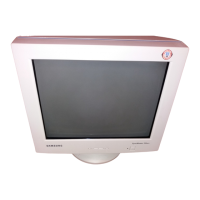
Samsung SyncMaster 755DFX - User Manual

Samsung SyncMaster 755DFX
63 pages
Print Icon
To Next Page IconTo Next Page
Loading...
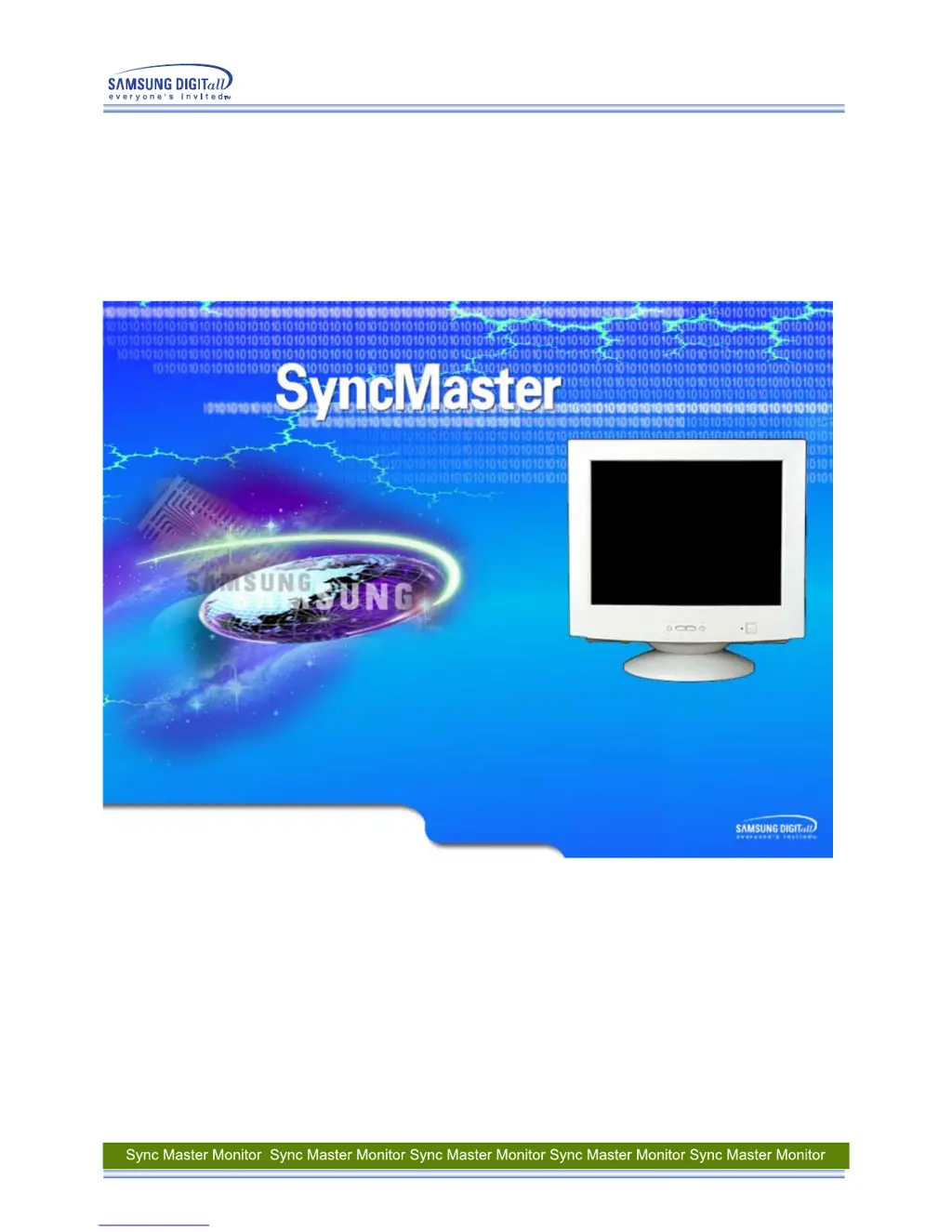
SyncMaster 753DFX / 755DFX / 753DF / 755DF

Questions and Answers

  • M
    Michael EstesAug 14, 2025
    What to do if my Samsung SyncMaster 755DFX Monitor screen says "No Connection, Check Signal Cable"?
    • J
      josehowellAug 14, 2025
      If your Samsung Monitor displays "No Connection, Check Signal Cable", verify the signal cable connection to ensure it is properly connected.
  • C
    Christopher WelchAug 17, 2025
    What to do if the Samsung SyncMaster 755DFX screen displays only one color?
    • S
      Steven JonesAug 18, 2025
      If your Samsung Monitor displays only one color, check the signal cable connection. Also, ensure that the video card is fully inserted in its slot.
  • M
    Michelle HarrisonAug 21, 2025
    How to unlock the On Screen Display (OSD) Menu on a Samsung SyncMaster 755DFX?
    • L
      Luke WilliamsAug 21, 2025
      To unlock the On Screen Display (OSD) Menu on your Samsung Monitor, press the MENU button for at least 10 seconds.
  • X
    xwalterAug 25, 2025
    What causes the screen image to shake or vibrate on a Samsung SyncMaster 755DFX?
    • M
      Melissa GeorgeAug 25, 2025
      The screen image on your Samsung monitor might shake or vibrate at a particular time of day due to low supply voltage.
  • B
    bensonbrittanyAug 27, 2025
    How to adjust the frequency on a Samsung Monitor?
    • J
      Julie Cruz MDAug 28, 2025
      Adjust the frequency properly by referring to the video card manual and the Preset Display Modes.
  • M
    Michael PageAug 31, 2025
    What to do if my Samsung Monitor image is not on the screen and the power indicator is blinking?
    • K
      Kristina SmithAug 31, 2025
      If there is no image on the screen and the power indicator on your Samsung monitor is blinking at 1-second intervals, it means the monitor is in PowerSave mode. To restore the image, press a key on the keyboard or move the mouse.
  • W
    Wayne VelasquezSep 3, 2025
    Why does my Samsung SyncMaster 755DFX say "Sync. Out of Range"?
    • M
      Mario MartinezSep 3, 2025
      The "Sync. Out of Range" message on your Samsung Monitor indicates that the signal from the video card exceeds the maximum resolution and frequency that the monitor can handle. To resolve this, adjust the maximum resolution and frequency applicable to the monitor.
  • G
    Gabriel CarterSep 6, 2025
    What to do if the screen colors on my Samsung SyncMaster 755DFX Monitor become strange?
    • E
      Erin LeachSep 6, 2025
      If the screen colors on your Samsung Monitor have become strange after running a program or due to a crash between applications, reboot the computer.
  • M
    Maria RodriguezSep 9, 2025
    What to do if there are magnetic products near my Samsung SyncMaster 755DFX?
    • S
      Susan Compton MDSep 9, 2025
      Move the Samsung monitor away from anything that can create a strong magnetic field.

Summary

Safety Instructions

Warning; Caution

Describes potential risks and consequences of not following safety instructions.

Notational Conventions

Explains the meaning of symbols used in safety instructions.

Power Safety Precautions

Guidelines for safe handling and usage of the power cord and plug.

Installation Safety Guidelines

Safe practices for setting up and installing the monitor.

Cleaning Safety Procedures

Instructions for safely cleaning the monitor case and screen.

General Safety Precautions

Covers other important safety advice for monitor usage.

Introduction to the Monitor

Unpacking Contents

Lists all items included in the monitor's packaging.

Front Panel Overview

Identifies and explains buttons and indicators on the monitor's front.

Rear Panel Connectivity

Details the ports and connectors located on the rear of the monitor.

Bottom Panel Features

Describes components found on the bottom of the monitor.

Setup and Installation

Connecting Your Monitor

Step-by-step instructions for connecting the monitor to a computer.

Installing Video Drivers

Guide to installing monitor drivers for various Windows operating systems.

Tilt and Swivel Base Installation

Instructions for attaching and removing the monitor's base.

On Screen Display (OSD) Menu System

Adjusting Brightness and Contrast

How to modify screen brightness and contrast levels.

Adjusting Horizontal Position

Procedure to change the horizontal position of the display.

Adjusting Vertical Position

Procedure to change the vertical position of the display.

Adjusting Horizontal Size

How to modify the horizontal size of the display area.

Adjusting Vertical Size

How to modify the vertical size of the display area.

Correcting Pincushion Distortion

Adjusts the display to correct bowing on the sides.

Correcting Trapezoid Distortion

Adjusts the display to correct bowing at the top or bottom.

Correcting Parallelogram Distortion

Adjusts the display to correct leaning left or right.

Adjusting Display Rotation

How to rotate the display orientation.

Correcting Pinbalance Distortion

Adjusts the display to correct bowing towards left or right sides.

Adjusting Vertical Linearity

Corrects compression of the display image.

Setting Menu Language

Instructions for changing the OSD menu language.

Clearing Moiré Patterns

Procedure to eliminate moiré patterns from the screen.

Adjusting Video Input Level

Selects 0.7V or 1.0V for optimal video signal input.

Adjusting Color Temperature

Modifies image colors by adjusting warmth (6500K-9300K).

Using Halftone Display Mode

Enables a transparent on-screen display effect.

Using the Zoom Function

Allows zooming in or out on the monitor's viewing area.

Degaussing the Monitor

Removes color impurities caused by magnetic fields.

Recalling Default Settings

Resets all adjustable monitor settings to their original levels.

Display Timing Information

Shows display timing, user timing, and factory timing details.

OSD Lock and Unlock

Instructions on how to lock and unlock the OSD controls.

Troubleshooting Guide

Troubleshooting Checklist

A step-by-step list to diagnose and solve common monitor problems.

Troubleshooting Q&A

Frequently asked questions and their answers for problem resolution.

Self-Test Feature Check

Procedure to verify monitor functionality independently of the computer.

Troubleshooting Conditions and Tips

Covers warning messages, environmental factors, and useful usage tips.

Product Specifications

General Monitor Specifications

Detailed technical data including model, resolution, and physical dimensions.

Preset Display Modes

Lists supported display resolutions and their corresponding frequencies.

PowerSaver Functionality

Information on the monitor's energy-saving PowerSaver system.

Important Information

Service and Support Contacts

Worldwide service center contact details for assistance.

Glossary of Technical Terms

Definitions of technical terms related to monitor operation.

Regulatory Compliance Information

Details FCC, IC, MPR II, and CE compliance standards.

TCO95 Ecological Requirements

Environmental standards for personal computers based on TCO'95.

TCO99 Ecological Requirements

Environmental standards for personal computers based on TCO'99.

Legal Authority and Copyright

Information regarding document usage, trademarks, and copyright.

Samsung SyncMaster 755DFX Specifications

General IconGeneral
BrandSamsung
ModelSyncMaster 755DFX
CategoryMonitor
LanguageEnglish

Related product manuals