Front
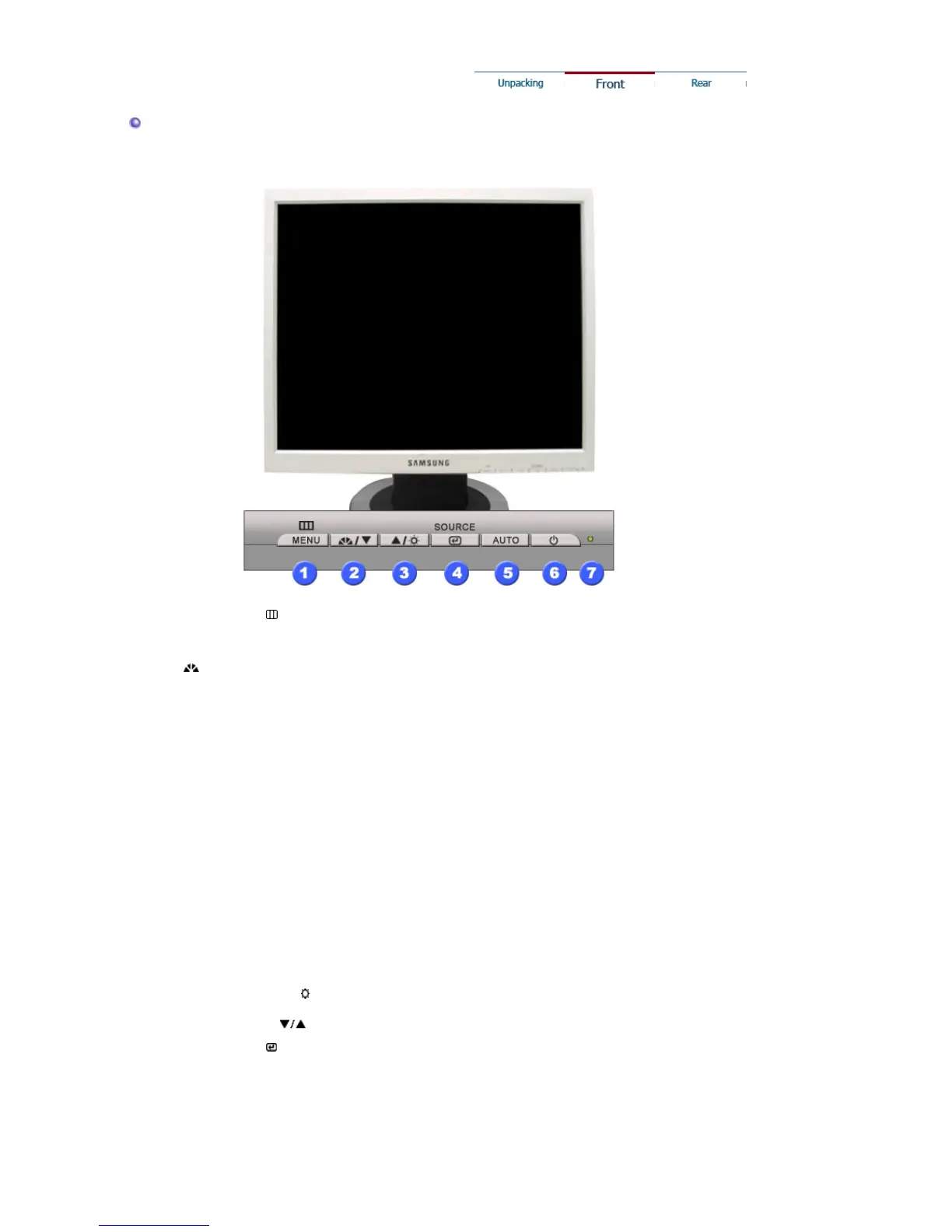
1. Menu button [ ]
Opens the OSD menu. Also use to exit the OSD menu or return to
the previous menu.
2. MagicBright button
[]
MagicBright is a new feature providing optimum viewing
environment depending on the contents of the image you are
watching. Currently four different modes are available: Custom,
Text, Internet, and Entertain. Each mode has its own pre-
configured brightness value. You can easily select one of four
settings by simply pressing MagicBright control buttons.
1) Custom
Although the values are carefully chosen by our engineers, the
pre-configured values may not be comfortable to your eyes
depending on your taste.
If this is the case, adjust the Brightness and Contrast by using
the OSD menu.
2) Text
: Normal Brightness
For documentations or works involving heavy text.
3) Internet
: Medium Brightness
For working with a mixture of images such as text and
graphics.
4) Entertain
: High Brightness
For watching motion pictures such as a DVD or VCD.
>>Click here to see an animation clip
3.
Brightness button [ ]
When OSD is not on the screen, Push the button to adjust
brightness.
2,3. Adjust buttons [ ]
Adjust items in the menu.
4. Enter button [ ] /
Source button
Activates a highlighted menu item. /
Push the 'Source', then Selects the Video signal while the OSD is
off. (When the Source button is pressed to change the input mode,
a message appears in the center of the screen displaying the
current mode -- analog or digital input signal.) Note : If you select
the Digital mode, you must connect your monitor to the graphic
card's port using the DVI cable.




 To Next Page